#27
www.istorage-uk.com
iStorage datAshur SD
®
User Manual v1.0.8
34. How to check the User PIN Brute Force Limitation
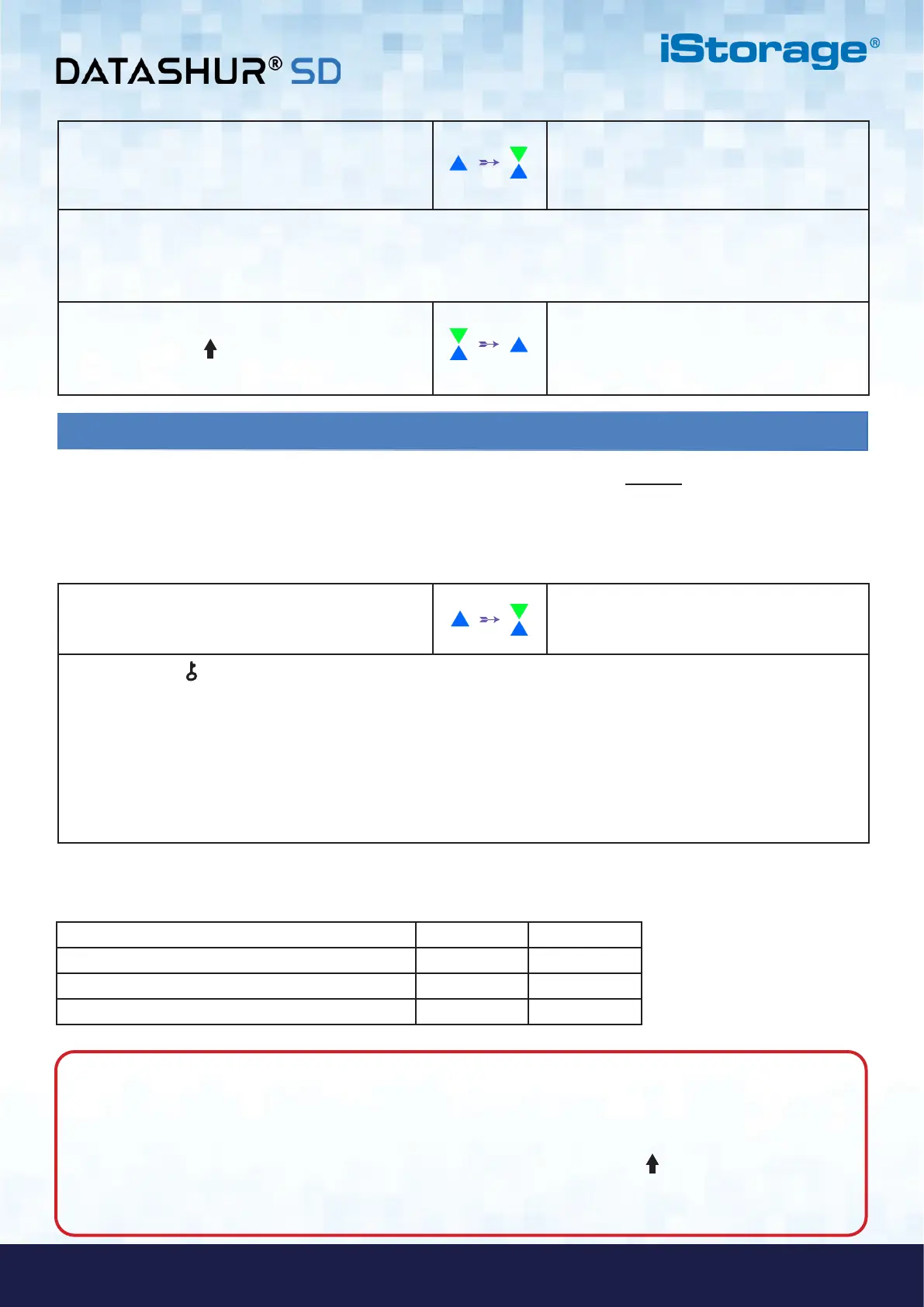
1. In Admin Mode press and hold down both
2 + 0 buttons
Solid BLUE LED will change to blinking GREEN
and BLUE LEDs
2. Press the KEY ( ) button and the following happens:
a. All LED’s (RED, GREEN & BLUE) become solid for 1 second.
b. Each RED LED blink equates to ten (10) units of a brute force limitation number.
c. Every GREEN LED blink equates to one (1) single unit of a brute force limitation number.
d. All LED’s (RED, GREEN & BLUE) become solid for 1 second.
e. LEDs return to solid BLUE
The Administrator is able to observe and determine the number of consecutive times an incorrect User PIN is allowed to be
entered before triggering the Brute Force defence mechanism by simply noting the LED sequence as described below.
To check the brute force limitation setting, first enter the Admin Mode as described in section 5. Once the drive is in Admin
Mode (solid BLUE LED) proceed with the following steps.
1. In Admin Mode, press and hold down both
7 + 0 buttons
Solid BLUE LED will change to GREEN and
BLUE LEDs blinking together
2. Enter the number of attempts for the brute force limitation (between 01-10), for example enter:
• 01 for 1 attempt
• 10 for 10 attempts
3. Press the SHIFT ( ) button once
Blinking GREEN and BLUE LEDs will switch
to a solid GREEN LED for a second and then
to a solid BLUE LED indicating the brute force
limitation was successfully configured
The table below describes the LED behaviour whilst checking the brute force limitation setting, for instance if you have set the
drive to brute force after 5 consecutive incorrect PIN entries, the GREEN LED will blink five (5) times.
Brute Force Limitation Setting RED GREEN
2 attempts 0 2 Blinks
5 attempts 0 5 Blinks
10 attempts 1 Blink 0
Note: When the datAshur SD is in Admin Mode, the BLUE LED will remain on and solid for 30 seconds only,
during which time the drive can accept instructions via the keypad allowing it to be configured with a host of security
features. If no key event happens within 30 seconds, the datAshur SD will exit Admin Mode automatically - the solid
BLUE LED switches to a solid RED LED which then fades out to the Idle State (all LEDs off).
To immediately exit Admin Mode (solid BLUE LED), press and hold down the SHIFT ( ) button for a second - the
solid BLUE LED switches to a solid RED LED which then fades out to the Idle State. To access the drive contents
(data), the datAshur SD must first be in the Idle State (all LEDs off) before an Admin/User PIN can be entered.













 To Next Page