#22
iStorage datAshur SD
®
User Manual v1.0.8
www.istorage-uk.com
26. How to configure an Admin PIN after a Brute Force attack or Reset
It will be necessary after a Brute Force attack or when the datAshur SD has been reset to configure an Admin PIN before the
drive can be used.
PIN Requirements:
• Must be between 8-64 digits in length
• Must not contain only repetitive numbers, e.g. (3-3-3-3-3-3-3)
• Must not contain only consecutive numbers, e.g. (1-2-3-4-5-6-7), (7-8-9-0-1-2-3-4), (7-6-5-4-3-2-1)
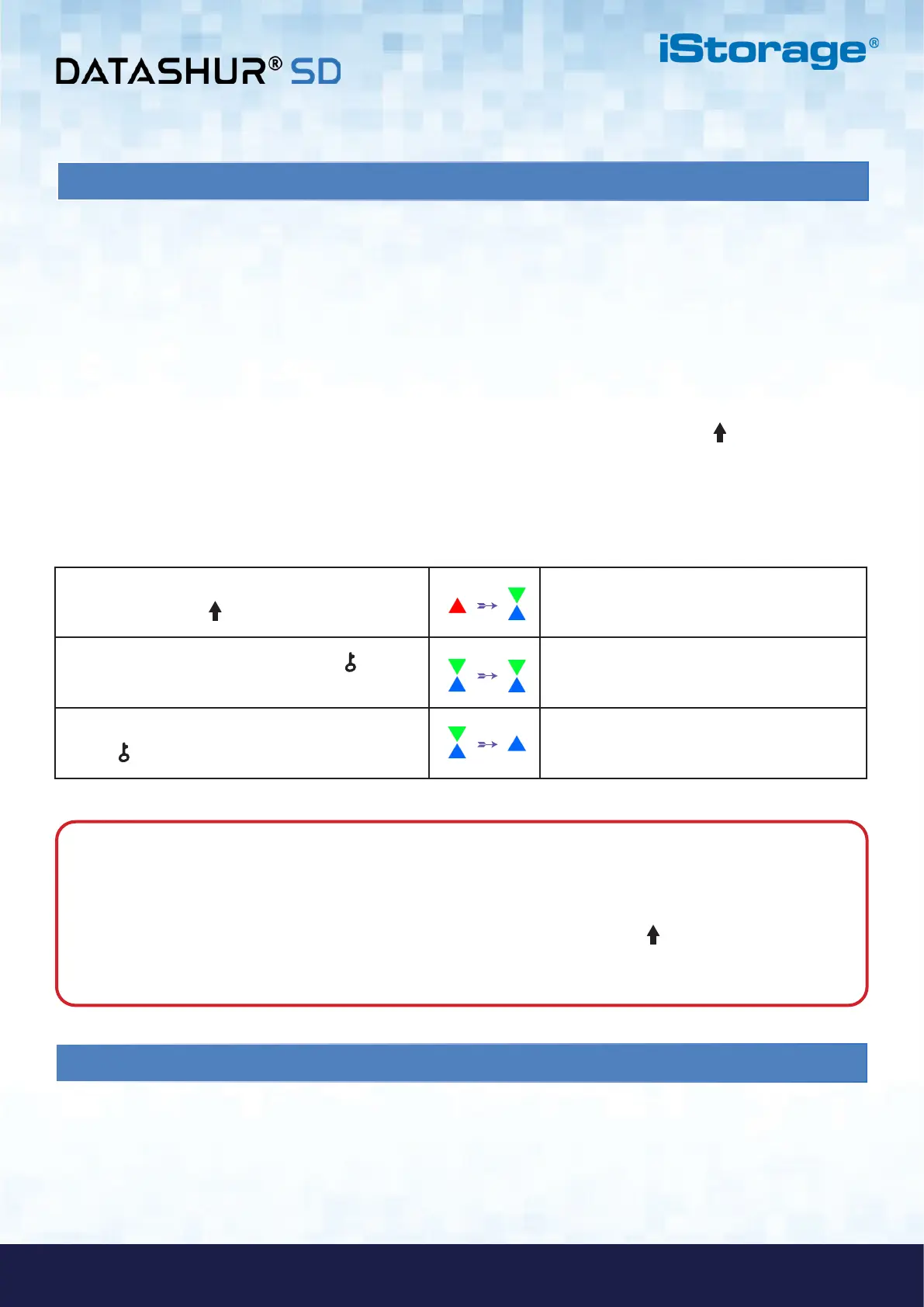
1. In standby state (solid RED LED), press and hold
down both SHIFT ( ) + 1 buttons
Solid RED LED will change to blinking GREEN
and solid BLUE LEDs
2. Enter New Admin PIN and press KEY ( )
button
Blinking GREEN and solid BLUE LEDs will
switch to a single GREEN LED blink and then
back to blinking GREEN and solid BLUE LEDs
3. Re-enter the New Admin PIN and press
KEY ( ) button
Blinking GREEN LED and solid BLUE LED
change to a solid BLUE LED indicating the
Admin PIN was successfully configured.
If the datAshur SD has been brute forced or reset, the drive will be in standby state (solid RED LED). to configure an Admin
PIN proceed with the following steps.
Note: When the datAshur SD is in Admin Mode, the BLUE LED will remain on and solid for 30 seconds only,
during which time the drive can accept instructions via the keypad allowing it to be configured with a host of security
features. If no key event happens within 30 seconds, the datAshur SD will exit Admin Mode automatically - the solid
BLUE LED switches to a solid RED LED which then fades out to the Idle State (all LEDs off).
To immediately exit Admin Mode (solid BLUE LED), press and hold down the SHIFT ( ) button for a second - the
solid BLUE LED switches to a solid RED LED which then fades out to the Idle State. To access the drive contents
(data), the datAshur SD must first be in the Idle State (all LEDs off) before an Admin/User PIN can be entered.
27. Setting the Unattended Auto-Lock Clock
To protect against unauthorised access if the drive is unlocked and unattended, the datAshur SD can be set to
automatically lock after a pre-set amount of time. In its default state, the datAshur SD Unattended Auto Lock time-out
feature is turned off. The Unattended Auto Lock can be set to activate between 5 - 99 minutes.
Special Characters:
• The Admin PIN can be configured with the use of one or more ‘Special Characters’ (SHIFT ( ) + digit pressed
down together), this can be placed once or several times anywhere along your 8-64 digit Admin PIN.













 To Next Page