#7
www.istorage-uk.com
iStorage datAshur SD
®
User Manual v1.0.8
To configure an 8-64 digit Admin PIN and unlock the datAshur SD for the first time, please follow the simple steps in the
table below.
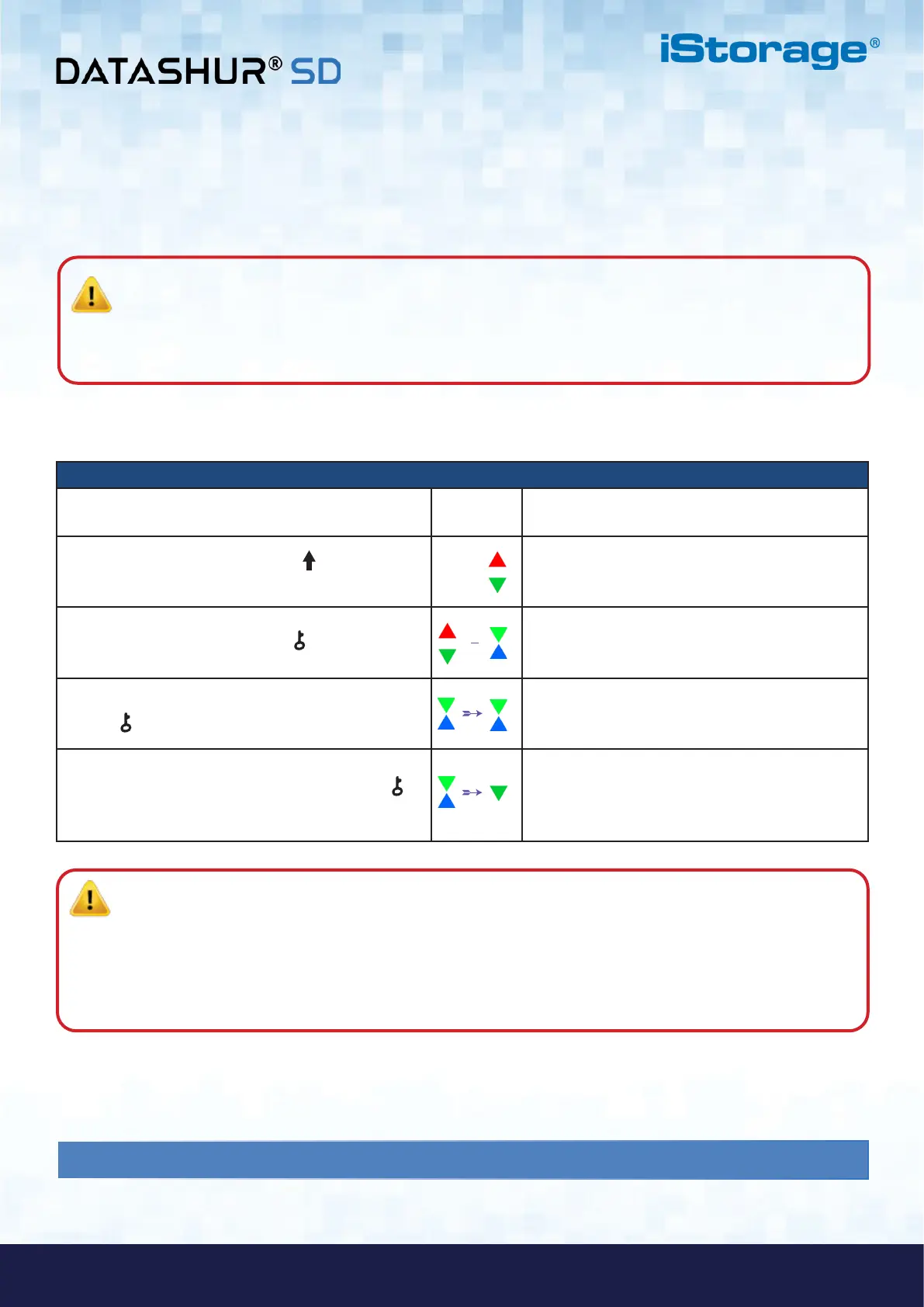
Instructions - First Time Use LED LED State
1. Insert a genuine iStorage microSD card into the
datAshur SD card slot
2. Press and hold down the SHIFT ( ) button
for one second
Solid RED and GREEN LEDs light up indicating the
drive is in the Initial Shipment State
3. Press and hold down both KEY ( ) + 1 buttons
LEDs turn to blinking GREEN and solid BLUE
4. Enter New Admin PIN and press the
KEY ( ) button once
Blinking GREEN and solid BLUE LEDs switch to
a GREEN blink then back to Blinking GREEN and
solid BLUE LEDs
5. Re-enter New Admin PIN and press the KEY ( )
button again
Blinking GREEN and solid BLUE LED switches to
a solid BLUE LED and finally to a blinking GREEN
LED indicating the Admin PIN has been
successfully configured and drive unlocked
Locking datAshur SD
To lock the drive, safely eject the datAshur SD from your host operating system and unplug from the USB port. If data is being
written to the drive, unplugging the datAshur SD will result in incomplete data transfer and possible data corruption.
Note: Once datAshur SD has been successfully unlocked, the GREEN LED will remain blinking for 30 seconds
only, during which time the datAshur SD needs to be connected to a powered USB port and formatted. Please refer
to one of the following formats:
• Formatting the datAshur SD for Windows - Section 44 on page 33
• datAshur SD setup for macOS - Section 45 on page 34
• Initialising and formatting datAshur SD in Linux OS - Section 46 on page 36
4. Unlocking datAshur SD with the Admin PIN
To unlock the datAshur SD with the Admin PIN, please follow the simple steps in the table below.
• For “iStorage” press the following buttons:
4 (ghi) 7 (pqrs) 8 (tuv) 6 (mno) 7 (pqrs) 2 (abc) 4 (ghi) 3 (def)
Using this method, long and easy to remember PINs can be configured.
Important microSD Card Information: Only genuine iStorage microSD Cards are compatible with the
datAshur SD drive. If the datAshur SD drive is unlocked and connected to a host computer using a non iStorage
microSD card, all LEDs, RED, GREEN & BLUE blink on and off twice and will then change to a solid RED LED,
indicating that the microSD card is not compatible with the datAshur SD drive.













 To Next Page