#20
iStorage datAshur SD
®
User Manual v1.0.8
www.istorage-uk.com
23. How to configure a Self-Destruct PIN
Warning: You can configure a self-destruct PIN which when entered performs a Crypto-Erase on the drive
(encryption key is deleted).This process deletes all configured PINs and renders all data stored on the microSD
card as inaccessible (lost forever), the drive will then show as unlocked GREEN LED. Unless you have cloned
another datAshur SD as a backup drive, self-destructing this drive will also render data on other microSD cards
that have been encrypted by this drive as inaccessible and lost forever. Running this feature will cause the
self-destruct PIN to become the new User PIN and the drive will need to be formatted before it can be reused.
To set the Self-Destruct PIN, first enter the Admin Mode as described in section 5. Once the drive is in Admin Mode (solid
BLUE LED) proceed with the following steps.
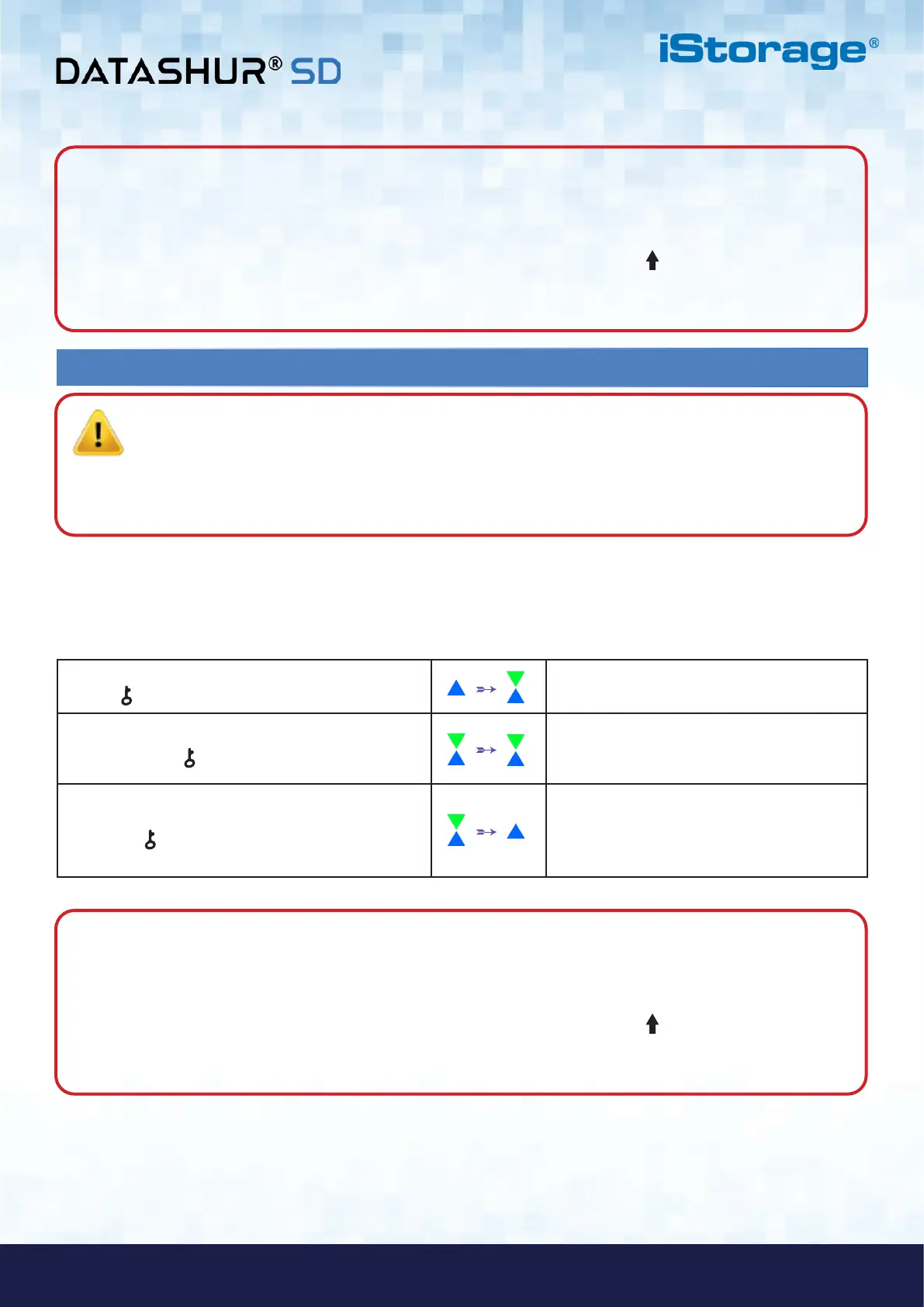
1. In Admin Mode, press and hold down both
KEY ( ) + 6 buttons
Solid BLUE LED will change to blinking GREEN
and solid BLUE LEDs
2. Configure a 8-64 digit Self-Destruct PIN and
press the KEY ( ) button
Blinking GREEN and solid BLUE LEDs will
switch to a single GREEN LED blink and then
back to blinking GREEN and solid BLUE LEDs
3. Re-enter the Self-Destruct PIN and press
the KEY ( ) button
GREEN LED will rapidly blink three times before
it changes to a solid BLUE LED to indicate
the Self-Destruct PIN has been successfully
configured
Note: When the datAshur SD is in Admin Mode, the BLUE LED will remain on and solid for 30 seconds only,
during which time the drive can accept instructions via the keypad allowing it to be configured with a host of security
features. If no key event happens within 30 seconds, the datAshur SD will exit Admin Mode automatically - the solid
BLUE LED switches to a solid RED LED which then fades out to the Idle State (all LEDs off).
To immediately exit Admin Mode (solid BLUE LED), press and hold down the SHIFT ( ) button for a second - the
solid BLUE LED switches to a solid RED LED which then fades out to the Idle State. To access the drive contents
(data), the datAshur SD must first be in the Idle State (all LEDs off) before an Admin/User PIN can be entered.
Note: When the datAshur SD is in Admin Mode, the BLUE LED will remain on and solid for 30 seconds only,
during which time the drive can accept instructions via the keypad allowing it to be configured with a host of security
features. If no key event happens within 30 seconds, the datAshur SD will exit Admin Mode automatically - the solid
BLUE LED switches to a solid RED LED which then fades out to the Idle State (all LEDs off).
To immediately exit Admin Mode (solid BLUE LED), press and hold down the SHIFT ( ) button for a second - the
solid BLUE LED switches to a solid RED LED which then fades out to the Idle State. To access the drive contents
(data), the datAshur SD must first be in the Idle State (all LEDs off) before an Admin/User PIN can be entered.













 To Next Page