#33
www.istorage-uk.com
iStorage datAshur SD
®
User Manual v1.0.8
To format your datAshur SD on Windows, please follow the below steps:
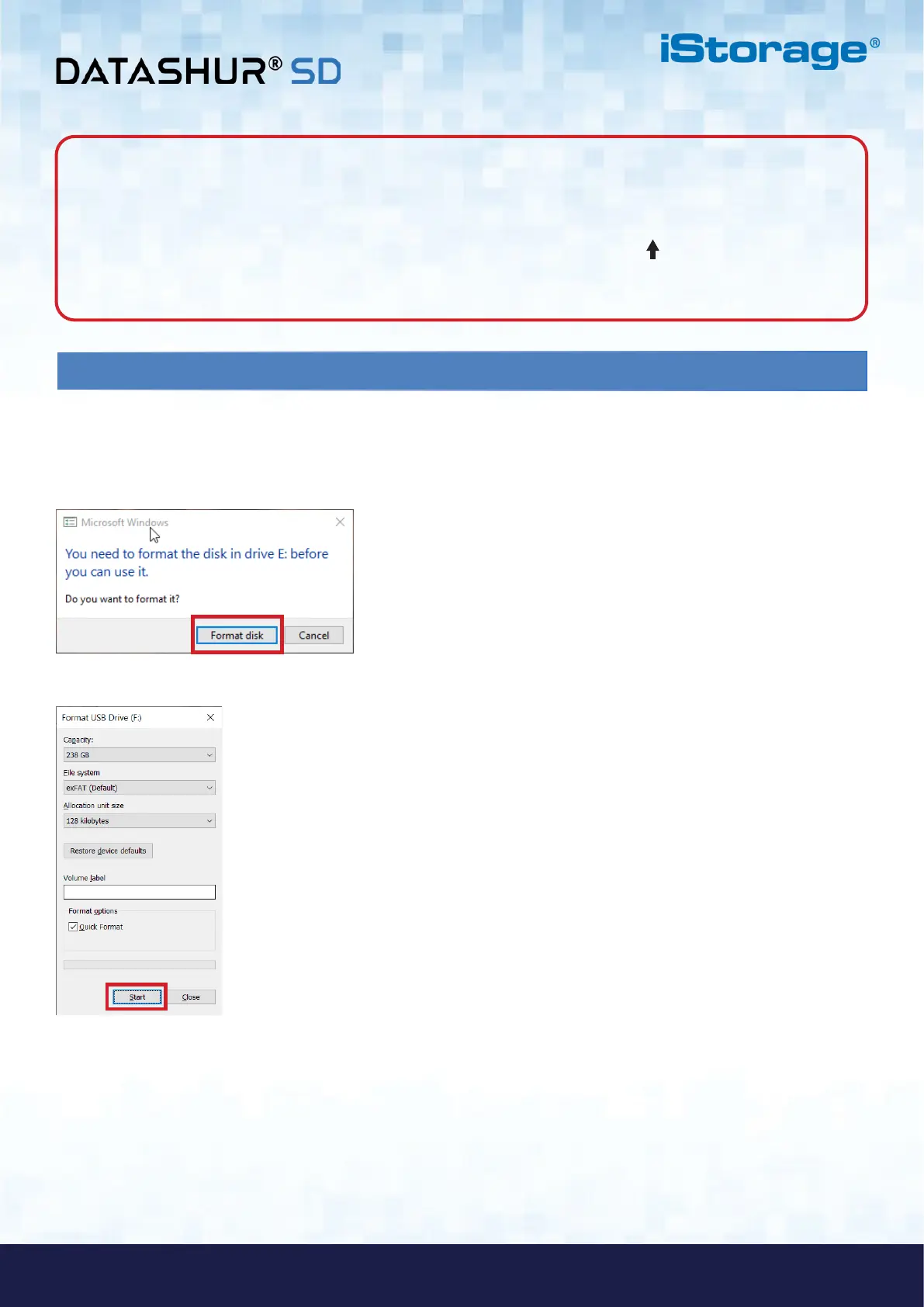
1. Insert the microSD card in the datAshur SD, unlock the drive and attach the to the Windows machine.
2. The system will prompt you with the Format window.
44. Formatting the datAshur SD (microSD card) for Windows
3. Click Format disk and Format USB drive window will open.
Note: When the datAshur SD is in Admin Mode, the BLUE LED will remain on and solid for 30 seconds only,
during which time the drive can accept instructions via the keypad allowing it to be configured with a host of security
features. If no key event happens within 30 seconds, the datAshur SD will exit Admin Mode automatically - the solid
BLUE LED switches to a solid RED LED which then fades out to the Idle State (all LEDs off).
To immediately exit Admin Mode (solid BLUE LED), press and hold down the SHIFT ( ) button for a second - the
solid BLUE LED switches to a solid RED LED which then fades out to the Idle State. To access the drive contents
(data), the datAshur SD must first be in the Idle State (all LEDs off) before an Admin/User PIN can be entered.
4. Enter a name for the drive on the Volume label. This name of the drive will eventually appear on the Desktop. The
File System dropdown menu lists the available drive formats supported in Windows. Select NTFS for Windows or
select FAT32 or exFAT for cross-platform compatibility, which includes macOS.
5. Click Start to continue with formatting the drive.













 To Next Page