#32
iStorage datAshur SD
®
User Manual v1.0.8
www.istorage-uk.com
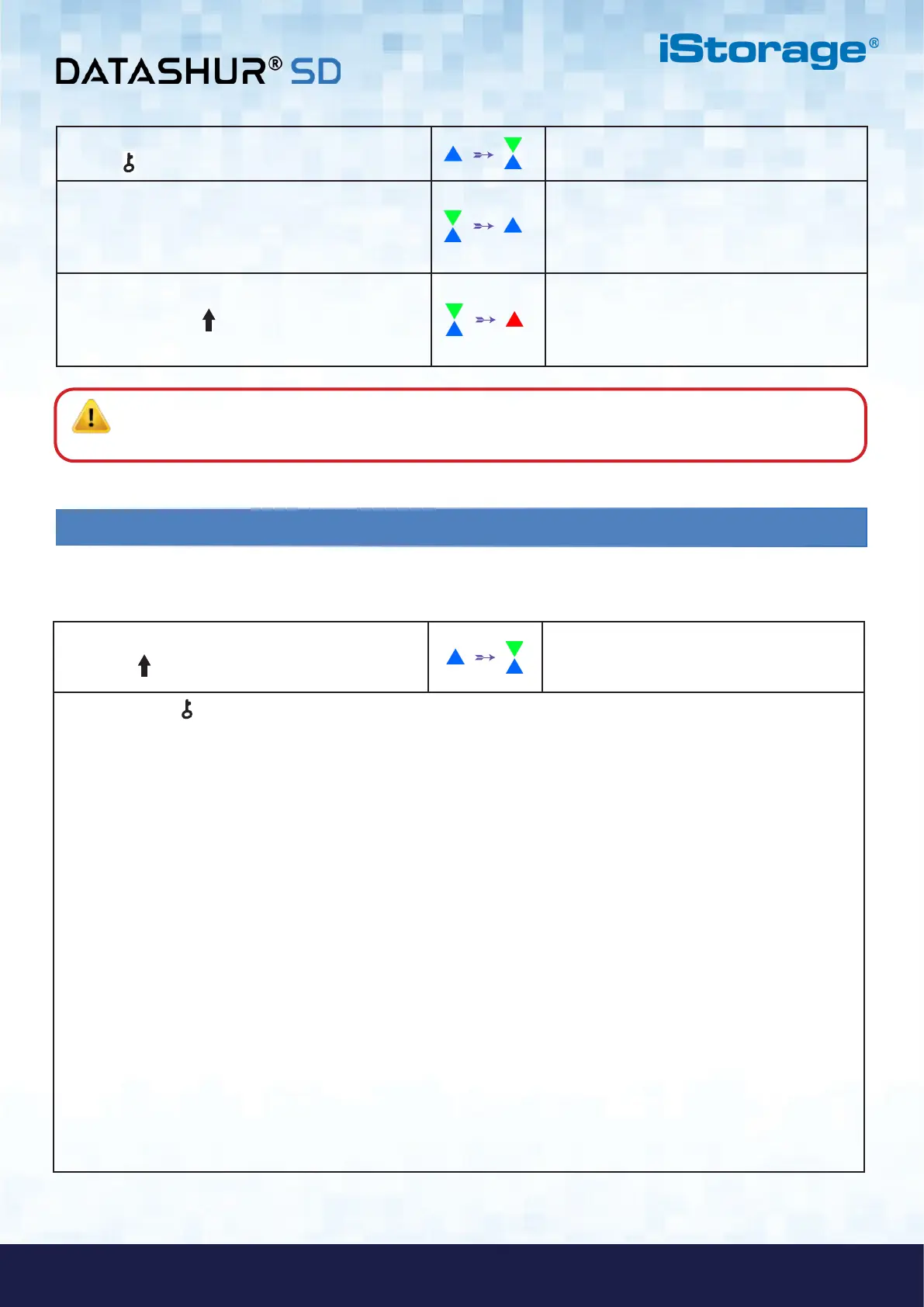
1. In Admin Mode, press and hold down both
‘KEY ( ) + 1’ buttons.
Solid BLUE LED will change to blinking GREEN
and BLUE LEDs
2. Enter 01 to set as AES-ECB
Enter 02 to set as AES-XTS (default state)
Enter 03 to set as AES-CBC
GREEN and BLUE LEDs will change to a solid
GREEN LED and then to a solid BLUE LED
indicating the client application registration is
disabled
3. Press the SHIFT ( ) button once.
GREEN and BLUE LEDs will change to a solid
GREEN LED and then to a solid RED LED
(Reset State) indicating the datAshur SD
encryption mode was successfully changed
Important: After configuring the encryption mode, the datAshur SD completely resets and a new Admin
PIN must be configured, refer to Section 26 on page 22 on ‘How to Configure an Admin PIN after a Brute Force
attack or Reset’.
43. How to check datAshur SD encryption mode
To check the datAshur SD encryption mode, first enter the Admin Mode as described in section 5. Once the datAshur SD is in
Admin Mode (solid BLUE LED) proceed with the following steps.
1. In Admin Mode press and hold down both
‘SHIFT ( ) + 1’ buttons
Solid BLUE LED will change to blinking GREEN
and BLUE LEDs
2. Press the KEY ( ) button and the following happens:
• If the encryption mode is configured as AES-ECB, the following happens:
a. All LED’s (RED, GREEN & BLUE) become solid for 1 second.
b. GREEN LED blinks once.
c. All LED’s (RED, GREEN & BLUE) become solid for 1 second.
d. LEDs return to solid BLUE
• If the encryption mode is configured as AES-XTS, the following happens:
a. All LED’s (RED, GREEN & BLUE) become solid for 1 second.
b. GREEN LED blinks twice.
c. All LED’s (RED, GREEN & BLUE) become solid for 1 second.
d. LEDs return to solid BLUE
• If the encryption mode is configured as AES-CBC, the following happens:
a. All LED’s (RED, GREEN & BLUE) become solid for 1 second.
b. GREEN LED blinks three times.
c. All LED’s (RED, GREEN & BLUE) become solid for 1 second.
d. LEDs return to solid BLUE













 To Next Page