18
Multiple Day Rollover
The simplest method for defining a window of time that
spans multiple days is to use 99:99 to signify an open start
or stop time.
Example of Multiple Day Rollover.
At your business you’d like specific lights to remain lit
from Friday afternoon through the weekend, until Mon-
day morning.
In this situation, the lights need to be scheduled to roll
over until they reach a recognizable stop time.
In the figure to the right, Schedule Y
is set up to begin at 4 p.m. on Fri-
day afternoon. Since the stop time
is 99:99, the lights will remain lit
(roll over) until a recognizable stop
time is reached.
Schedule Z is set up with an unde-
fined start time (99:99), so if the
lights were already lit, they will
remain lit until the Schedule Z stop
time is reached at 5 a.m.
Attaching Time Schedules
For any schedule to be effective, it needs to be attached
to a feature. One schedule can be attached to more than
one feature event.
• See “Advanced Light Control” on this page for
information on attaching time schedules for light
control.
• See “Controlling Outputs by Time Schedule” on
page 19 for information on attaching time schedules to
outputs.
• See “Scheduled Arming” on page 20 for information on
attaching schedules to Arming.
• See “Opening and Closing Reports” on page 20 for
information on creating opening and closing schedules.
• See “Latchkey Paging” on page 21 for information on
attaching time schedules to Latchkey Paging.
• See “Notify by Exception” on page 23 for information
on attaching time schedules to Notify by Exception.
Time Schedules and Partitions
Once a schedule is attached to a feature event in one par-
tition, that schedule becomes unavailable to the other
partition. This prevents the situation where one partition
changes a time schedule that inadvertently affects both
partitions.
S
ECTION
12:
A
DVANCED
L
IGHT
C
ONTROL
You can control system lights from any
touchpad, as discussed in “Basic Light
Control” on page 9.
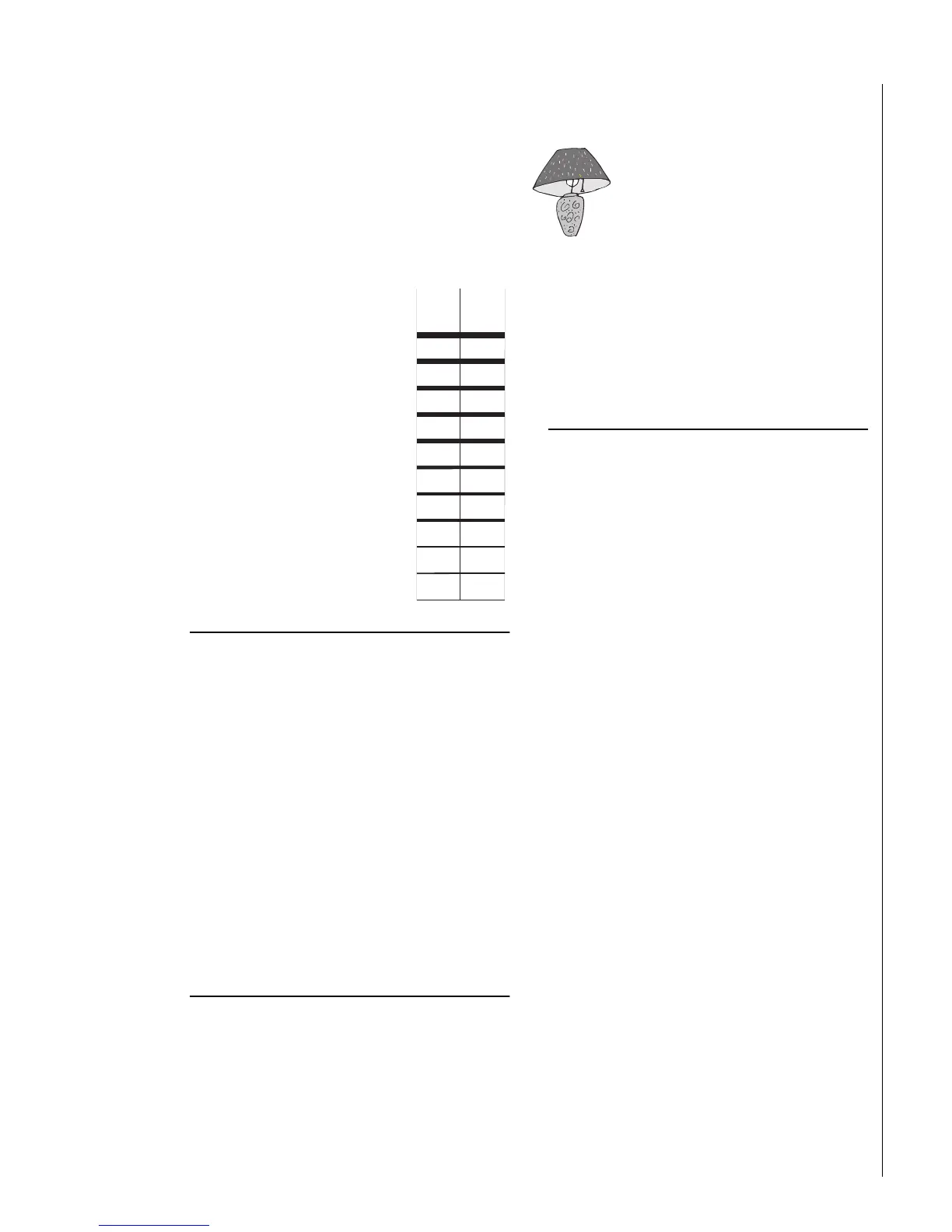
There are other lighting options that you
or your installer can set up,
including:
• Turning lights on and off according to a time schedule.
• Turning lights on after system arming for the duration of
the Exit Delay.
• Turning lights on for the duration of the Entry Delay so
you have enough light to see your way to the touchpad
to disarm the system.
• Flashing lights on and off upon successful arming and
disarming.
Controlling Lights By Time Schedule
Lights can be turned on according to time schedules. If
you need assistance setting up a time schedule that fits
your lighting needs, see “Creating Time Schedules” on
page 17.
To schedule lights:
1. At an alphanumeric or fixed display touchpad,
enter the programming menus by pressing
9
+ System or Partition Master
CODE
.
2. Press
0640
+
ƒ
.
3. Press
B
until the touchpad displays the light num-
ber you would like to schedule. Refer to “Appendix
A: User Sheets” on page 38 to determine which
light number is associated with which lamp.
4. Press
ƒ
. The touchpad displays the first available
time schedule.
5. Enter
•
2
+
ƒ
to assign the time schedule (“ON”) for
this light.
•
1
+
ƒ
to make the time schedule inactive for
this light.
6. Press
B
to go to the next time schedule, if
needed, and turn the schedule on or off for this
light.
7. When you’ve finished attaching the desired time
schedules, press
‚
+
00
+
ƒ
to exit the
programming menus.
Schedule
Y
Start
Stop
Mon
Tue
Wed
Thur
Fri
Sat
Sun
16:00
99:99
OFF
OFF
OFF
OFF
ON
OFF
OFF
Part.
Schedule
Z
ON
OFF
OFF
OFF
OFF
OFF
OFF
99:99
05:00
11



 To Next Page