21
S
ECTION
16:
L
ATCHKEY
P
AGING
The Latchkey Paging feature allows programmed
pagerholders to be notified when the system is armed
and/or disarmed during specific hours or under certain
conditions. For example, you could program the Latchkey
feature to page you if your child doesn’t arrive home and
disarm the system (using a code with the Latchkey
attribute) by the programmed Latchkey time.
Page In the Event of . . .
You can set up the Latchkey Paging feature to send a
page in the following situations:
• Send a page when the system is disarmed.
(Latchkey Opening)
• Send a page when the system is armed.
(Latchkey Closing)
Who Will Be Paged?
Your system can call up to 5 different pager numbers to
report a Latchkey Opening and/or a Latchkey Closing.
Latchkey pages do not report to the central station.
Refer to “Appendix A: User Sheets” on page 37 to see
which pagers have been set up to receive a page for this
feature. Contact the installer if you would like to turn
Latchkey Paging on or off for any programmed pager.
Who Can Send a Page?
Only Latchkey-designated users can cause a Latchkey
page to be sent. By default, this includes the first 6
Regular User codes. If you would like to include a key-
chain touchpad as a latchkey user, contact your installer.
Any regular user code can be programmed with this
attribute. See “Assigning Code Attributes” on page 12.
What Will the Pager Report?
For Latchkey Opening Reports, the page reports the arm-
ing level (111 for 1—OFF) and the user.
For Latchkey Closing Reports, the page reports the arm-
ing level as 222 (2—STAY) or 333 (3—AWAY), and the user
that armed to that level. See “Pager Event Codes” on
page 16.
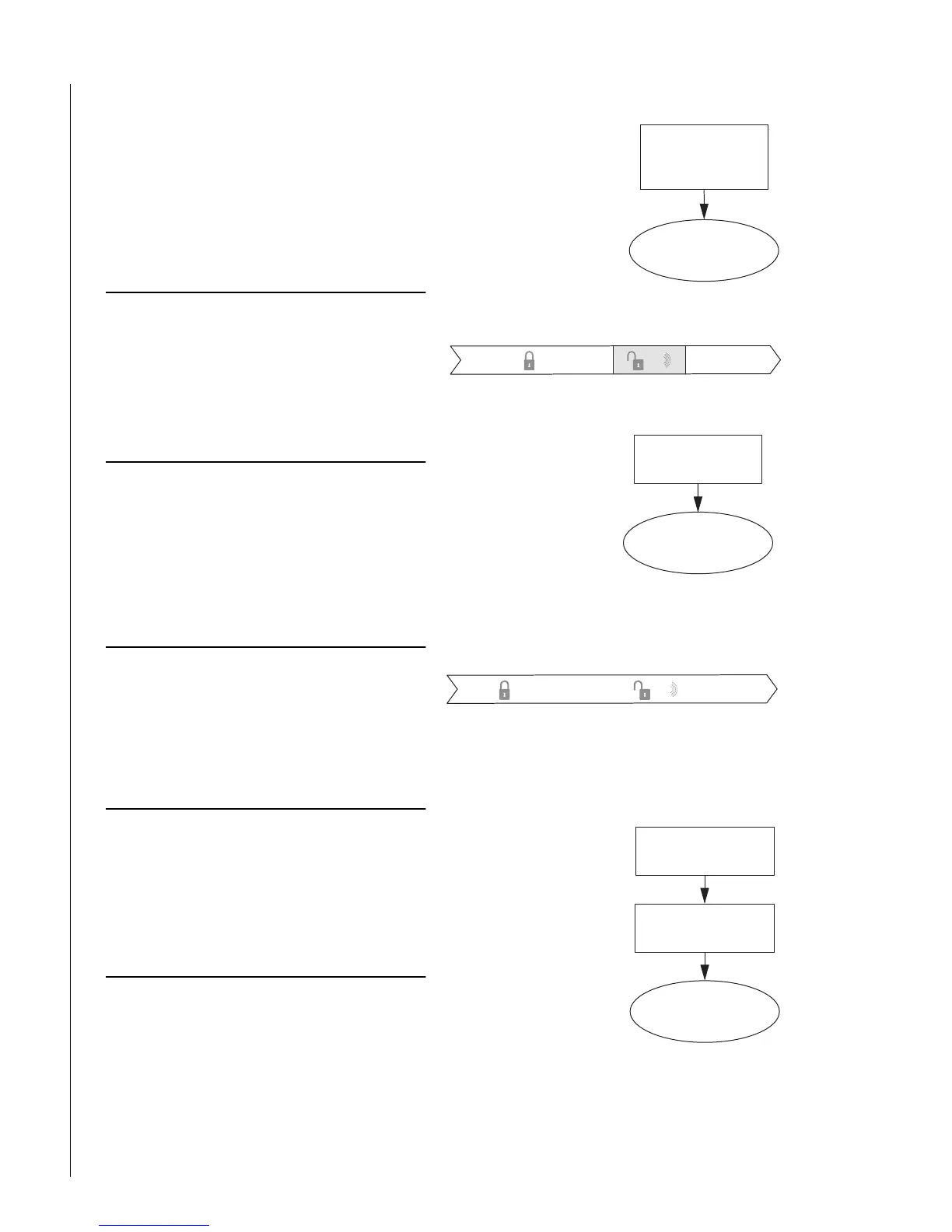
Latchkey Opening
The installer can set up Latchkey Opening for one of two
types of use: Basic and Advanced.
Basic Latchkey Opening
If your system is set up for Basic Latchkey, there are two
ways to send a Latchkey Opening page:
Based on Time Schedule Only.
1. Assign the Latchkey
Opening feature a
time schedule.
(This needs to be
done only once.)
2. Arm the system.
3. Disarming of the sys-
tem by a Latchkey-des-
ignated user within
the assigned time
schedule, sends an
Opening page:
Based on Latchkey Modifier 6 Only.
1. Arm the system, then
enter
6
, or press
the Lock button on a
keychain touchpad
after arming to 3—
AWAY.
2. Disarming of the
system by a Latchkey-
designated user
sends an Opening page, regardless of assigned
time schedule:
Advanced Latchkey Opening
If your system is set up for Advanced Latchkey use, there
is one way to send a Latchkey Opening page:
1. Assign the Latchkey
Opening feature a time
schedule.
(This needs to be done
only once.)
2. Arm the system,
then enter
6
, or press
the Lock button on a
keychain touchpad
after arming to 3—
AWAY.
3. Disarming of the
system by a Latchkey-
designated user within
the assigned time schedule, sends an Opening
page:
. . . L a tc h k e y p a g e s e n t.
If L a tc h k e y d isa rm
occurs w ithin
tim e s c h e d u le . . .
3:00
Latchkey O pening Schedule
5:00
111
S
stem arm e d S
stem d isarm e d
A fte r a rm in g th e
syste m , en ter
6
.
D isa rm in g th e syste m
at any tim e sends a
Latchkey page.
N o Latchkey O pening
sch e d u le is n e ce ssa ry
6
+
111
S
stem arm e d
S
stem d isarm e d
Latchkey page sent.
A fte r a rm in g th e
syste m , en ter
6
.
L a tc h k e y d isa rm o c c u rs
w ith in tim e sc h e d u le .



 To Next Page