22
In Advanced Latchkey use, paging is available only during
the time schedule(s) that you assign to it.
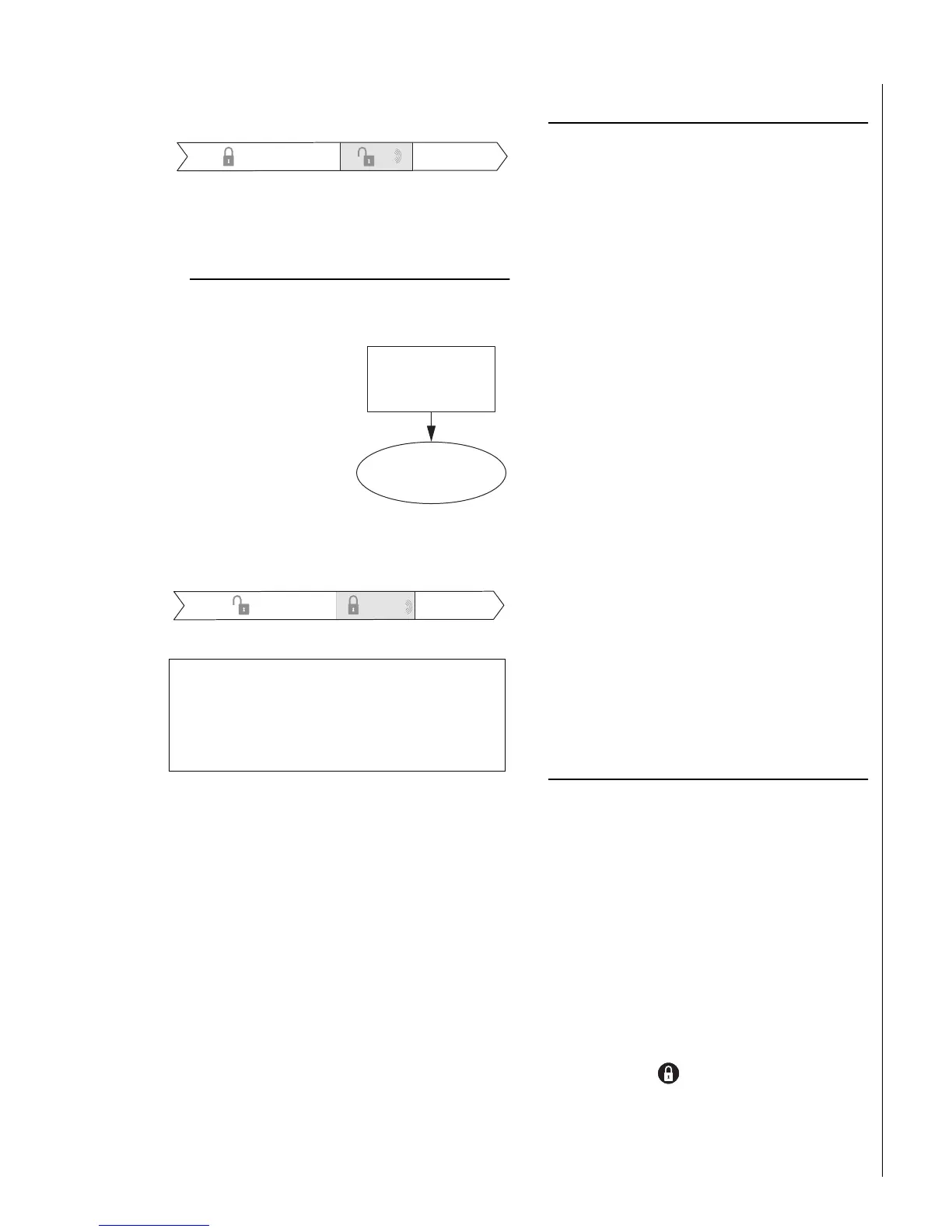
Latchkey Closing
Latchkey Closing can be used alone, or in addition to
Latchkey Opening.
1. Assign the Latchkey
Closing feature a time
schedule.
2. The system is
disarmed.
3. Arming of the system
by a Latchkey-desig-
nated user within the
assigned time, sched-
ule sends a Closing
page:
Assigning a Time Schedule
to Latchkey Paging
Follow these steps to attach a time schedule to Latchkey
Opening and/or Latchkey Closing. If you need assistance
setting up a time schedule that fits your needs, see “Creat-
ing Time Schedules” on page 17.
Scheduling Latchkey Opening and/or Closing:
1. At an alphanumeric or fixed display touchpad,
enter the programming menus by pressing
9
+ System or Partition Master
CODE
.
2. Press
0600
+
ƒ
.
3. To schedule:
• Latchkey Opening, press
ƒ
when the touchpad
displays “LATCHKEY OPENING” or “LATCH
OPEN.”
•Or, press
B
until the touchpad displays
“LATCHKEY CLOSING” or “LATCH CLOSE,”
then press
ƒ
.
If you want a page to be sent every time Latchkey-
designated users codes arm or disarm the system,
apply the same time schedules under Latchkey
Opening and Latchkey Closing.
4. The touchpad displays the first available time
schedule.
5. Enter
•
2
+
ƒ
to assign the time schedule to the event.
•
1
+
ƒ
to make the time schedule inactive for
the event.
6. Press
ƒ
to secure your choice.
7. Press
B
to go to the next schedule and repeat
step 5.
8. When you’ve finished attaching the desired time
schedules, press
‚
+
00
+
ƒ
to exit the
programming menus.
Applying the Latchkey Modifier
The Latchkey modifier (
6
) is pressed after the arming
keypress sequence.
Applying the Latchkey modifier from a touchpad:
1. At any touchpad, press
2
or
3
+
CODE
+
6
.
The touchpad displays, “LATCHKEY PAGER ON”
or “PAGER ON.”
Notes:
6
must be pressed within 5 seconds of arming.
If Quick Arm feature is on, an access code is not
required. See page 6 for more information.
To apply the Latchkey modifier using a keychain
touchpad:
1. Press the Lock button when the system is
armed to level 3—AWAY.
3:00
Latchkey O pening Schedule
5:00
6
+
111
System arm ed
Syste m d isa rm e d
. . . L a tc h k e y p a g e s e n t.
If L a tc h k e y a rm in g
occurs w ithin
tim e s c h e d u le . . .
6:00
Latchkey C losing Schedule
8:00
222 or 333
Syste m d isa rm e d
S
stem arm e d
A Touchtone phone can be used to set up Latchkey
paging, but touchpads work much better because of
their extensive feedback. See “Appendix C” on page
41 for touchpad and phone programming
instructions.



 To Next Page