XT2 Setup XT2 User Manual
Janam Technologies LLC Version 3, April 2017 XT2 Setup 3—10
Personal Settings
Accounts
S
ettings
>
P
ersonal
>
A
ccounts
i
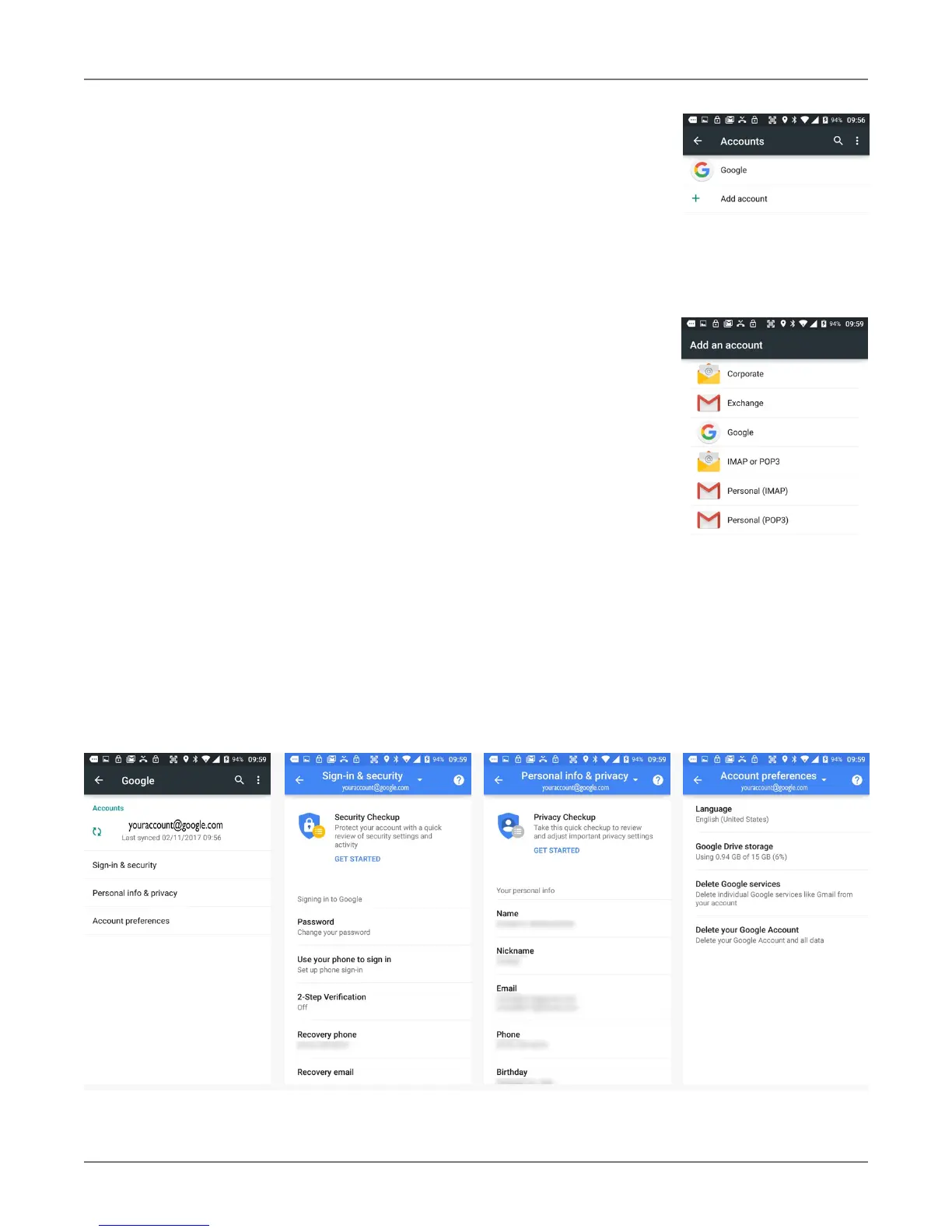
s where email accounts are
set up. To add an account, tap Add account, then tap the type
of account to add. Follow the on-screen instructions to enter the
required information for the account type selected.
Depending on the type of account, you may need to provide a
user name and password, select security settings, and configure
data sync preferences during the setup.
The account appears on the Accounts list when setup is com-
plete. Depending on the settings you selected during the account
configuration, your XT2 device may automatically start to sync
account data (e.g., email, contacts, music and calendar, etc.).
To remove an account, go to
Settings > Personal > Accounts.
Tap the account you wish to delete. Press the Menu button at the
top of the screen and then select Remove account. Tap Remove
account to confirm deletion.
Google Account Settings
Since Google account services and settings play a large role in any Android device, some XT2 users
may wish to have both a Google account and a corporate, work, business or private account. If so,
make sure to carefully examine all Google account settings at Settings > Personal > Accounts >
Google. Most of these settings are on the Google servers, and tapping on items to change them or
view more information will generally get you to your online Google account.


 To Next Page