XT2 Setup XT2 User Manual
Janam Technologies LLC Version 3, April 2017 XT2 Setup 3—12
System Settings
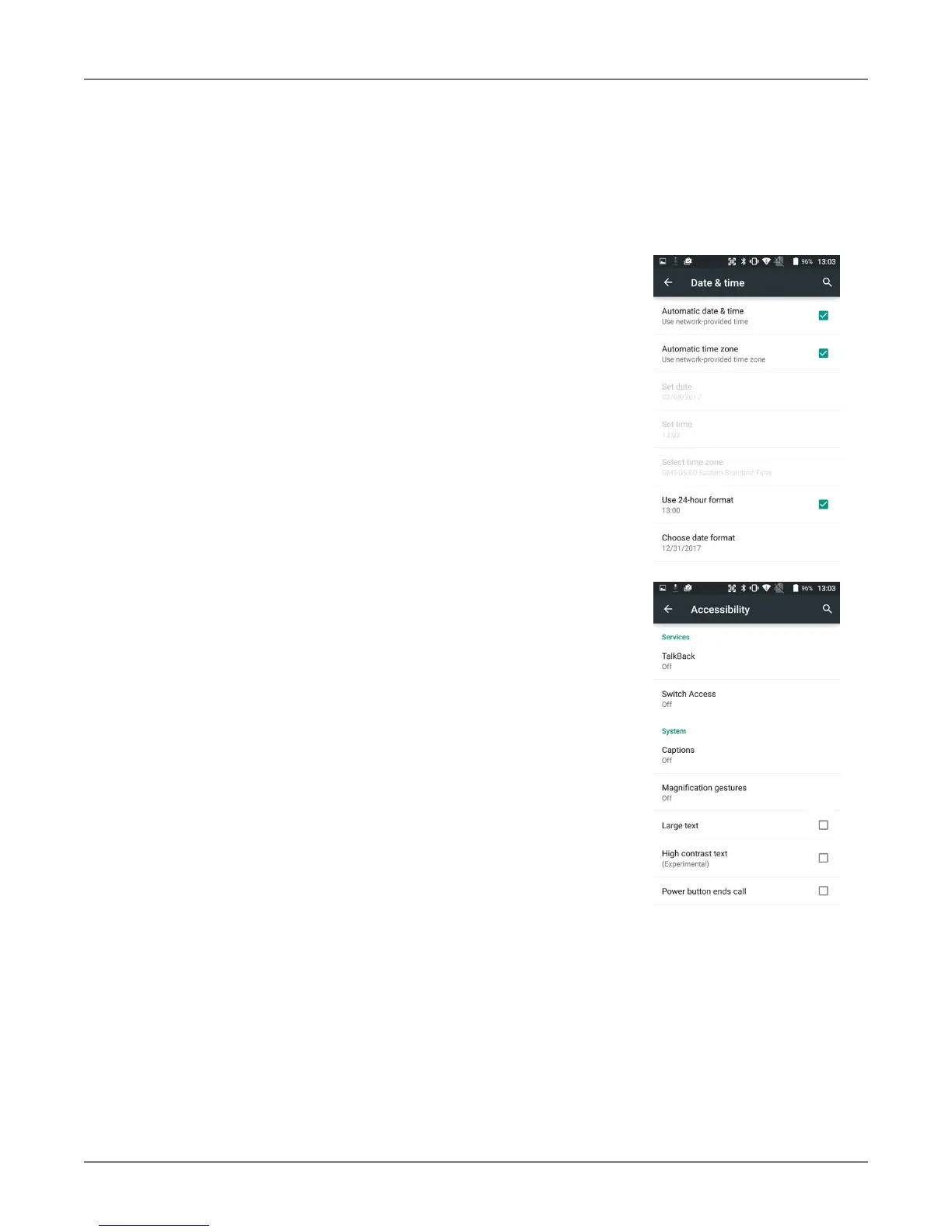
Date & time
T
o set date and time and their options, go to
S
ettings
>
S
ystem
and tap Date & time.
Here you can configure the date, time, time zone, time format,
and date format displayed on the XT2.
You can set the device to synchronize the date and time using a
network connection by checking the Automatic date & time box or
you can manually enter the values by touching Set date, Set
Time, or Select Time zone (note that if the Automatic option is
checked, the Set date, Select Time zone, and Set time menu op-
tions are grayed out).
To modify how the time is displayed on the screen, check the
Use
24-hour format box to switch from a 12-hour cycle to a 24-hour
cycle. In a 24-hour time cycle, 1:00 pm displays as 13:00 pm.
To change the date format displayed on the screen, touch Choose
date format, and then select a format from the list.
Accessibility
To configure features that make using the XT2 easier for people
with certain physical disabilities, go to Settings > System and
tap Accessibility. Services, system settings and display settings
include:
! TalkBack: When on, provides spoken feedback such as describing what’s
been touched, selected or activated.
! Switch Access: Enables the use of switches to select items, scroll, enter
text, etc.
! Captions: When on, displays captions in various languages, sizes and
formats in apps that support it.
! Magnification gestures: When on, triple tapping the screen zooms in
and out. Allows panning while zoomed, as well as triple tap and hold to
zoom into details.
! Large text: Increases text size (almost) everywhere. May come in handy
for anyone needing reading glasses!
! High contrast text: When checked, tries to use higher contrast text
styles.
! Power button ends call: When checked, makes it easier to hang up on
a call by simply using the power button.
! Speak passwords: When checked, uses voice recognition to listen to
passwords instead of typing them.
! Accessibility shortcut: When turned on, allows activating/unactivating
all accessibility settings all at once.



 To Next Page