Wireless Network Connection XT2 User Manual
Janam Technologies LLC Version 3, April 2017 Wireless Network Connection 4—3
WiFi options
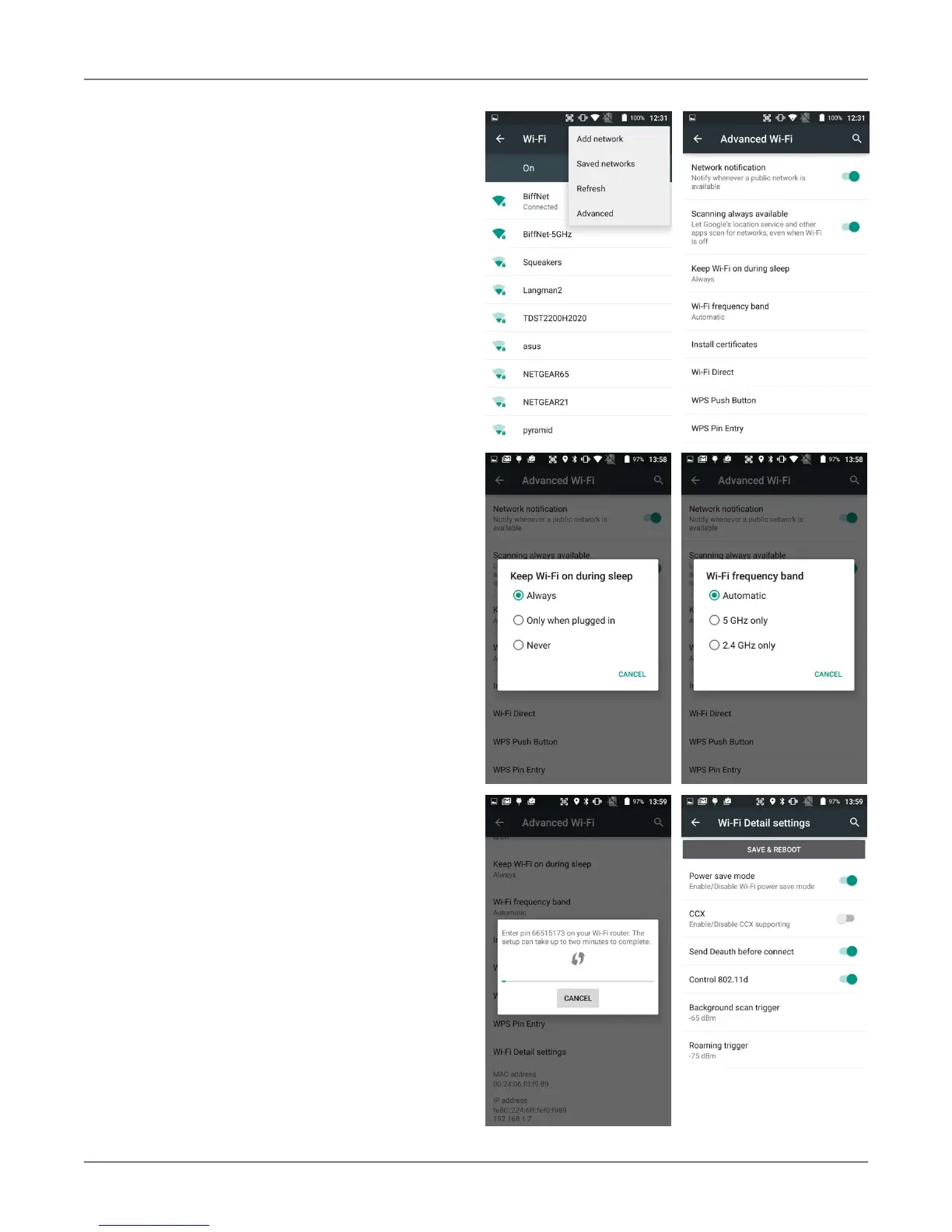
Under Settings > Wireless & networks >
Wi-Fi > : you can add networks that don’t
automatically show up, list all saved net-
works, or refresh the list of available net-
works.
Advanced Wi-Fi options
— Network notification: Turns on or off
notifications whenever a public network becomes
available. This can be handy when searching for
free public networks, but becomes annoying when
there are too many (like when walking through a
mall or airport).
— Scanning always available: Google can
determine device location even if Wi-Fi is turned
off. This allows location services for apps that
benefits from it, and also scanning for Wi-Fi
networks. Default is off.
— Keep Wi-Fi on during sleep: Should Wi-Fi stay
on when the XT2 goes to sleep* Can be set to
always, only when the device is plugged in, or
never.
— Wi-Fi frequency band: If your device only
supports the 2.4GHz band it makes no sense to
list 5GHz networks. Here you can set what to look
for.
— Install certificates: Certificates use a crypto-
graphic key to allow certain secure web
connections. Certificates are saved on the device
for activation on Settings > Security.
— Wi-Fi Direct: Used for a peer-to-peer Wi-Fi
connections that do not need a Wi-Fi wireless
access point.
— WPS Push Button: Many routers have a WPS
(Wi-Fi Protected Setup) button for easy device
connection to a network.
— WPS Pin Entry: Some routers may offer WPS
(Wi-Fi Protected Setup), but still require entry of
a special PIN on the device.
— Wi-Fi Detail settings: These are some lesser
used options, such as enabling the CCX (Cisco
Compatible Extensions), enabling Wi-Fi power
saver mode, letting Wi-Fi handle 802.11d
geographical regulations, and setting the roaming
trigger level (signal at which the device starts
looking for another access point).


 To Next Page