Need help?
Do you have a question about the Jennov J Series and is the answer not in the manual?
General notes and disclaimers for the manual.
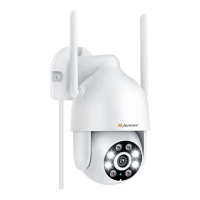
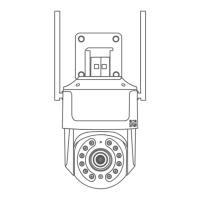
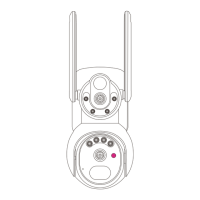
Details and installation types for the surveillance camera.
Identifies ports and indicators on the NVR video recorder unit.
Identifies ports, buttons, and features of the 12-inch monitor.
Identifies ports, buttons, and features of the 10-inch monitor.
Step-by-step guide for installing a hard disk drive in NVR units.
Wiring and connection procedures for NVR systems.
Guidelines for optimal placement and signal strength of wireless cameras.
Instructions for adjusting the camera image orientation on the NVR.
Procedures for accessing and securing the NVR system with user credentials.
Overview of main interface buttons and their functions like split screen and volume.
Guide to modifying the NVR's operating language for user preference.
Instructions for setting the system's time and date, automatically or manually.
Configuration process for continuous video recording on the NVR system.
How to configure motion-triggered recording for enhanced security monitoring.
Procedure for formatting hard disk drives for NVR storage.
Steps to view recorded video footage from the NVR on a television.
Explains automatic overwrite and manual deletion for full hard drives.
Guide on backing up recorded video footage to external storage like USB.
Method to improve wireless camera signal strength using the repeater feature.
How to check and update camera firmware and view NVR software version.
Configuration for enabling motion detection alerts on the system.
Customizing specific zones within the camera view for motion detection.
Steps to disable alert icons or error messages, like HDD status.
Setting up email notifications for motion detection events.
Tips to reduce unnecessary email alerts by editing detection areas.
Instructions for connecting and using the mobile app for system monitoring.
Configuring the mobile app to receive push notifications for alarms.
Guide to accessing and playing recorded videos via a computer.
Steps for adding the NVR system to the EseeCloud management software.
How to monitor live video feeds using the EseeCloud application.
Troubleshooting steps for adding cameras or resolving "connect failed" issues.
Importance of re-matching codes and precautions when adding/replacing cameras.
Procedure to reset the NVR system password to default settings.
Troubleshooting display issues related to resolution compatibility.
Diagnosing and resolving issues with camera power or connectivity.
Steps to troubleshoot and resolve the "HDD not found" error.
Steps to ensure continuous NVR connectivity and troubleshoot offline status.
Explains when a network cable is required for system operation and connectivity.
 General
| Two-Way Audio | Yes |
|---|---|
| Motion Detection | Yes |
| Connectivity | Wi-Fi |
| Night Vision | Yes |
| Storage | MicroSD card, Cloud |
| Weatherproof | IP65 |
| Viewing Angle | 110 degrees |
| Weather Resistance | IP65 |
| Operating Temperature | -10°C to 50°C (14°F to 122°F) |
| Storage Capacity | Up to 128GB MicroSD |
| Audio | Built-in microphone and speaker |


 To Next Page