-29-
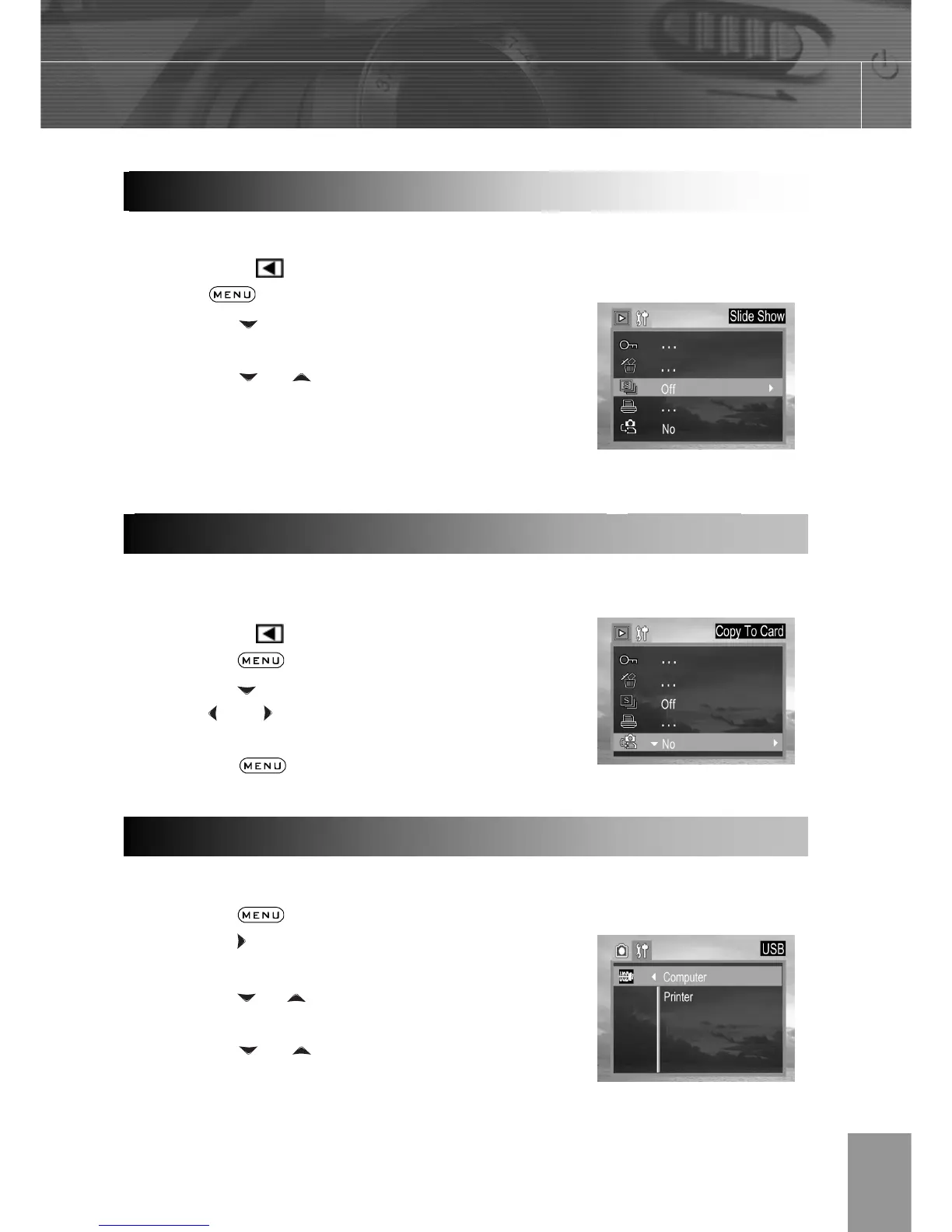
In slide show mode, all images can be displayed one-by-one in an automated slide show.
1. In the PLAY
mode.
2. Press
button.
3. Press the arrow to select SLIDE
SHOW then press the SET button.
4. Press the or to select OFF, 5 sec,
10 sec and then press SET.
The slide show begins automatically, starting
from the current display image.
4. Press SET button to stop the slide show.
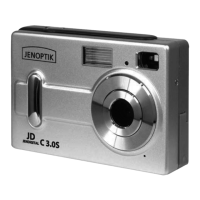
The camera allows you to copy all files that are stored in the camera’s internal memory to
an installed SD memory card.
1. In the PLAY
mode.
2. Press the
button.
3. Press the arrow to select Copy card.
4. Press and to select YES or NO,
press SET to confirm the choice.
5. Press the
button to close the
menu window.
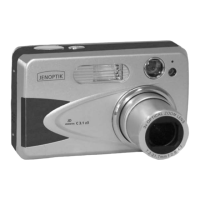
You can set USB mode to connect the camera with a printer or computer.
1. Press the
button.
2. Press the arrow to select the Setup
Menu.
3. Press the
or arrow to select USB
then press the SET button.
4. Press the or to select computer
or printer.
5. Press the SET button to close the menu
window.
Playing a Slide Show (Auto Play)
Copying Flash Memory Images to a Memory Card
Setting USB Mode


 To Next Page