48
VX6020
( )Audio Files- Touch the audio le icon to display the audio les. Touch the audio
le icon to select a track. Touch the audio le icon again to conrm and playback
will begin.
(
)Video Files- Touch the video le icon to display the video les. Touch the video
le icon to select a video le. Touch the video le icon again to conrm and playback
will begin.
(
)Image Files (JPEG etc)- Image les are selected and controlled by the iPod®.
Touch the image icon and the following message will appear:
Use the iPod® to control/select photos.
Touch screen to return to the menu.
(
)Folders- Touch the icon to display the folder/le hierarchy. Touch the folder
icon and the contents of the folder will be displayed. Touch the le’s icon to select a
le. Touch the icon again to conrm and open the le.
Controlling Playback
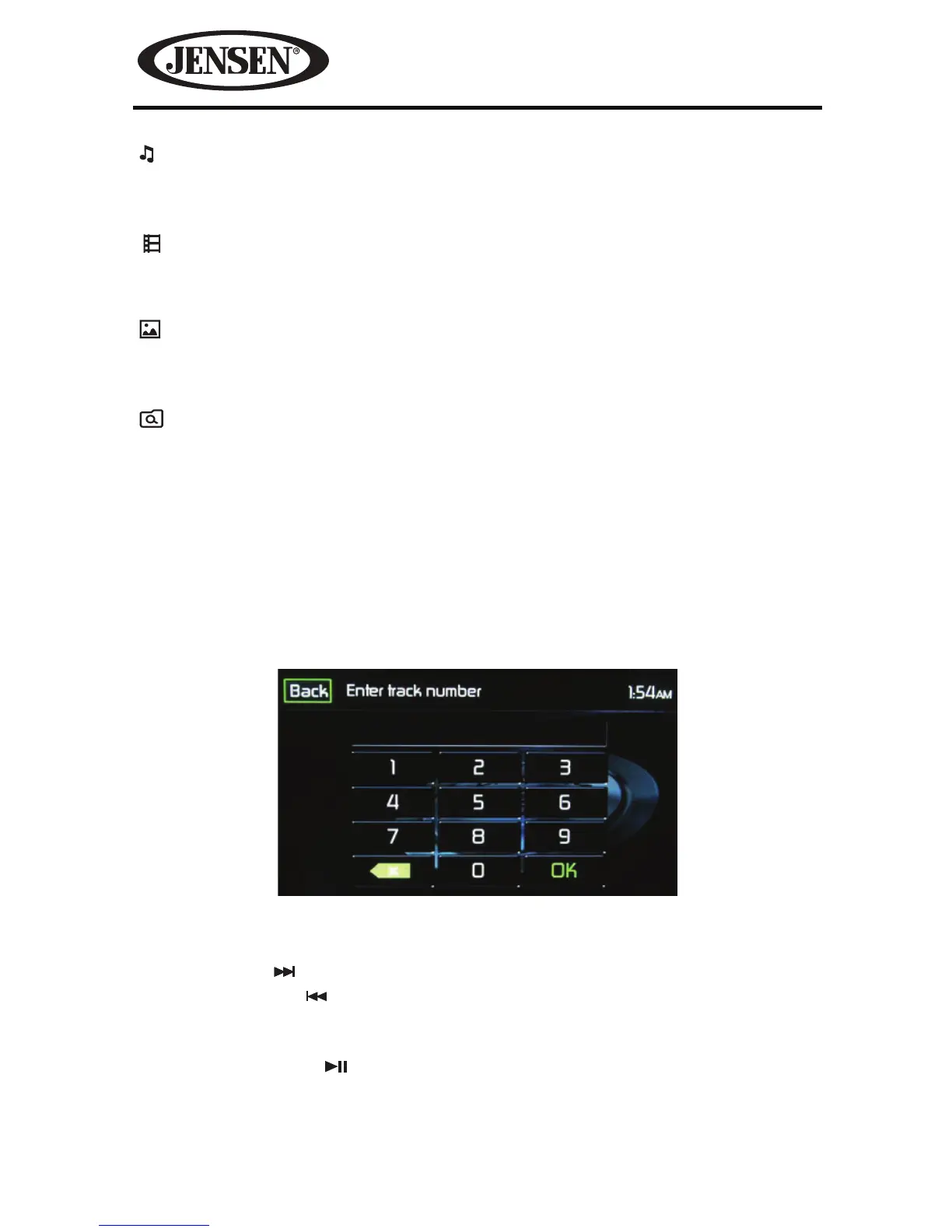
Direct Entry
When the Direct Entry icon is touched the Direct Entry Screen appears. The user
can manually select a track by touching the corresponding number. After entering
the track numbers touch the OK icon. If a wrong digit is entered touching the green
arrow will remove the number. After touching OK playback will begin.
Moving Through Tracks
Touch the Next ( ) icon to advance to the next track on the iPod ®.
Touch the Previous (
) icon to move to the previous track on the iPod ®.
Pausing Playback
Touch the Play/Pause ( ) icon to suspend or resume playback.
Figure 36. iPod®/iPhone® Track Direct Entry Screen


 To Next Page