65
VX6020
Step 4 - Select a Destination
You have many ways to select a destination. Select by touching screen:
t Tap
to select your destination by entering an address or
selecting a place of interest, a location on the map or one of your Favorite
destinations. You can also look up your recent destinations from the
Smart History, enter a coordinate or use the location saved in a photo.
t Tap
to display the route parameters and the route in its full length
on the map. You can also perform route-related actions such as editing or canceling
your route, setting a start point for the route, picking route alternatives, avoiding
parts of the route, simulating navigation or adding the destination to your Favorites.
t Tap
to customize the way the navigation software
works, simulate demo routes, or to run some additional applications.
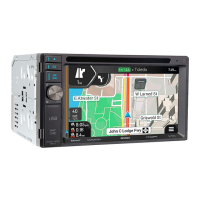
t Tap to start navigating on the map. The icon itself is a miniature
live map that shows your current position, the recommended route and the
surrounding map area. Tap the icon to enlarge the map to the full screen.
Step 5 - Map/Guide Along Route
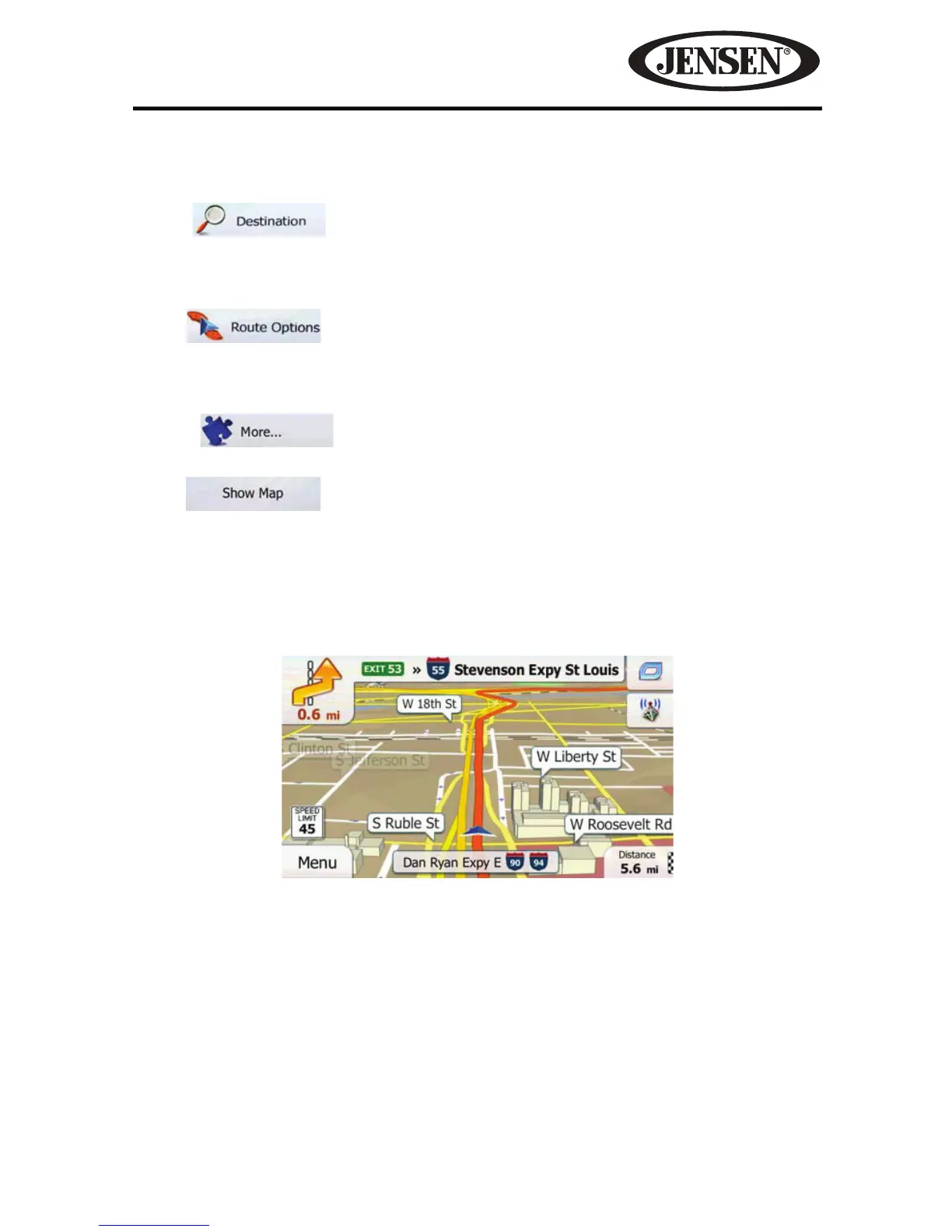
Proceed to the highlighted route and drive while the iGO Primo software provides
guidance to your destination.
Figure 55. Map/Guide Along Route Screen


 To Next Page