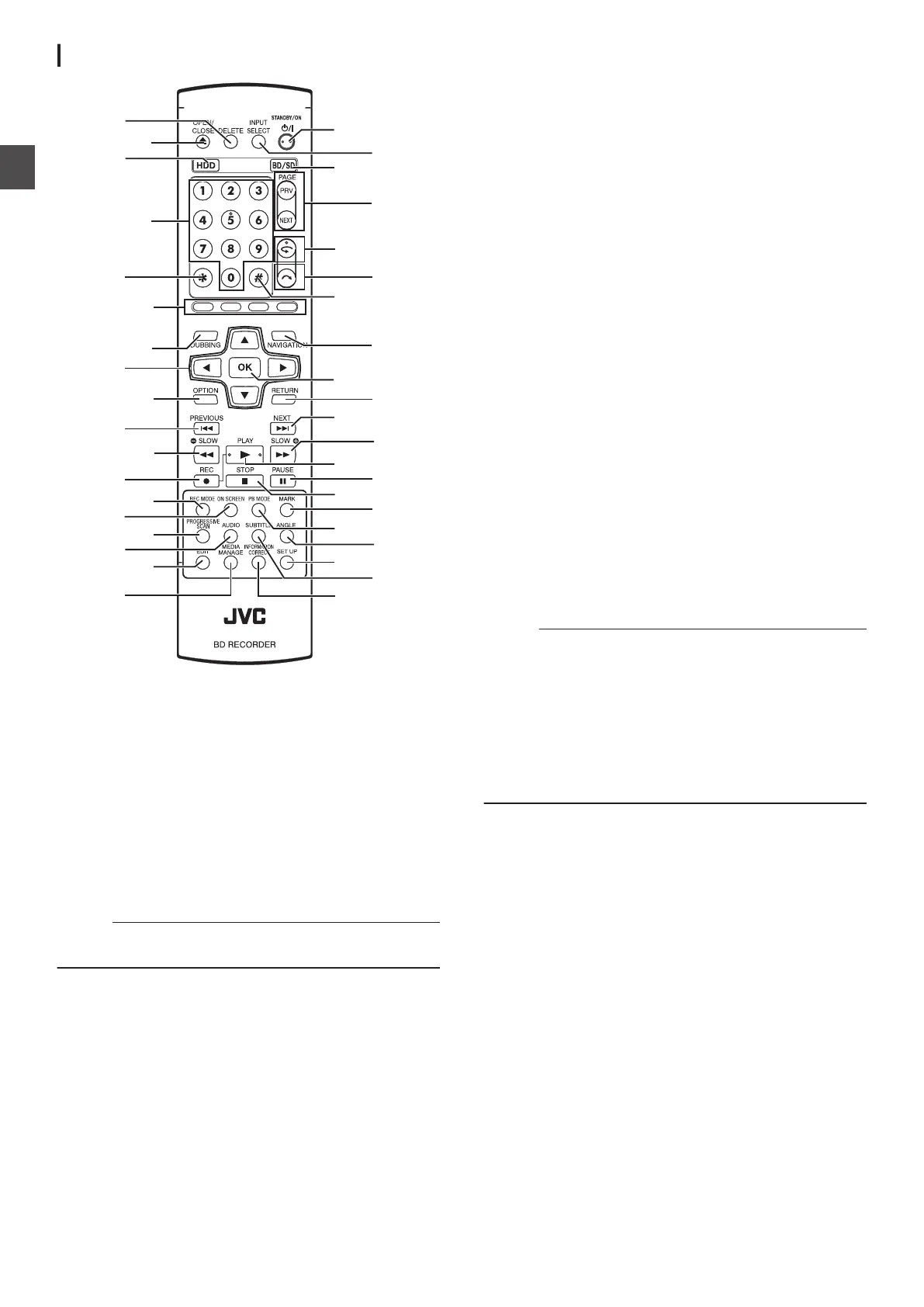
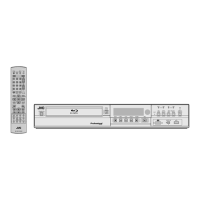
Remote control
.
A
[DELETE]
Deletes a title or characters.
B
[ M ]
Opens/closes the disc tray.
C
[HDD]
For operating the HDD.
D
[0]-[9]
For entering characters.
E
[Z]
For entering characters.
F
[RED]
, [GREEN], [BLUE], [YELLOW]
Enabled when the color button is displayed.
Memo :
0
The sequence of the button color is different depending on
the model.
G
[DUBBING
]
Displays the dubbing menu screen.
H
[ J / K / H / I ]
The cursor can be moved to select an item.
I
[OPTION]
Displays the option screen.
J
[ S ]
Move to the chapter just before the current chapter.
K
[ O ]
Fast reverses the video and starts slow playback.
L
[ R ]
Press the [ R ] and [ I ] buttons together to start recording.
M
[REC MODE]
For
checking the recording mode settings and amount of time
remaining.
N
[ON SCREEN]
Displays information on the screen.
O
[PROGRESSIVE SCAN]
Switches the resolution of the image output.
P
[AUDIO]
Switches the playback audio.
Q
[EDIT]
Displays the editing menu screen.
R
[MEDIA MANAGE]
Displays the media management menu screen.
S
[ A ]
Switches operation on or off.
T
[INPUT SELECT]
Switches the external input signals (SDI, HDMI, HDV/DV,
L-1).
U
[BD/SD]
For operating BD/DVD or SD.
V
[PAGE PRV] [PAGE NEXT]
Returns to the previous page. Or advances to the next page.
W
[ w ]
Move the playback position slightly backwards.
X
[ v ]
Advance the playback position slightly.
Y
[#]
For character input and switching between DIRECT OUT/
MONITOR OUT.
Memo :
0
During character input, it cannot be used for switching
between DIRECT OUT/MONITOR OUT.
0
When each of the [SET UP], [NAVIGATION]
, [EDIT],
[INFORMATION CORRECT], [DUBBING], and [MEDIA
MANAGE] buttons is pressed, “ONSCREEN” appears in the
display window of the unit.
In this case, switching is possible only when the respective
top screens are displayed.
If a display other than the top screen appears, such as a pop-
up screen, switching may not be possible.
Z
[NAVIGATION
]
Displays the playback navigation screen.
a
[OK]
Confirms a selection or entry.
b
[RETURN]
Returns to the previous screen without applying the selection
or entry.
c
[ T ]
Move to the next chapter.
d
[ N ]
Fast forwards the video and starts slow playback.
e
[ I ]
Plays the video.
f
[ W ]
Pauses the video that is currently playing/recording.
g
[ o ]
Stops playback/recording.
18
Name and Function of Parts
Getting Started



 To Next Page