Setting the Time Code
You
can add a time code, date or time while recording SDI input
signals or HDMI input signals with this unit.
Memo :
0
Only the date and time can be added during recording of
HDMI input signals. If you wish to add the time code during
recording, record the SDI input signals.
0
If recording is performed with the time code added, the time
code will be recorded together with the video. In this case,
you
cannot hide the time code display on the recorded movie.
Setting time code input
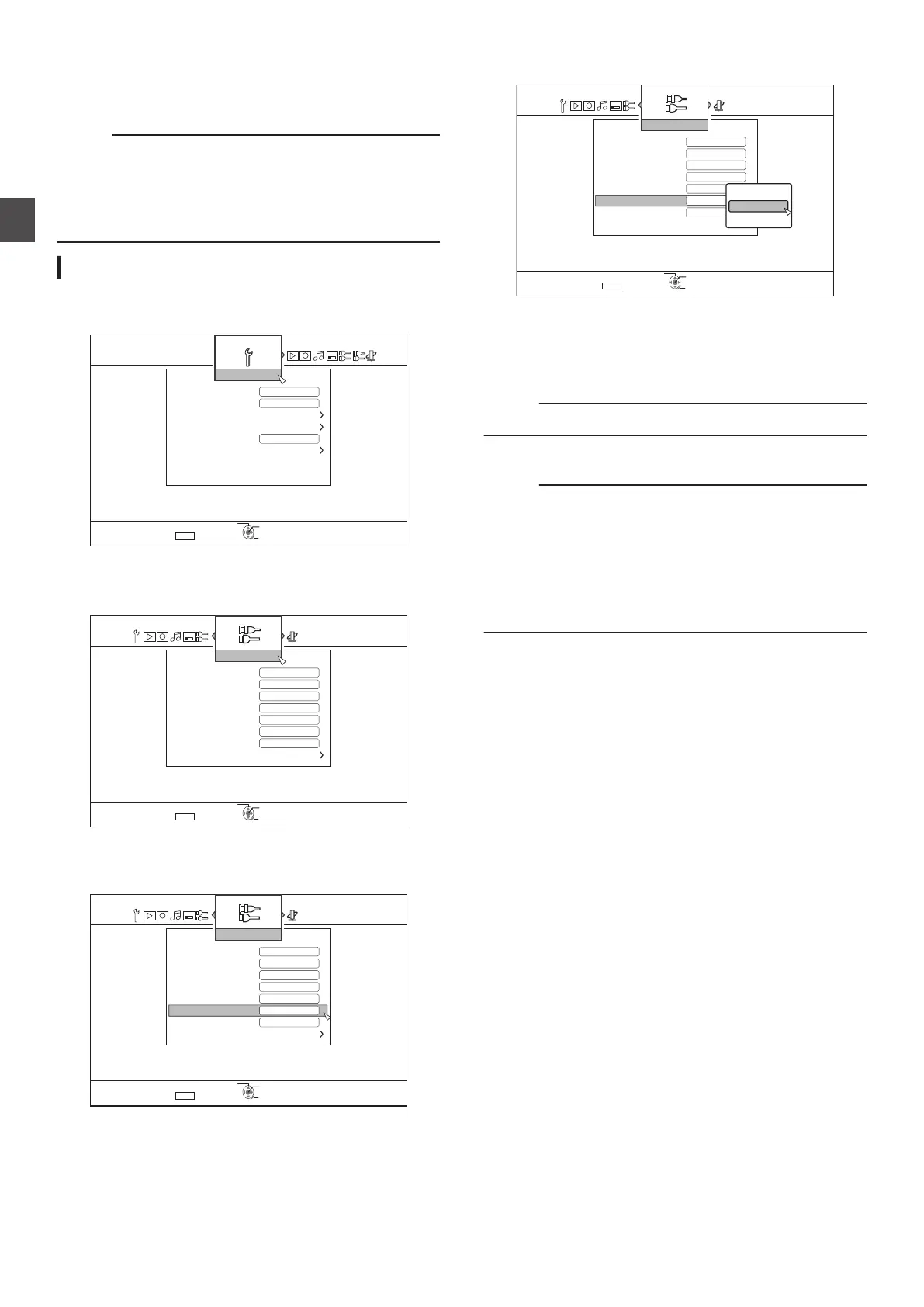
1 Press the [SET UP] button on the remote control unit
0
The Settings menu screen appears.
.
5'.'%6
':+6
&'(#7.65'66+0)
$7<<'4176276
37+%-56#4672
2#0'.&+52.#;$4+)*60'55
%.1%-5'6&+52.#;
4'/16'%10641.
4'/16'%10641.%1&'
1((
1((
#761219'41((
5'672
4'6740
5'672
1-
2
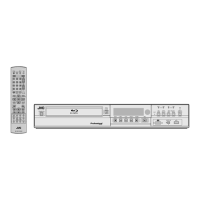
Press the [ I ] button, and select
“SDI/HDMI
CONNECTION”
0
The “SDI/HDMI CONNECTION
” screen appears.
.
.%*4%*
.%*4%*
5'672
4'6740
1-
5'.'%6
':+6
&+5%5'%74+6;5'66+0)
.19'4.'(6
(4#/'5;0%*410+<'4
10
10
6+/'%1&'&+52.#;215+6+10
6+/'%1&'+02765'66+0)
5&+4'%.1%-
*&/+
*&/++0276#7&+15'66+0)
5&+#7&+11762765'66+0)
5&+#7&+1+02765'66+0)
5&+*&/+%100'%6+10
1((
3
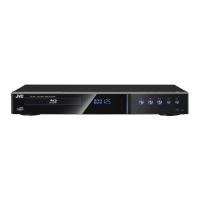
Press the [ J ] or the [ K
] button, select “TIME
CODE INPUT SETTING”, and press the [OK]
button
.
*&/+
.%*4%*
.%*4%*
4'6740
5'672
1-
5'.'%6
':+6
&+5%5'%74+6;5'66+0)
.19'4.'(6
6+/'%1&'&+52.#;215+6+10
1((
6+/'%1&'+02765'66+0)
(4#/'5;0%*410+<'4 10
105&+4'%.1%-
*&/++0276#7&+15'66+0)
5&+#7&+11762765'66+0)
5&+#7&+1+02765'66+0)
5&+*&/+%100'%6+10
4
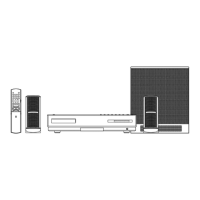
Select “TIME CODE” or
“DATE & TIME”
.
*&/+
.%*4%*
.%*4%*
4'6740
5'672
1-
5'.'%6
':+6
1((
.19'4.'(6
6+/'%1&'&+52.#;215+6+10
&+5%5'%74+6;5'66+0)
6+/'%1&'+02765'66+0)
10
10(4#/'5;0%*410+<'4
5&+4'%.1%-
*&/++0276#7&+15'66+0)
5&+#7&+11762765'66+0)
5&+#7&+1+02765'66+0)
5&+*&/+%100'%6+10
'6+/'
6+/'%1&'
1((
TIME CODE : When
there are multiple time code inputs
from the SDI device, such information will
be superimposed over the SDI video
input.
DATE & TIME : This unit superimposes the current date/
time over the SDI or HDMI video input.
Memo :
0
Select “OFF
” if you don’t want to display the time code.
5
Press the
[OK] button after making a selection
0
The time code setting is saved.
Memo :
0
Setting is now complete. If multiple time code inputs are
detected from the SDI signals, time code (TC**:**:**:**) is
displayed in case that
“TIME CODE” is set.
Current date and time is displayed if “DATE & TIME” is set.
Examples : 2015.JAN.01 12:34:56
0
For details on the “TIME CODE DISPLAY POSITION
”
settings, refer to “Setting “TIME CODE DISPLAY POSITION””
(A P 27).
26
Setting the Time Code
Preparation



 To Next Page