Memo :
0
High-speed dubbing
Select this option if you want to significantly shorten the time
required for dubbing.
Make use of a disc that supports high-speed recording.
0
AF/AN/AL/AE
Can be selected for BD-R and BD-RE. Dubbing is done with
HD picture quality.
0
XP/SP/LP/EP
Dubbing is done with SD picture quality.
0
FR
An appropriate mode will be chosen automatically between
XP to EP according to the remaining memory on the disc.
For details, refer to “Dubbing chart” (A P
29) and “Recording
Modes” (A P 33).
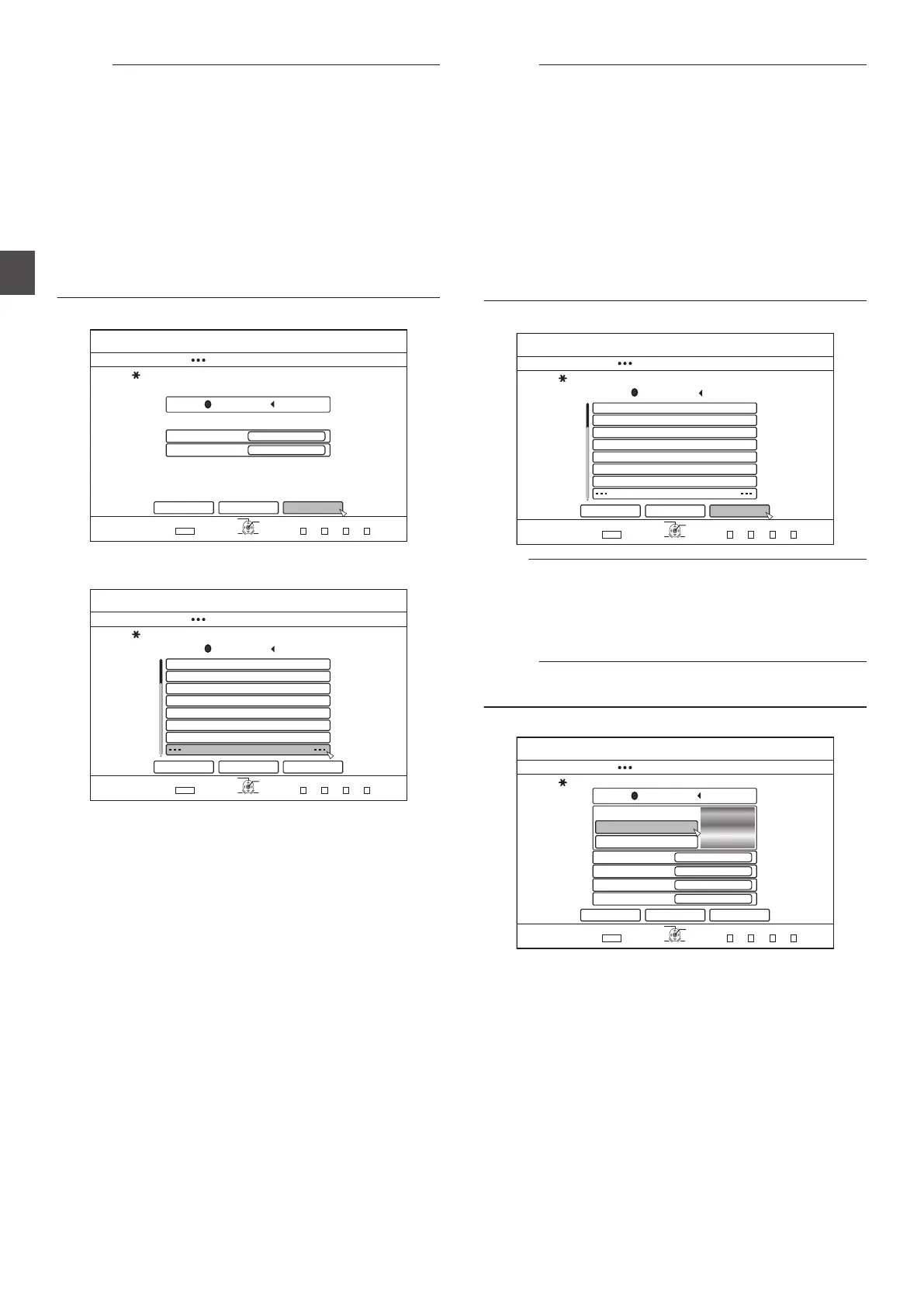
3
Select
“NEXT”, and press the [OK] button
.
&+5%
126+10
1-
4'6740
&7$$+0)
56'2
5'.'%66*'&7$$+0)&'6#+.5
*&&
4'%14&+0)(14/#6
4'%14&+0)/1&'
*+)*52''&&7$$+0)
%#0%'. $#%- 0':6
':+6
5'.'%6
&7$$+0)
&8&8+&'1
0
A screen for creating a dubbing title list appears.
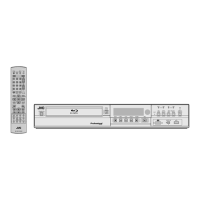
4
Create a dubbing title list
.
#$%
5RQTVU
%QQMKPI
-+&5914.&
0GYU###
4GRQTV
(.19'4.'5510
&+5%
126+10
1-
4'6740
&7$$+0)
56'2
%4'#6'6+6.'.+56(14&7$$+0)
*&&
#&&6+6.'.+56(14&7$$+0)
%#0%'.
$#%-
0':6
':+6
5'.'%6
&7$$+0)
0
Follow the steps below to create a dubbing title list.
A
Select
“ADD TITLE LIST FOR DUBBING”, and press
the [OK] button
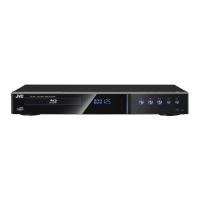
B
Select the titles to dub, and press the [OK] button
Memo :
0
Press the [MARK] button. A check mark will appear beside
the title.
All titles with a check mark can be added to the list at the same
time.
0
Select a title from the dubbing title list, and press the
[OK]
button to perform the following changes.
0
Delete the selected title from the list
0
Change the list arrangement
0
Change the name of the selected title
Select “RENAME TITLE”, and press the [OK] button to
change the title of the dubbing source. Dubbing of the new
title is performed.
0
The
recording mode and recording time of the selected video
title is displayed at the top right corner of the screen.
5
Select “NEXT”, and press the [OK] button
.
#$%
5RQTVU
%QQMKPI
-+&5914.&
0GYU###
4GRQTV
(.19'4.'5510
&+5%
126+10
1-
4'6740
&7$$+0)
56'2
%4'#6'6+6.'.+56(14&7$$+0)
*&&
#&&6+6.'.+56(14&7$$+0)
%#0%'.
$#%-
0':6
':+6
5'.'%6
&7$$+0)
Note :
0
“NEXT
” cannot be selected for the following cases.
0
A title that cannot be dubbed has been selected
0
Disc memory is insufficient
0
A dubbing title list has not been created
Check “Troubleshooting” (A P 114
), and operate accordingly.
Memo :
0
Steps 6 and 7 are not applicable for “BDAV” and “DVD-VR”
disc formats. Go to step 8.
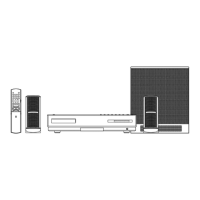
6
Select a background image for the disc menu
.
&+5%
126+10
1-
4'6740
*&&
&7$$+0)
56'2
5'.'%66*'&7$$+0)&'6#+.5
%*#0)'&+5%/'07$#%-)4170&
5'.'%6(41/&'(#7.6$#%-)4170&
5'.'%6(41/56+..2+%674'5
(+0#.+<'
10
4'0#/'&+5%
%#0%'. $#%- 56#46
':+6
5'.'%6
&7$$+0)
(+4562.#;
4'2'#6
010'
1((
0
Select a background image for the disc menu from
“Background” or “Still Picture”.
0
“SELECT FROM DEFAULT BACKGROUND”
A default background set is used for the disc menu.
0
“SELECT FROM STILL PICTURES
”
Use a still image on the HDD for the disc menu.
The
largest size allowed for a still image that is used as
the background is 5120 x 3840.
46
Dubbing a Title from the HDD to a BD/DVD
Dubbing/Importing



 To Next Page