KICstart Version 1.1.0.x
KICstart User Manual 13
Run a Profile
The Run a Profile button will guide you through 6-7 screens, which will finish at a completed and graphed
profile. To move through these screens you can use the Back, Next, or Cancel buttons. The Cancel button
will take you back to the Main Menu.
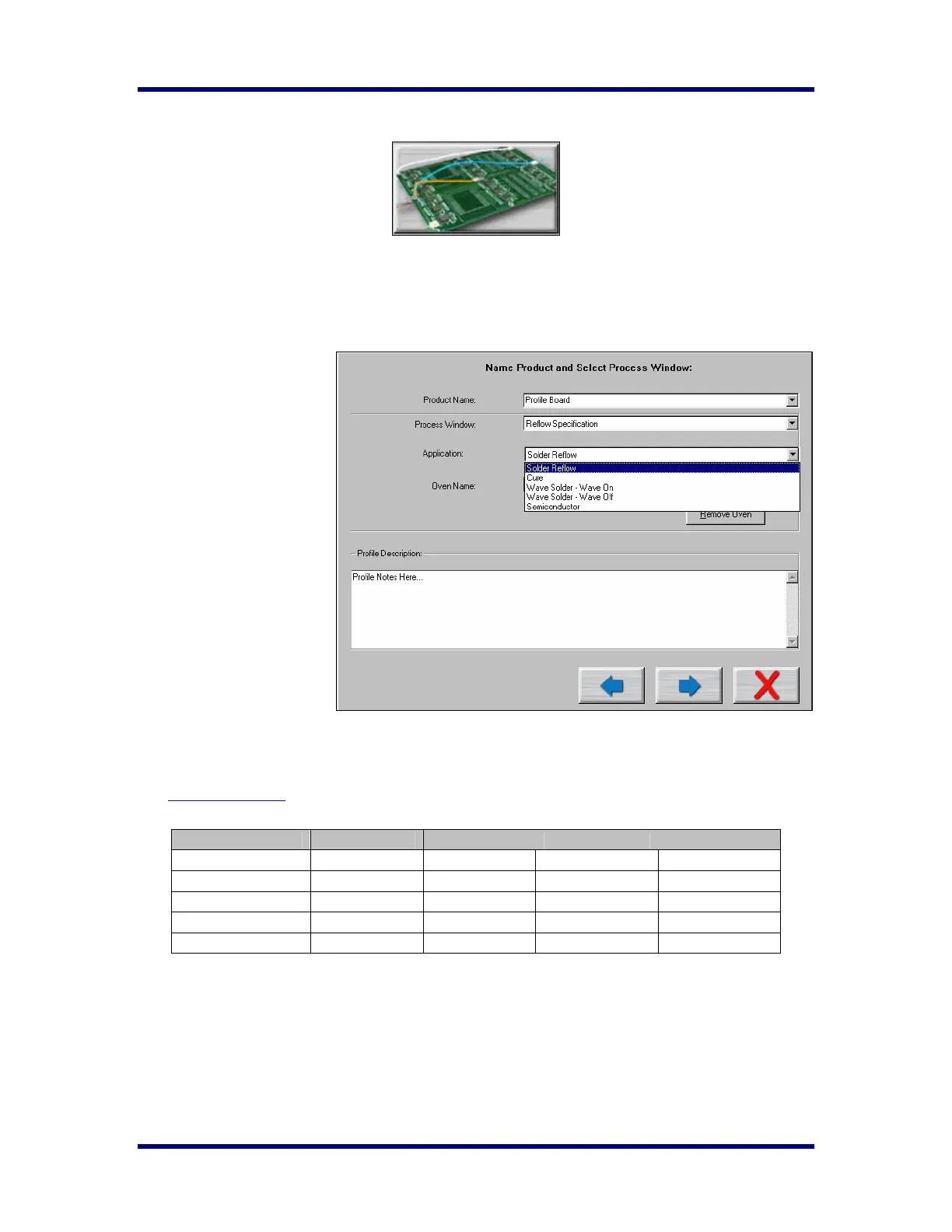
Name Product and Select
Process Window
♦ Product Name – Enter
in a unique product
name (long file names
are acceptable) or
choose an existing
product name from the
drop down list.
♦ Process Window –
Choose a Process
Window from the drop
down list. These
Process Windows are
created in the
Define/Edit Process
Window screen which is
accessed from the
KICstart main screen.
♦ Application – Select
your Application type
from the list. The KICstart software will function depending on the selected Application type. Some
variables that might change depending on the selected Application type are: data-sample rate, profile
temperature trigger values, and specific artwork. It is very important to choose the correct
Application type. If you are unsure, you can contact KIC technical support for help,
tech@kicmail.com.
KICstart Application Specifications
♦ Oven Name – Enter a unique oven name or choose an existing oven from the drop down list. The
oven will have information about the number of zones saved with it as well as other zone information.
This is entered on the next screen. Remove Oven button will delete the oven name currently displayed
in the field.
♦ Profile Description – Allows for freehand typing of any notes you may want to include with this
profile.
Application Samples/Sec. Start Mid End
Cure 3 40°C/104°F 100°C/212°F 80°C/176°F
Semiconductor 4 40°C/104°F 130°C/266°F 110°C/230°F
Solder Reflow 4 40°C/104°F 130°C/266°F 110°C/230°F
Wave OFF 4 40°C/104°F 130°C/266°F 110°C/230°F
Wave ON 10 40°C/104°F 110°C/230°F 90°C/194°F



 To Next Page