Version 1.1.0.x KICstart
40 KICstart User Manual
Running a Cure Profile
The process for running a Cure profile is very similar to
Reflow. You will have to define your own spec, as the
KICstart software does not contain process windows
designed for cure applications.
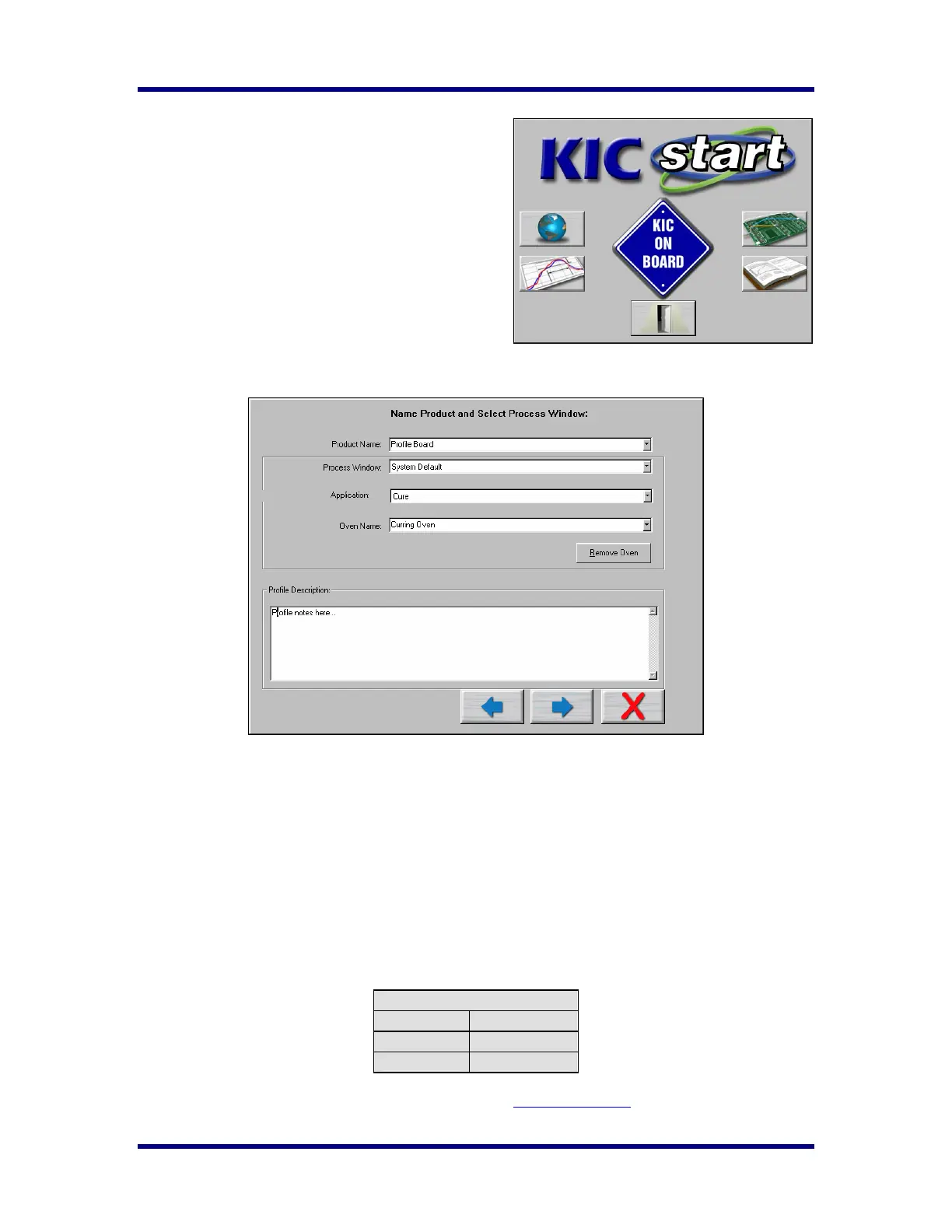
From the KICstart main screen select the “Run a Profile”
button.
This is the button that has a picture of a PCB. A text
label will be displayed as you place the mouse pointer
over each button.
Name Product and Select Process Window/Application type
• Select your product name from the list. If you’re profiling a new product type the name.
• Select your Process Window from the list.
• Select your process type from the application list. The KICstart software profile results are based
on this setting, it is imperative that your select the correct application type. Failing to do so can
affect the profile results. Choose Cure.
• Select your oven name from the list. If you’re profiling on a new oven or machine, type the name
in the Oven Name field.
o Optionally you can type notes or descriptions for this profile in the “Profile Description” field.
These notes will be stored with the profile and can be edited later if necessary.
When you’re satisfied with your selection, choose the “Next” arrow to proceed. The software will step you
through the screens in order to run a profile.
Cure Profile Trigger temperatures:
Cure
Profile start 33ºC/92ºF
Mid trigger 100ºC/212ºF
Profile end 80ºC/176ºF
If you have any questions, contact KIC Technical Support. tech@kicmail.com
, (858)-673-6050 anytime.



 To Next Page