English
3
Introduction
Notice and Safety
Please read the following instructions carefully before operating the
device and refer to them as needed to ensure the continued safe
operation of your device.
Your KODAK Product and supplies have been designed and tested to
meet strict safety requirements, including safety agency evaluation
and certification, compliance with electromagnetic regulations and
established environmental standards.
The safety, environmental testing and performance of this device have
been verified using approved materials only.
WARNING: Unauthorized alterations, which may include the
addition of new functions or connection of external
devices, may impact the product certification.
Please contact your Customer Support representative
for more information at www.kodakverite.com/support
Dear Customer
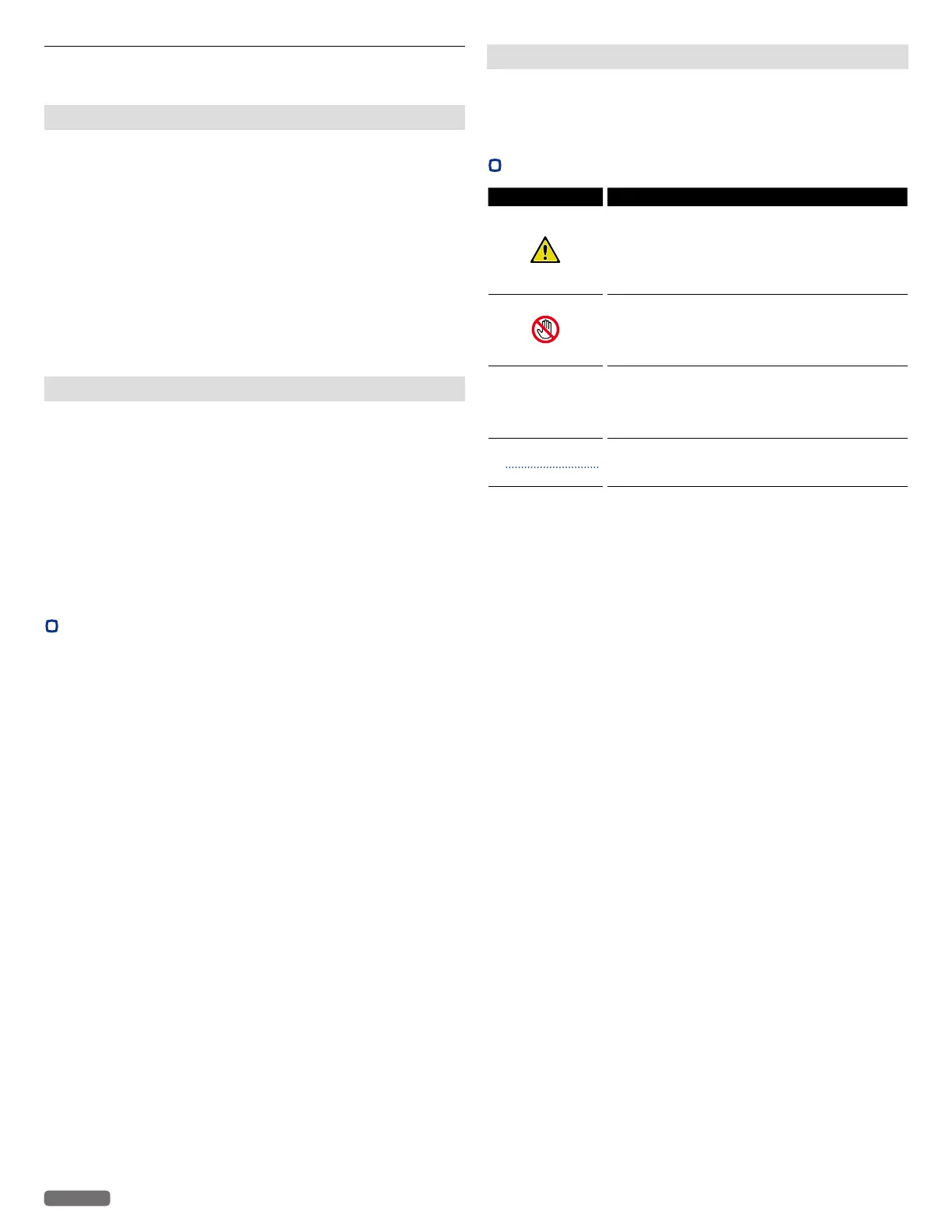
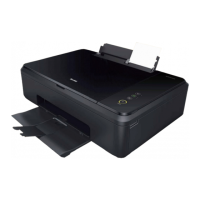
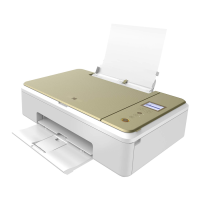
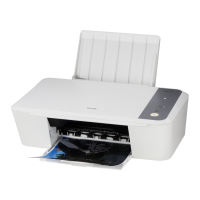
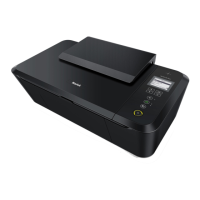
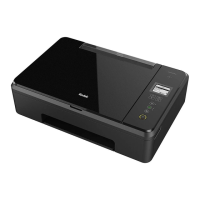
You've purchased a very different kind of printer and we are glad you did.
Now we want to help you get started saving on ink and using all of it's
features. This Kodak Verité printer provides quality printing for personal
and office / small business use and it always helps you save on the cost of
printing. For printing, copying and scanning, this all-in-one printer utilizes
the most up-to-date technology. Easy to install ink cartridges are always
provided with our printers; however, you must remove all packaging
used for transportation first. You can find the latest Software drivers and
manuals for the printer on the website:
www.kodakverite.com/support
We hope you enjoy your KODAK VERITÉ Wireless All-In-One Inkjet
Printer and its many functions!
•
Features
ECO mode
• You can easily save ink consumption.
»»
Refer to “ECO mode” on page 21.
Paper requirement
• You can load up to 60 sheets of normal printer paper onto the Paper
support.
»»
Refer to “Specifications for print media” on page 26.
ID Card Copy function
• Using the ID Card Copy function, you can copy both sides of a small
document (e.g. business card) onto one page.
»»
Refer to “ID Card Copy” on page 37.
Web interface
• The web interface is available to you on all operating systems.
You can access the web interface with an Internet browser on your
PC and conduct many different settings to your device.
»»
Refer to “Web interface” on page 53.
Status Messenger (for Windows® only)
• The Status Messenger is available on the operating system.
It is installed together with the printer driver and informs you of the
newest driver, Software or application to download and install.
Also, it shows the present status of the device. You receive detailed
error messages among other things.
»»
Refer to “Check print status from your PC” on page 25.
Copying and scanning
• The device also supports copying and scanning of color or black &
white documents. You can scan the document and save it to your
Network PC.
»»
Refer to “Making copies” on page 34 and “Scanner” on page 39.
About this Extended User Guide
Read the entire Extended User Guide carefully.
Follow all safety instructions in order to ensure proper operation of your
device. The manufacturer accepts no liability if these instructions are not
followed.
•
Symbols used in this Extended User Guide
Symbols Description
DANGER
Danger to Persons
This symbol gives warning of danger to
persons. Physical injury or damage can result
from improper handling.
DO NOT TOUCH
This symbol gives warning of danger to
persons. Physical injury or damage can result
from improper handling.
CAUTIONC
Damage to the Device or Loss of Data
This symbol gives warning of damage to
the device and possible loss of data. These
damages can result from improper handling.
Note(s)❏
This symbol designates tips that will help you
to use your device more effectively and easily.


 To Next Page