134
Konica Fax 9825 User’s Manual
PC Connectivity Software
Scanning Documents Using Twain
Arran
e Icons
If Options Windows are minimized, arranges these icons.
Window Names Menu
Option Windows that are open will be listed under the Window Menu. Selecting
the Window Name will access that Option Window.
Help Menu
The Help Menu has a single About selection that displays version information.
Scannin
Documents Usin
Twain
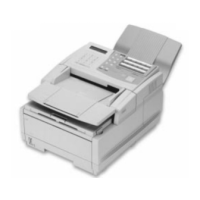
This section describes the use of the Konica Fax 9825 as a PC scanner.
The Konica Fax 9825 can be used to scan documents into the PC. The
documents or images may be used within graphics or word processing
programs. Using an OCR program, scanned documents can be translated into
text files. These scanned images can also be included with other PC
documents and faxed directly from the PC using a faxing program that
supports Class 1 or 2 fax modems.
Like the other PC Connectivity options, scanning is done within the Windows
environment. A Windows
program that supports scanning with a Twain driver
must be used. Such a program is not supplied by the PC Connectivity kit.
Scanning Documents
When using the scanner driver, the scanning process itself is the same, even
though the user interface of each scanning program will be different in some
way. After starting the scanning procedure from the application, a window with
various options will be displayed.
Resolution
Choose the appropriate resolution to scan the document. The higher the
values, the better the resolution, but the scan process will be longer and the
scanned data will be larger. Choose from 300x300, 200x200 or 200x100.
Pixel T
e
Choose between a normal or inverted pixel scan. This setting may differ
between scanning applications. Typically an inverted scan will produce a
negative-type effect.



 To Next Page