Using the Editor/Librarian
6
Using the Editor/Librarian
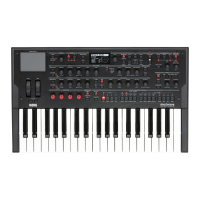
Starting the modwave Editor/Librarian
1. Install the soware and connect the modwave via USB, as described under “Installation” on page4.
A USB connection is required.
2. Start the modwave Editor/Librarian.
You can nd the modwave Editor/Librarian application in the following locations, depending on the operating system
being used:
In MacOS, the modwave Editor/Librarian is installed into Applications/KORG/modwave.
In Windows, you can nd the modwave Editor/Librarian under KORG/modwave in All Programs, the Start Menu, etc.
Using the Editor/Librarian with two or more modwaves
Important: Before connecting multiple modwaves, make sure to set each instrument’s System ID to a dierent
number.
To set the modwave’s System ID:
1. Press the UTILITY button to go to the System Setup page.
If a dierent page appears at rst, press UTILITY again.
2. Set the System ID parameter, at the bottom of the page, as desired.
e specic number isn’t important; just make sure that all connected modwaves have dierent System IDs.
3. In the modwave Editor/Librarian, use the Devices menu to select the desired modwave.
Note that data cannot be copied directly from one modwave to another; instead, use Export to save the data from the
rst modwave, and then Import to load the data into the second modwave.
Two modes: Editor and Librarian
e buttons in the upper right of the main window select whether you’re working with the Editor or the Librarian. For
the most part, you can simply switch between the two without thinking about it. It’s important to note, however, that
some menu commands may be available only in one mode, and that undo is handled separately for each mode.
Menu commands
In general, menu commands for le operations, such as importing, exporting, backing up, and restoring, are available
only when the Librarian is active. Similarly, menu commands for saving Performances are available only when the
Editor is active.
Undo/Redo
e modwave Editor/Librarian supports multiple levels of undo and redo for most actions, including importing
data, deleting, renaming, editing Set Lists, editing parameters, and so on. For instance, you could import a bundle le
containing a thousand objects, and then rename all of your Programs, and safely undo both actions in turn. Note that
restoring from a backup is not undoable.
Undo/redo buers are maintained separately for the Librarian and Editor modes. You’ll see this in the menu
commands, whose names change based on the mode to either Librarian Undo/Redo or Editor Undo/Redo,
respectively.


 To Next Page