Using the Editor
9
Search
Type into this eld to lter the list by searching for text in any of the metadata elds. Click on the “X” to clear the eld.
Categories
Categories let you lter by the type of sound, such as basses, leads, bells, etc. Each sound can be assigned to two
Categories, and each data type—Performances, Programs, etc.—has its own list of Categories. Click on a Category
name to lter by that Category; click on the “X” to deselect all Categories.
When searching by Category, a sound will be shown if either of its Categories match the search criteria.
Collections
Categories let you lter sounds by group, such as factory sounds, expansion packs, or your own projects. Each sound
can be assigned to one Collection. Click on a Collection name to lter by that Collection; click on the “X” to deselect all
Collections.
Saving Sounds
e Performance, with its two Layers, is the main way of selecting, editing, and saving sounds. While you can save
Programs, Motion Sequences, Motion Sequence Lane Presets, and Kaoss Physics and Eects Presets, you don’t have to
do so: all data is contained in the Performance.
Similarly, when you load any of these data types into a Performance, a new copy of the data is created in the
Performance. Any edits aect only the local copy inside the Performance, and not the original data. is lets you edit
freely without worrying about aecting other sounds.
To save a sound or preset:
1. Go to the Selector for the sound or preset. For more information, see “Selectors” on page 7.
2. Press the Save icon, or right-click/control-click (macOS) on the name to open the contextual menu and select
the Save command.
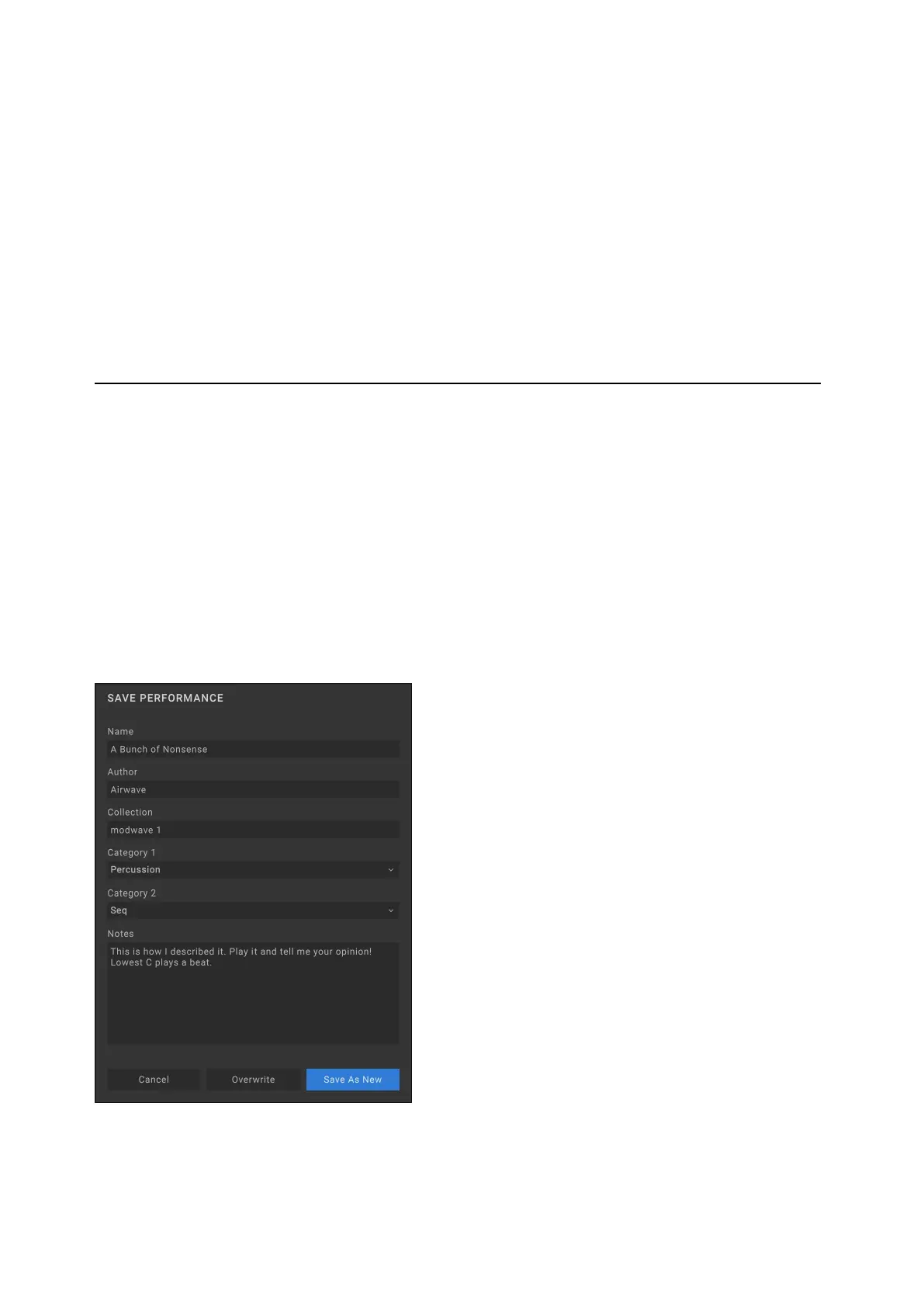
e Save dialog will appear:
Save dialog
3. Set the Name, Author, Collection, and Categories as desired.
You can also edit all of this metadata later, using the Librarian window.


 To Next Page