5. If required, check the box indicating Logout After to automatically logout after a set
number of minutes of inactivity, and set the number of minutes to wait before locking the
webpages.
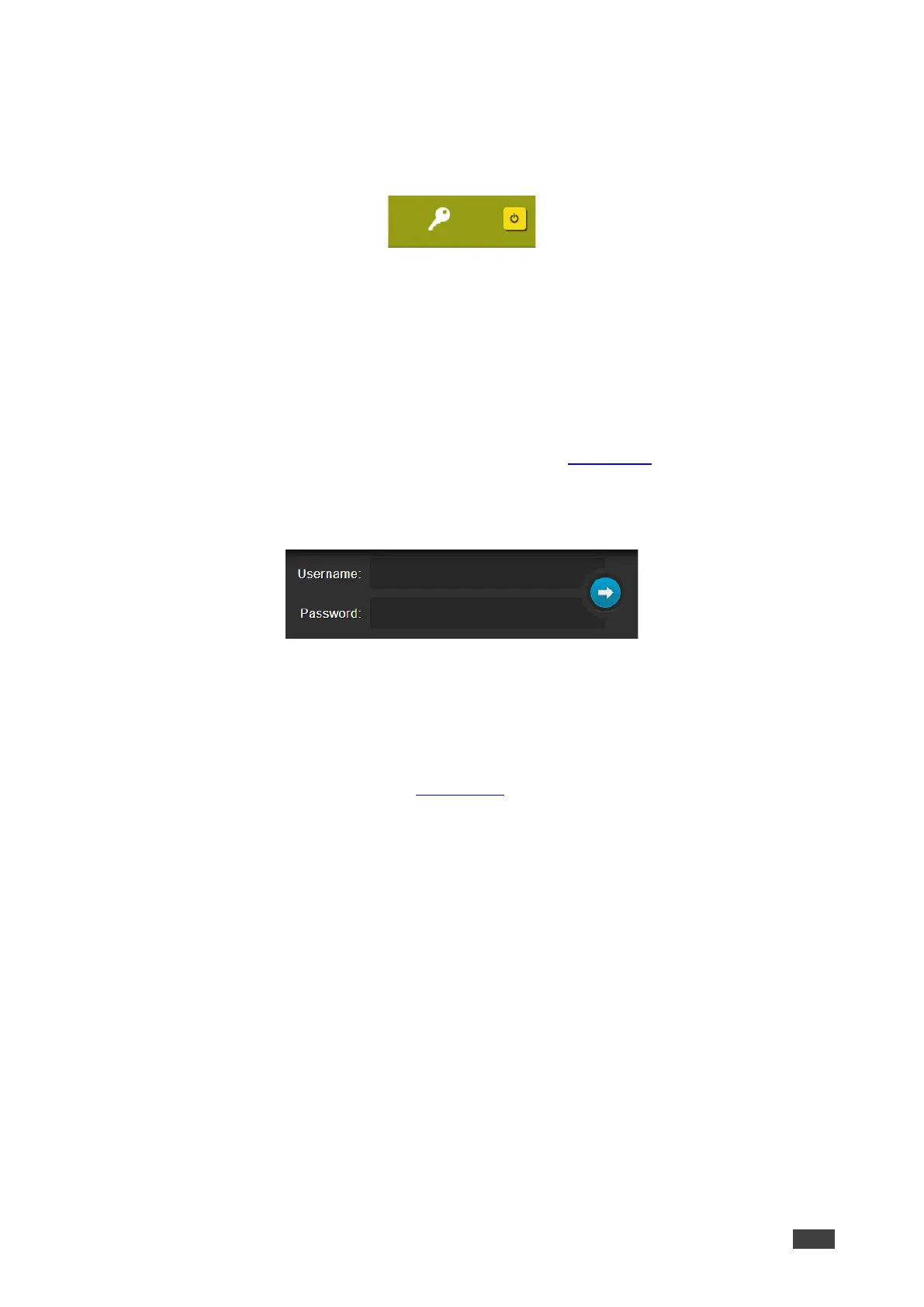
6. Click Set changes below, a white key appears in the upper right corner.
Figure 31: White Key Indicating Webpages Are Password Protected.
The webpages lock according to your settings.
Accessing Webpages with a Password
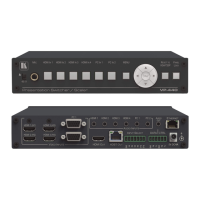
When the webpages are locked, you will be prompted for your username and password.
To access secured webpages:
1. Click Authentication on the left side of the webpage (Figure 30).
2. Enter the correct username and password.
3. Click the right arrow.
Figure 32: Prompt to Unlock Webpages
Webpage is accessed via password.
Removing Password Protection from Webpages
1. Click Authentication on the Navigation List.
The Authentication page appears (Figure 30).
2. Uncheck Authenticate Web Pages access to indicate that you do not want the
webpages to lock.
3. Click the Set changes button below, and you will see the small white key disappear from
the upper right corner.
Authentication is removed.


 To Next Page