Current Settings are Saved.
Loading Configurations
To load a configuration:
1. Click Device Settings on the Navigation List.
The General tab in the Device Settings page appears (Figure 19).
2. Click Load.
An Explorer window opens.
3. Select the required file and click Open.
The device is configured according to the saved preset.
Resetting Device
You can reset the device to its default parameters, including model name and network
settings (such as TCP/UDP port numbers, IP address and so on).
To reset the device to its factory default parameters:
1. Click Device Settings on the Navigation List.
The General tab in the Device Settings page appears (Figure 19).
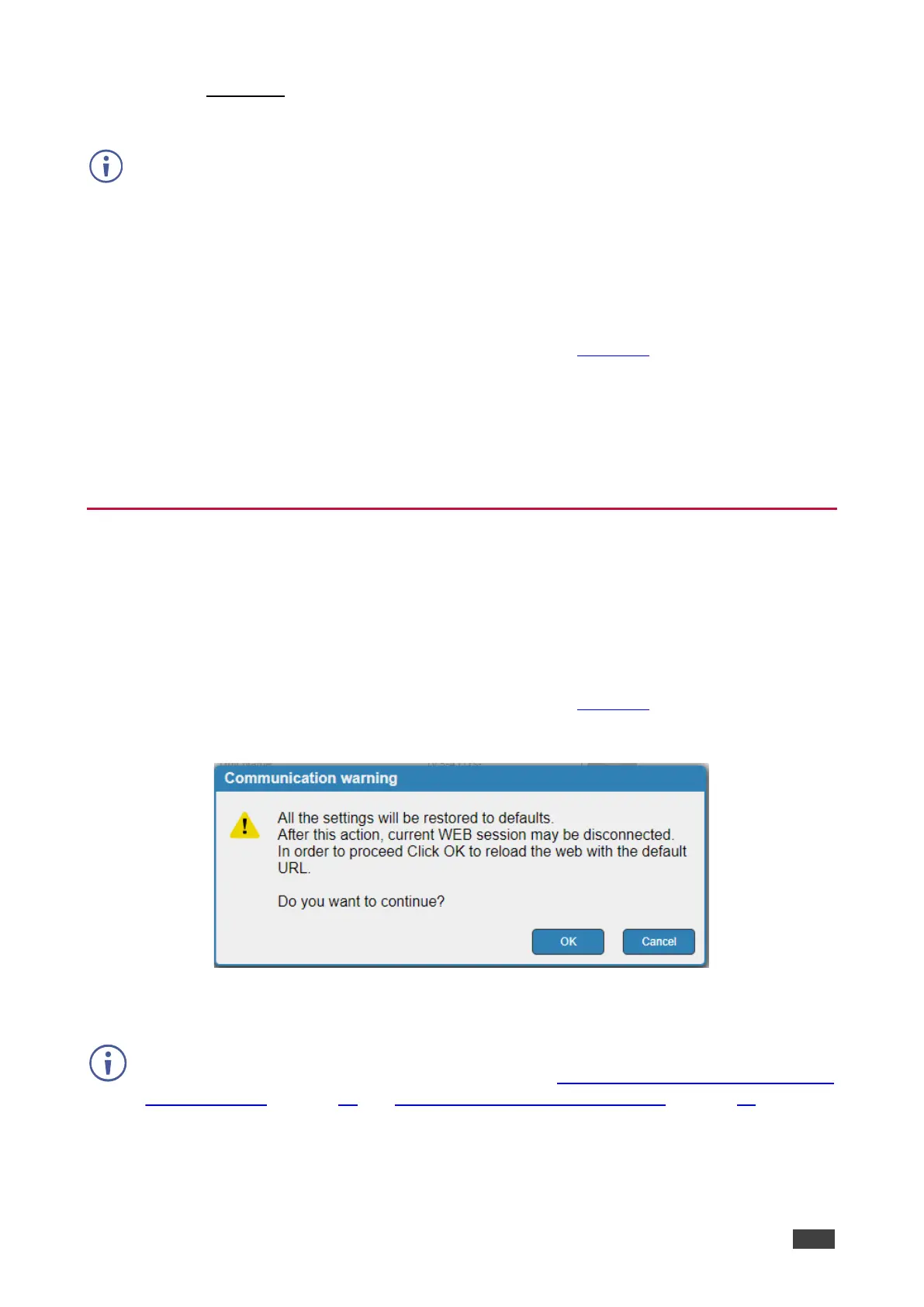
2. Click Factory reset. The Communication warning appears.
Figure 21: General Settings – Communication Warning
3. Click OK.
Following factory reset, the device resets to DHCP ON. If no DHCP server is found, the
device falls back to its default fallback IP settings (see Acquiring and Discovering Plug-and-
Play IP Address on page 17 and Default Communication Parameters on page 62).



 To Next Page