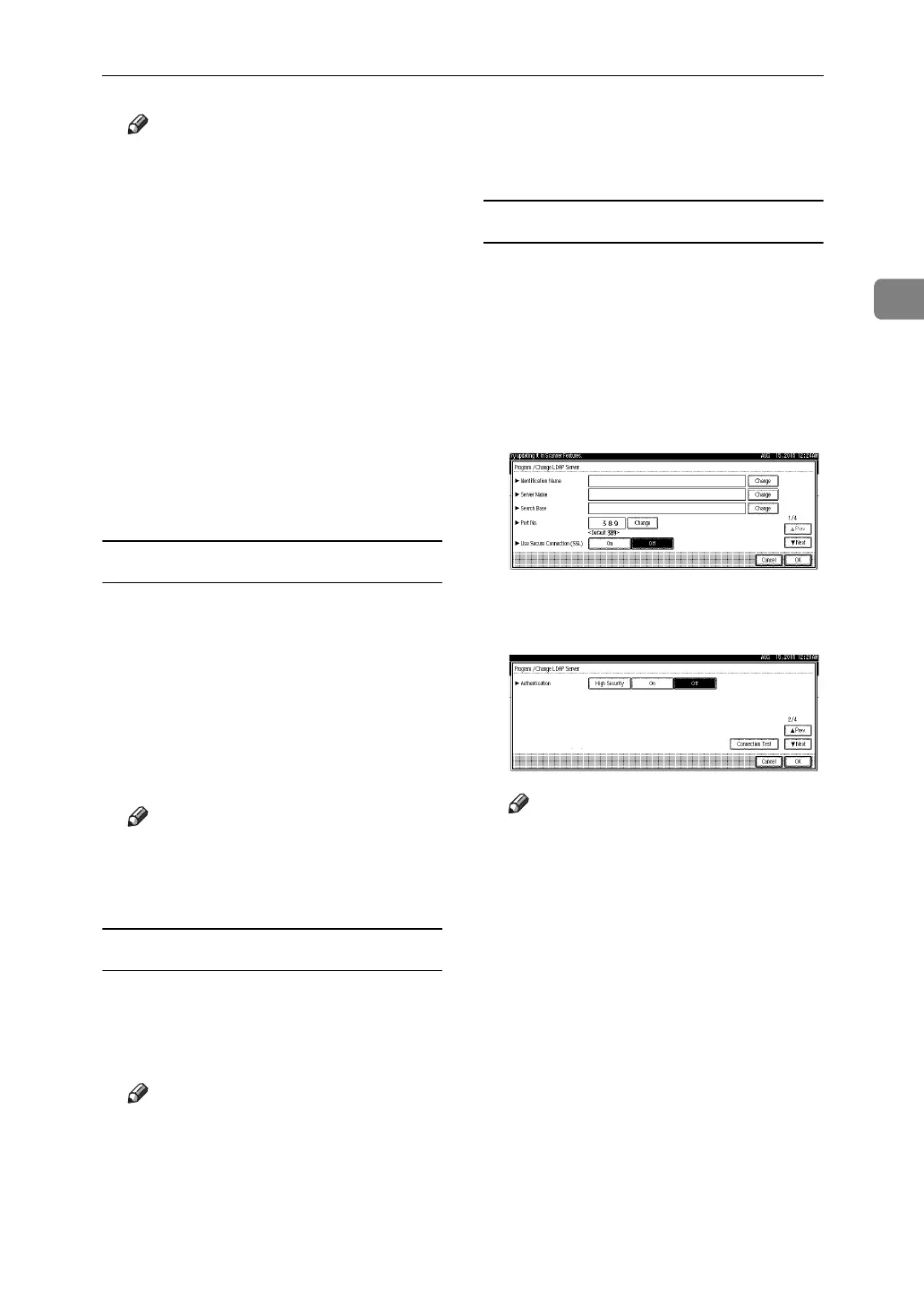
LDAP Server Settings
47
2
Note
❒
For example, if the search target is
the sales department of ABC com-
pany, enter “dc=sales department,
o=ABC”. (In this example, the de-
scription is for an active directory.
“dc” is for the organization unit,
and “o” is for the company.)
❒
Search base registration may be
required depending on your serv-
er environment. When registra-
tion is required, unspecified
searches will result in error. Check
you server environment and enter
any required specifications.
C Press [OK].
To enter a port number
Specify the port number for commu-
nicating with the LDAP server. Speci-
fy a port that is compliant with your
environment.
A Press [Change] under [Port No.].
B Enter the port number using the
number keys, and then press [#].
Note
❒ When SSL is set to [On], the port
number automatically changes
to “636”.
To start SSL communication
Use SSL to communicate with the
LDAP server.
A Press [On].
Note
❒ To use SSL, the LDAP server
must support SSL.
❒ When SSL is set to [On], the port
number automatically changes
to “689”.
❒ SSL setting must be enabled on
this machine. For details, consult
your network administrator.
To set authentication
To make a search request to the LDAP
server, use the administrator account
for authentication.
For details about the administrator
account, see “To enter the user name
and password”.
A Press [TNext].
B Press [On] or [High Security] under
[Authentication].
Note
❒ Authentication settings must
comply with your server’s au-
thentication settings. Check
your server settings before set-
ting this machine.
❒ [High Security] is available only
with LDAP Version 3.0.
❒ When [High Security] is selected,
the administrator password is
encrypted before it is sent to the
network. When [On] is selected,
the password is sent without
encryption.



 To Next Page