PLMNL0286 REV. B, Effective Date: 06/06/19 25 FiberMINI
®
with Auto Focus (AF) Operation Manual
4 FiberMINI
®
Monitor
FiberMINI
®
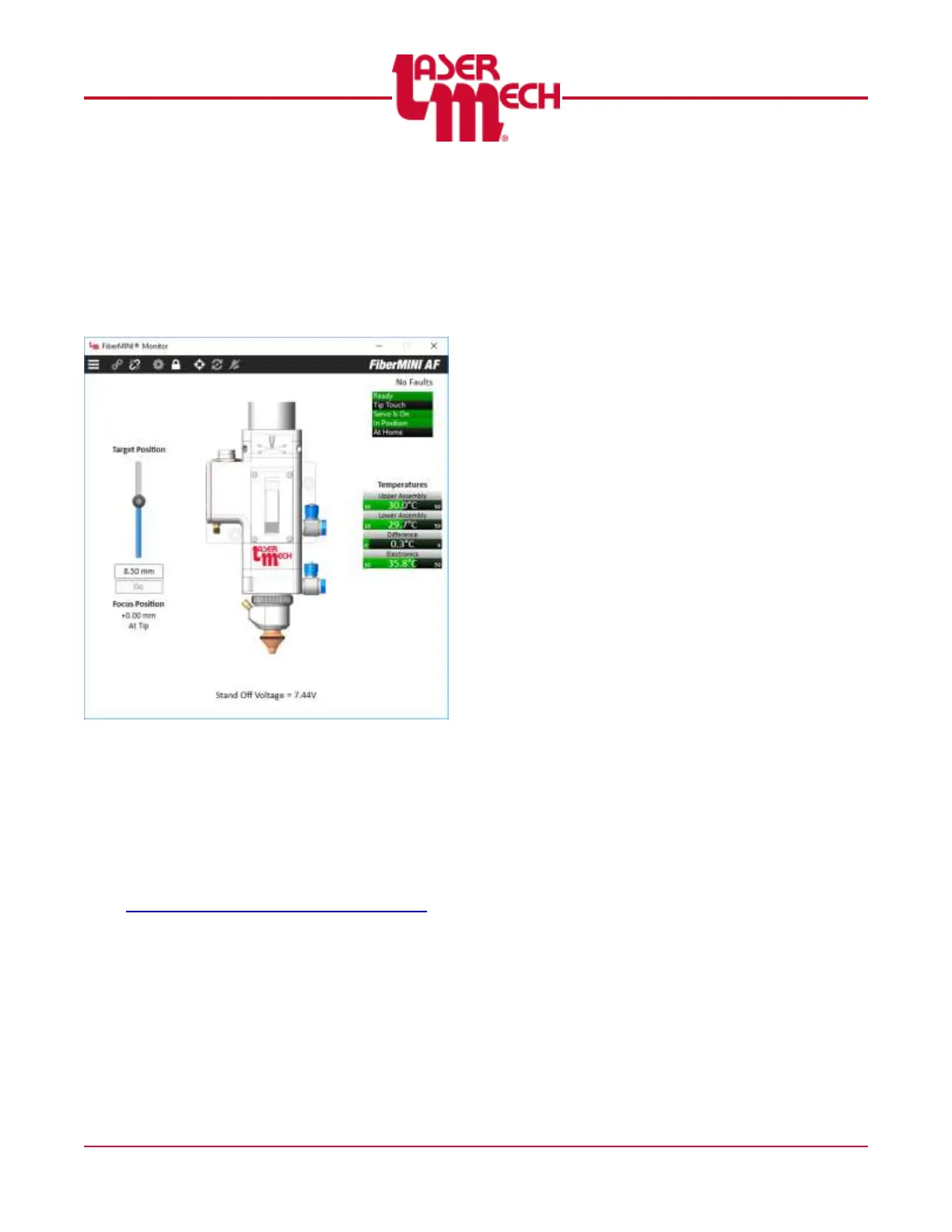
Monitor is a very useful tool for use
with your FiberMINI
®
. FiberMINI
®
Monitor runs
on a standard PC and connects to the
controller with a USB cable. It provides real
time monitoring of head temperatures,
positioning, and output status. See Figure 23.
Figure 23
4.1 Installation
4.1.1 Downloading FiberMINI
®
Monitor
Software
Download the latest copy of the
FiberMINI
®
Monitor software from the
FiberMINI
®
Updates web page:
http://www.lasermech.com/fiberminiupdates
Once you download the compressed
folder from the web site, it only needs
to be decompressed.
1. Right-click on the compressed
folder and select Extract All....
2. Follow the on-screen instructions to
complete the decompression
(extraction) of the compressed
files.
The resulting folder will have a
single fiberMINI.exe file, a
driver folder, and a folder
named FiberMINI Libs.
It is important that the Libs
folder remain at the same
location as FiberMINI
®
Monitor.
You can move and copy the
parent folder for these files as
needed; without a license key.
4.1.2 Installing FiberMINI
®
Monitor Driver
You MUST connect the FiberMINI
®
to a
customer supplied Windows based
computer using the included USB cable
and powered through a separate 24V
source before operating the FiberMINI
®
Monitor. If the system is connected and
is not recognized, install the FDTI CDM
drivers using the installer found in the
Driver directory of the FiberMINI
®
Monitor folder.
4.2 System Requirements
Windows 7 or later
Minimum Screen Resolution: 800 x
600
USB Port


 To Next Page