LAUNCH
X-431 PRO5 User Manual
25
Enter:
Tap to enter the diagnostic function selection screen.
(Search):
Highlight certain diagnostic trouble code and tap it to retrieve it in the search engine.
Report:
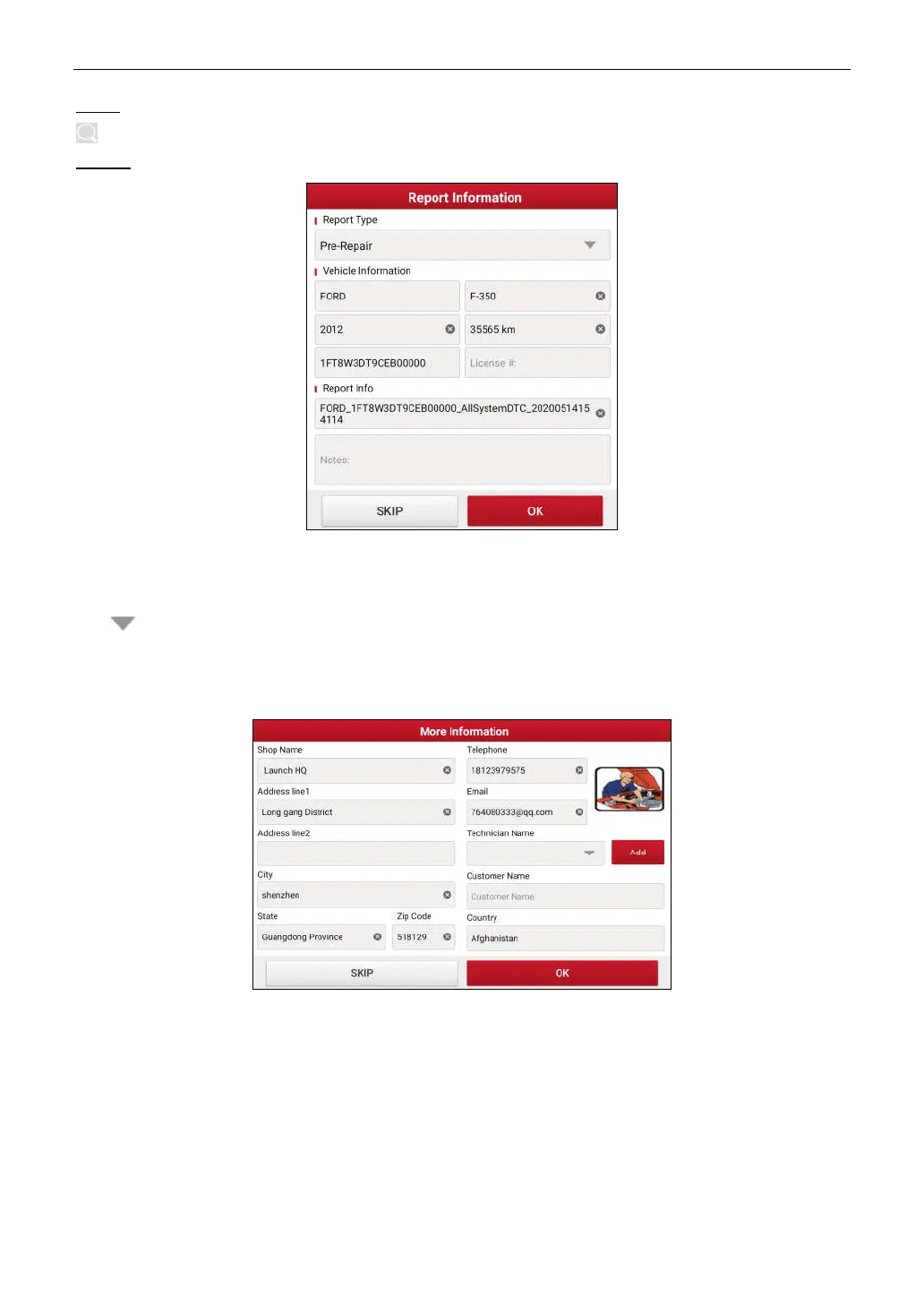
Tap to save the diagnostic result as a health report.
*Note: Diagnostic report is classified into three categories: Pre-Repair report, Post-Repair report and Diagnostic Scan. No
matter which type you saved the report as, the report type will be appended as a tag on the upper right corner of the diagnostic
report for easier identification.
Tap to select the report type from the option list and input the required information, and then tap
OK
.
*Note: To facilitate the comparison of the pre-repair and post-repair reports and get accurate test result, please make sure you
saved the right type of the diagnostic report.
To save the report as a common diagnostic report, select
Diagnostic Scan
.
*Note: For workshop information, tap the input box to enter it. Alternatively you can also set it in
User Info -> Settings ->
Shop Information
.
Once you configured the information, it will be automatically generated every time you saved the diagnostic report. All
vehicle and workshop information will be appended as tags on the diagnostic report.
To ignore the workshop information, tap
Skip
to go to the report details screen.


 To Next Page