LAUNCH
X-431 PRO5 User Manual
26
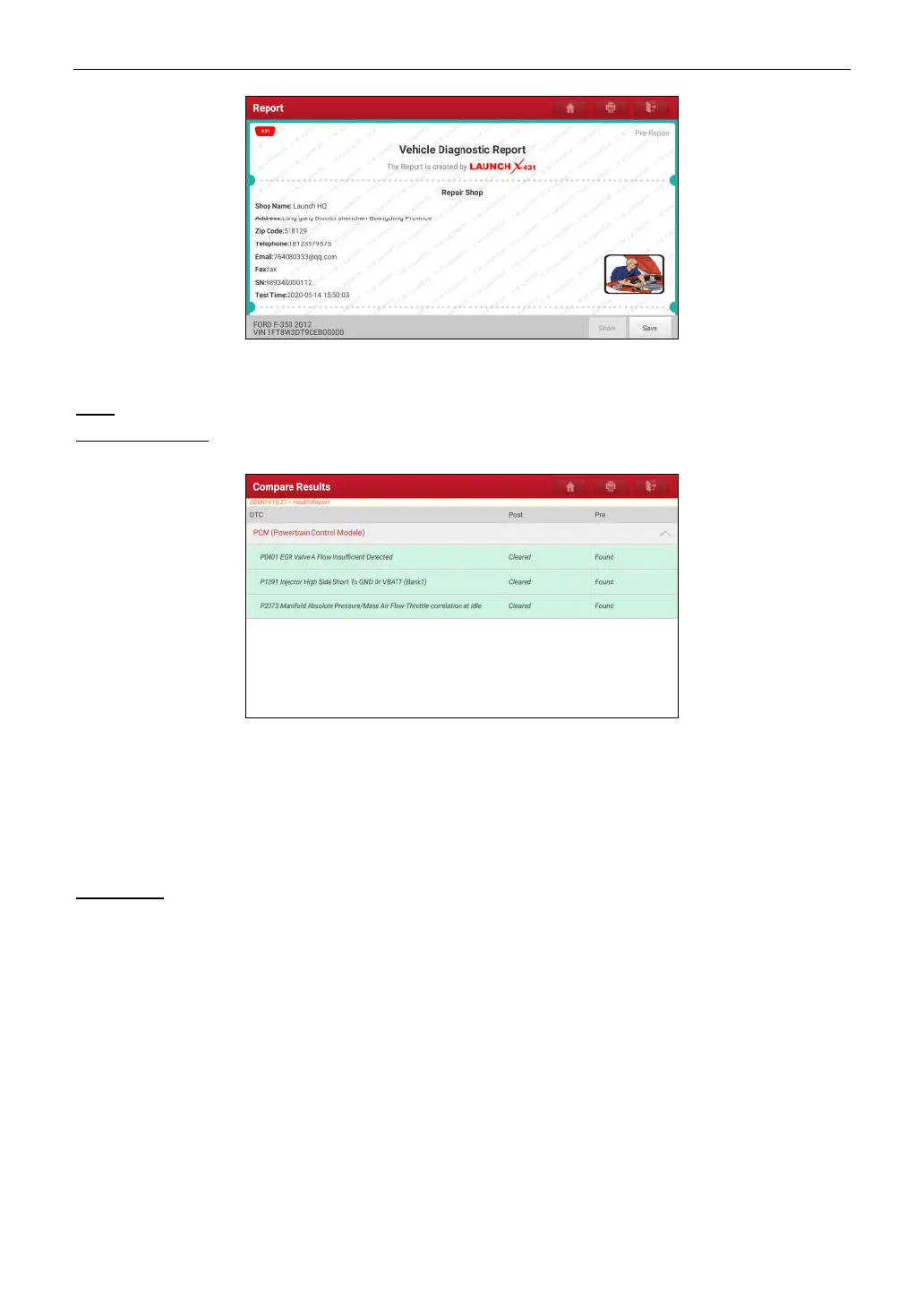
On the report details screen, tap
Save
to save it. All diagnostic reports are saved in
User Info -> My Report ->
Health Report
.
Help:
Tap to view the help information of the selected DTC item.
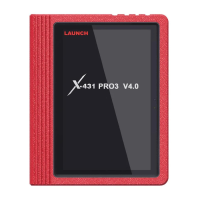
Compare Results:
Tap to select the pre-repair report to compare. By comparison of the pre- and post- repair
reports, you can easily identify which DTCs are cleared and which remain unfixed.
•
Post
indicates DTC status of post-repair.
•
Pre
indicates DTC status of pre-repair.
*Note: Before performing this function, please make sure that:
• You have saved a pre-repair report of the currently tested vehicle, and
• You have already made some repairs and service and cleared the DTCs after the pre-repair reported is generated.
Otherwise, no differences exist between the pre- and post- repair reports.
Clear DTCs:
Tap to clear the existing diagnostic trouble codes.
*Note: Clearing DTCs does not fix the problem(s) that caused the code(s) to be set. If proper repairs to correct the problem
that caused the code(s) to be set are not made, the code(s) will appear again and the check engine light will illuminate as soon
as the problem that cause the DTC to set manifests itself.
5.2.2 System Scan
This option allows you to quickly scan which systems are installed on the vehicle.
On the test item selection screen, tap
System Scan
, the system start scanning the systems. Once the scanning
process is complete, the following screen will appear.


 To Next Page