LAUNCH
X-431 PRO5 User Manual
61
5. Select
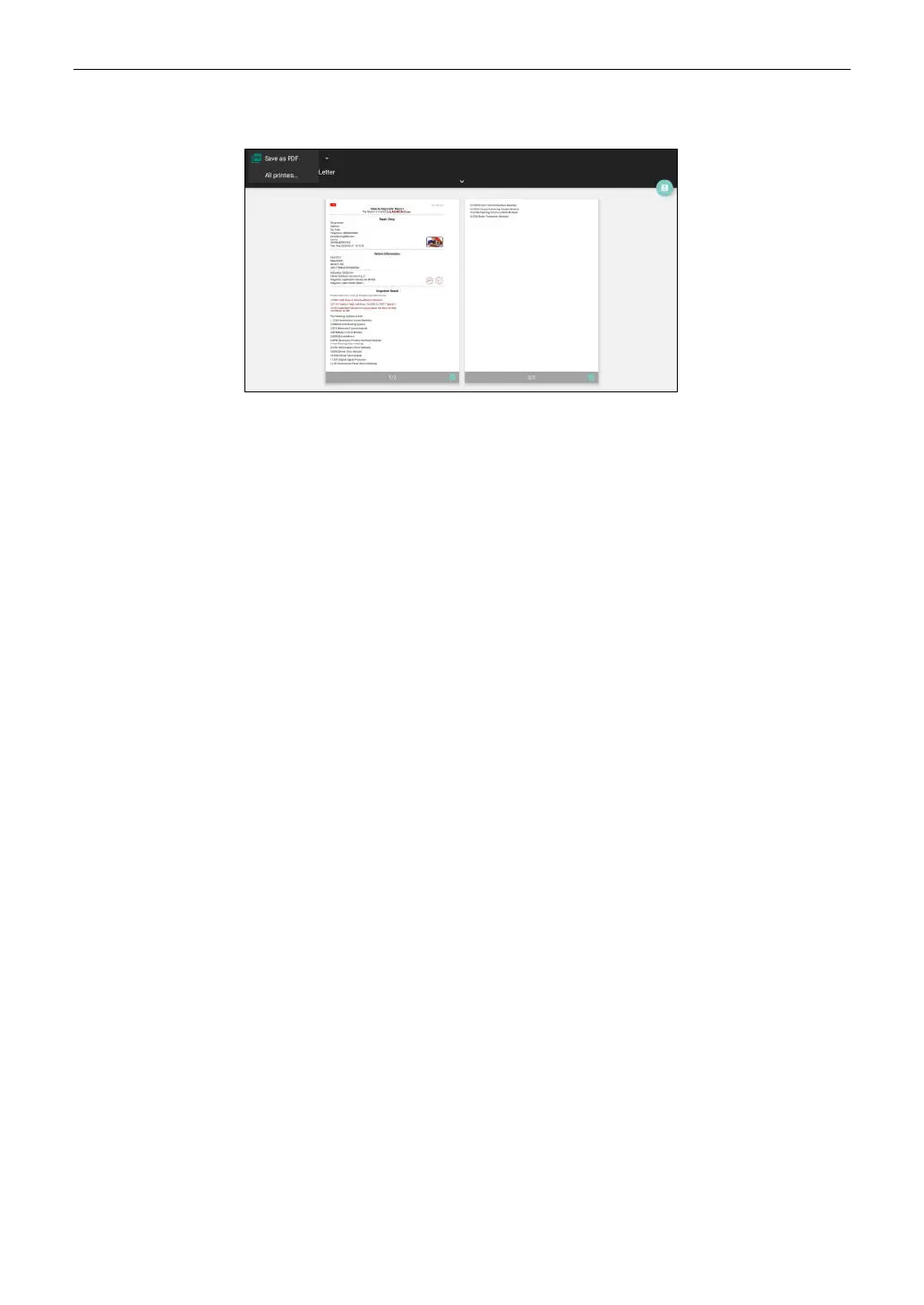
All Printers -> Add printer
and enable the installed printer service, the system starts searching for all
available Wi-Fi printers of the brand.
6. Select the desired Wi-Fi printer from the list. If the chosen Wi-Fi printer hotspot is open, the tablet can connect it
directly. If it is encrypted, a password may be required. Refer to the Wi-Fi printer user manual to get the default
password.
7. Now the printer is ready for printing.
8. Alternatively, you can also choose
Save as PDF
to save the current diagnostic report as a PDF file for later
printing.
10.12.4 Clear Cache
This option allows you to clear the App cache. Clearing the cache will restart the App.
10.12.5 About
The software version information and disclaimer are included.
10.12.6 Diagnostic Software Auto Update
This option is used to set whether automatic update function is ON.
10.12.7 Login/Logout
To logout the current user ID, tap
Logout
.
To login the system again, tap
Login
.
10.13 Diagnostic Software Clear
This item allows you to hide/clear the diagnostic software that is not frequently used.
*Note: Removing software may completely delete the software from the tablet. If some software is not used and the tablet
runs out of space, you can use this feature to remove it. To re-download it, go to
Software Update -> All software
.


 To Next Page