LAUNCH
X-431 PRO5 User Manual
20
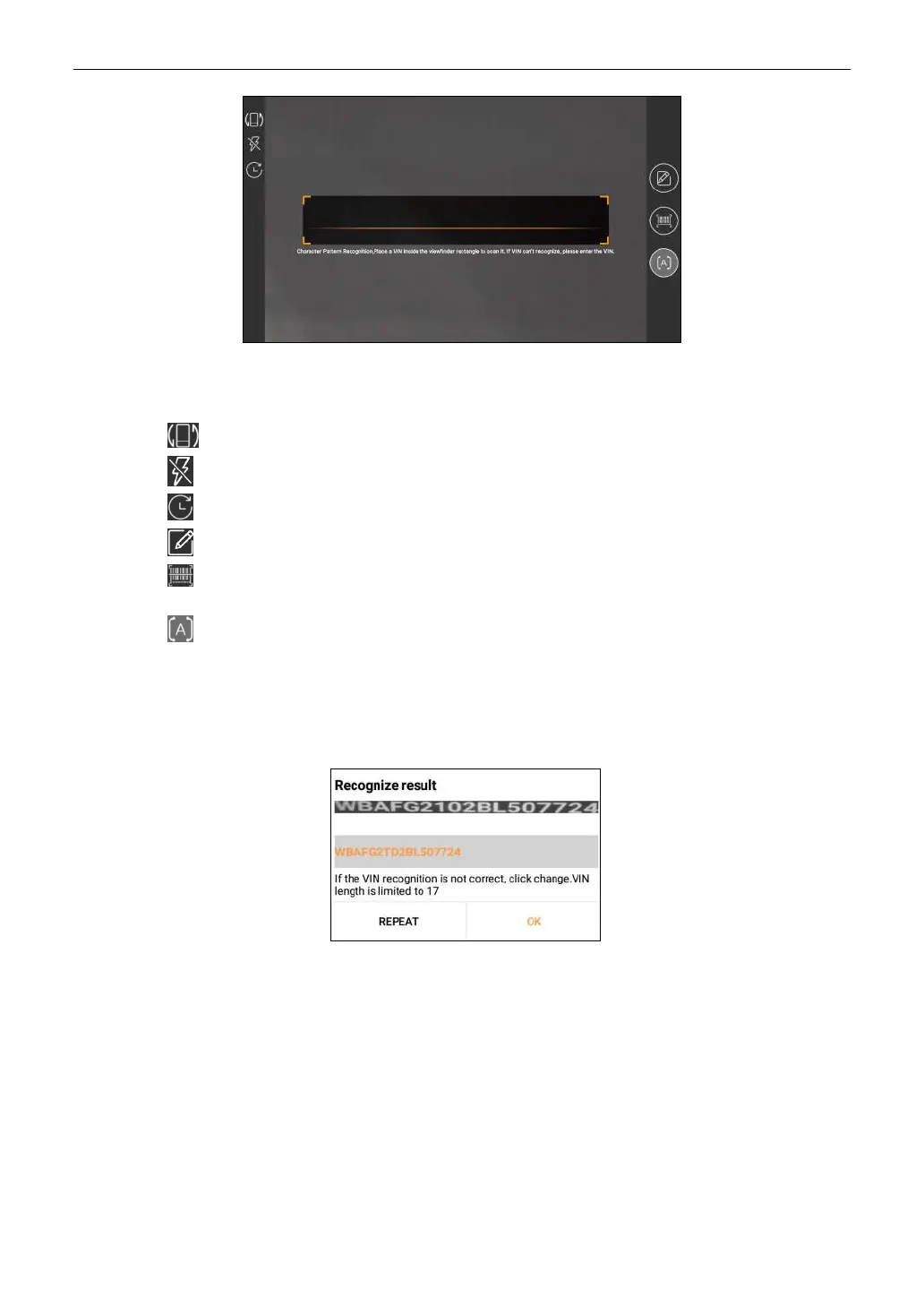
Place the VIN inside the viewfinder rectangle to scan it. The most recognizable location for this number is in
the top left corner on the vehicle’s dashboard. Other locations include the driver’s door or post, and the
firewall under the hood.
• Tap to switch the display mode of the screen.
• Tap to turn the camera flash on.
• Tap to choose it from the record list if the VIN of the vehicle has been scanned before.
• Tap to input the VIN manually if the tablet has failed to identify the VIN of the vehicle.
• Tap to scan the VIN barcode. If the VIN barcode cannot be recognized, please manually input the
VIN.
• Tap to scan the VIN character. If the VIN character cannot be recognized, please manually input the
VIN.
*Note: In general, vehicle identification numbers are standardized - all contain 17 characters. VIN characters may be
capital letters A through Z and numbers 1 through 0; however, the letters I, O and Q are never used in order to avoid
mistakes of misreading. No signs or spaces are allowed in the VIN.
After scanning, the screen automatically displays the result.
• If the VIN scanned is incorrect, tap the result field to modify it and then tap
OK
.
• To scan it again, tap
REPEAT
.
If the VIN exists on the remote server, the system will enter the diagnostic function selection screen.
5.2 Local Diagnose
In this mode, you need to execute the menu-driven command and then follow the on-screen instruction to proceed.
Tap
Local Diagnose
to enter the vehicle selection page.


 To Next Page