6300 Rev H User’s Manual
125-9106A Page 57
4.2 CREATING A PROFILE
1. Start with opening the “Profile Template.xls” file.
2. Do not change anything on Row 1.
3. On Row 2, left-most cell, replace “Template” with the name of your profile. Limit is 12
characters.
4. On Row 2, middle cell, replace “11” with a profile number between 1 and 15 that you would like
this profile to be saved as, in the 6300.
5. Do not change row 2 right-most cell.
6. In rows 3 through 50, change the cells as per the points you want to generate in your test. For
entering Units and Modes use the drop down menu selections for those cells. If you do not use
all the rows for your profile, select the cells in the unused rows up to row 50 and delete them,
shifting the cells up. DO NOT delete rows 51, 52 and 53.
7. Format the cells with values so that they show the correct number of digits after the decimal
point. For instance, knots values have 1 digit after the decimal, Mach values have 3 digits after
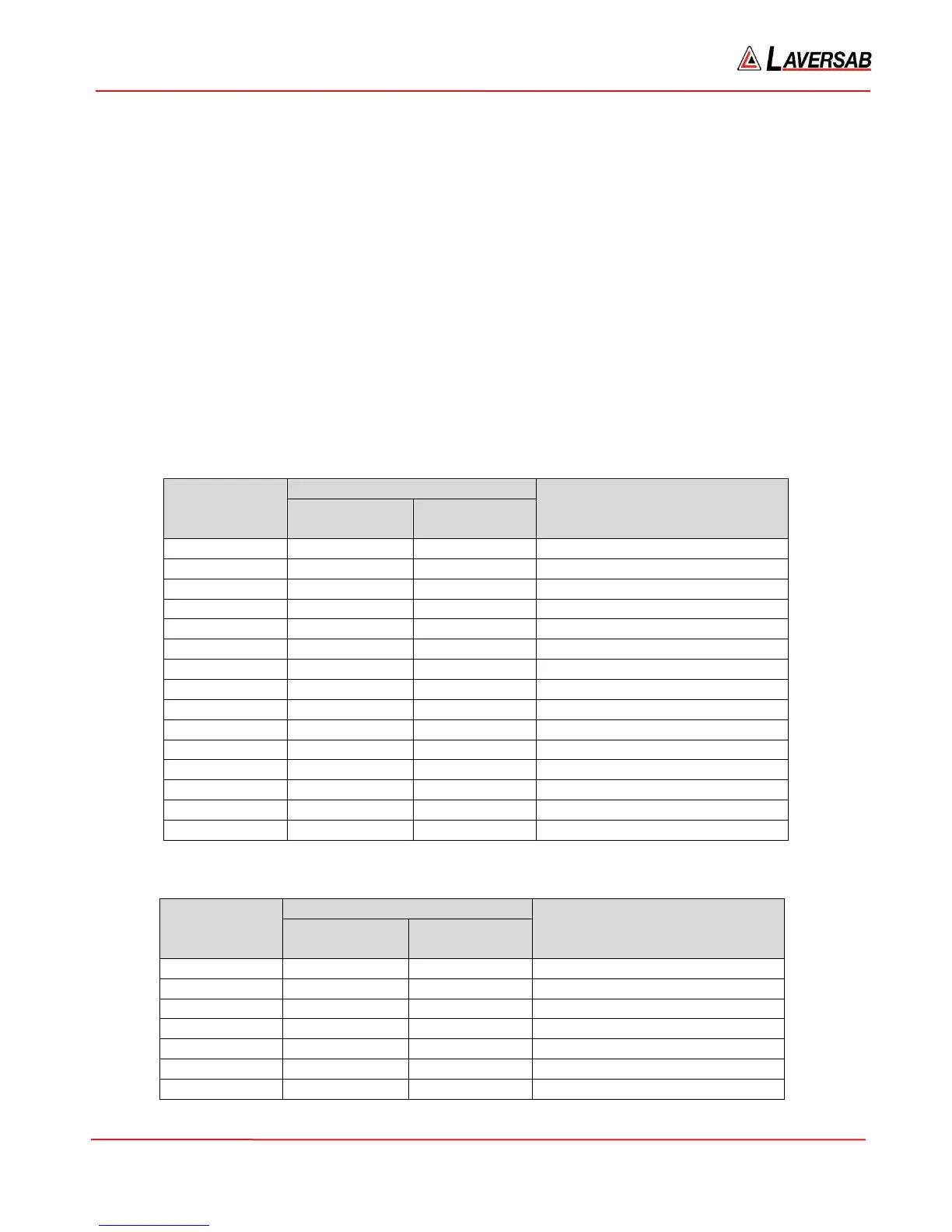
the decimal. Format the cell just like a regular Excel cell with a number. The following tables list
the digits after the decimal for the various units.
Pitot units
Digits after decimal
Comment
Pitot target
Pitot Rate
target
knots 1 1
Mach 3 1 Rate is in knots/min
km/hr 1 2 Rate is in km/hr/sec
mph 1 1
Pt inHg 3 3
Qc inHg 3 3
Pt mbar 2 2
Qc mbar 2 2
Pt psi 3 3
Qc psi 3 3
Pt mmHg 2 2
Qc mmHg 2 2
Pt kpa 3 3
Qc kpa 3 3
EPR 3 3 Rate is in inHg/min
Static units
Digits after decimal
Comment
Static target
Static Rate
target
Feet 0 0
Meters 1 2 Rate is in meters/sec
inHg 3 3
Mbar 2 2
Psi 3 3
mmHg 2 2
kpa 3 3



 To Next Page