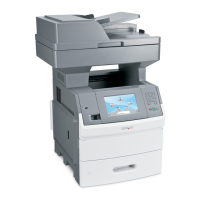
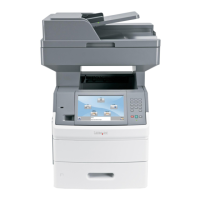
Automatic Document Feeder paper capacity
Load up to Make sure
25 sheets of:
• Letter paper
• A4 paper
• Legal-size paper
• The document is loaded text side up.
• The paper guide is against the edge of the paper.
25 sheets of:
• Custom paper
• Pre-punched paper
• Reinforced edge copier paper
• Preprinted forms
• Letterhead paper
• The document is loaded text side up.
• The paper guide is against the edge of the paper.
• The paper size fits within these dimensions:
Width:
– 210.0 mm–215.9 mm
– 8.27 in.–8.5 in.
Length:
– 279.4 mm–355.6 mm
– 11.0 in.–14.0 in.
• You allow preprinted media to dry thoroughly before loading
into the Automatic Document Feeder tray.
• You do not use media printed with metallic ink particles.
• You avoid embossed designs.
Related topics:
• “Understanding the parts of the printer” on page 106
Learning about the All-In-One Center scan options
Choosing where to send scanned images
1 From the Finder desktop, double-click the Lexmark 6500 Series folder.
2 Double-click the Lexmark 6500 Series Center icon.
3 From the “Send scanned image to” pop-up menu, choose the scan destination.
• File—Saves the scanned image as a file to open later.
• Clipboard—Saves the scanned image to the Clipboard so you can paste it into another document. Large
scans may not fit the Clipboard.
Note: Scanning at a high resolution to the Clipboard uses a large amount of system memory and drastically
affects system performance.
• An application—Opens the scanned image in the specified application.
Related topics:
• “Saving a scanned image” on page 56
• “Using the All-In-One Center” on page 128
Scanning
45


 To Next Page