38
SOUND & LANGUAGE CONTROL
SOUND & LANGUAGE CONTROL
Digital Captions only appear on digital channels, tune in a
digital channel that is actually broadcasting digital captions.
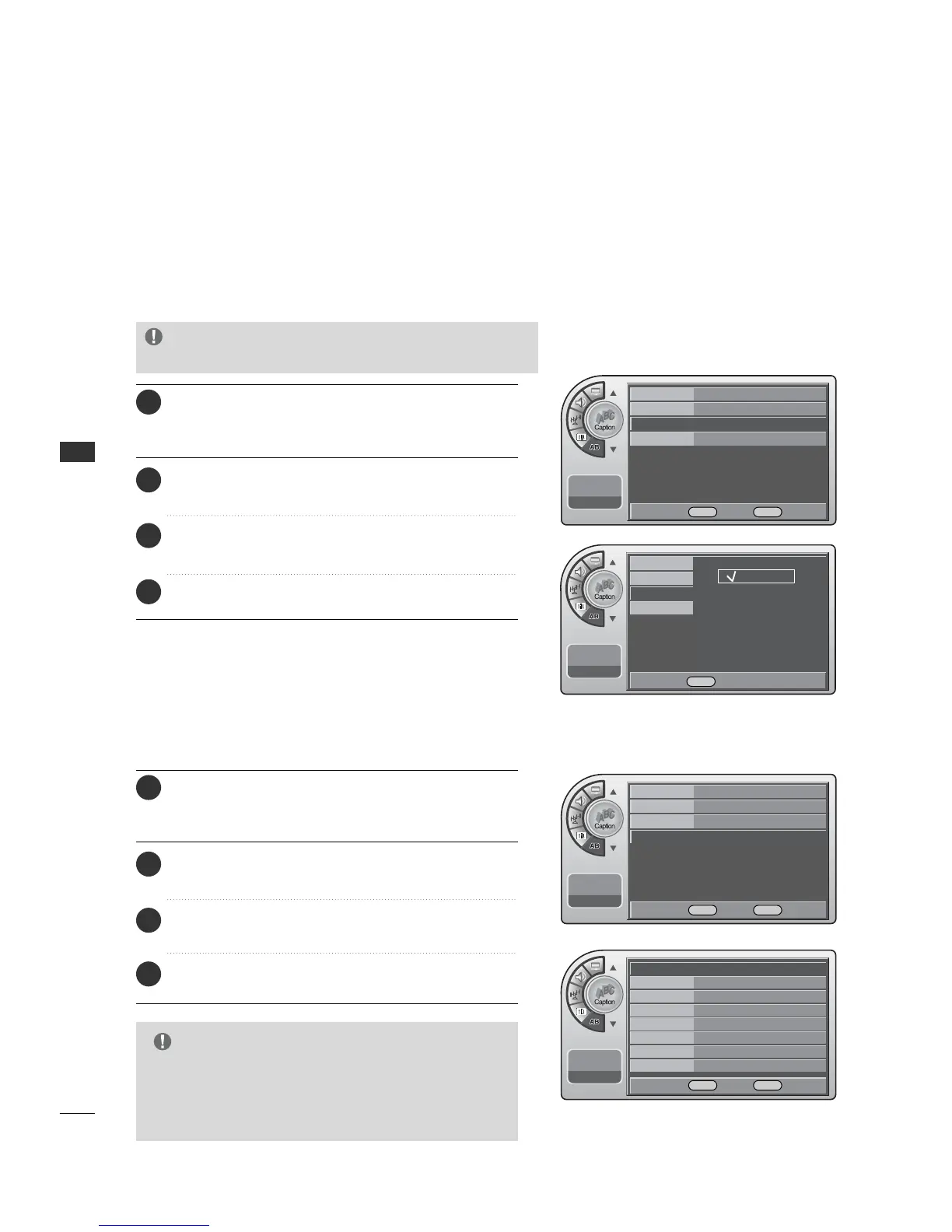
Digital Captions Mode
Press the MM EENNUU button and then use the AADDJJ D or E
button to highlight the CCaappttiioonn menu and press the
OOKK ((EEnntteerr)) button.
1
Use the AADDJJ D or E button to highlight DDiiggiittaall MMooddee
and press the OO KK ((EE nn ttee rr )) button.
2
Use the AADDJJ D or E button to choose SSeerrvviiccee 11--SSeerrvviiccee 66
and
press the OO KK (( EEnntteerr)) button.
3
When finished, press MM EE NNUU repeatedly to remove the
menus.
4
Digital Font Options
Press the MM EENNUU button and then use the AADDJJ D or E
button to highlight the CCaappttiioonn menu and press the
OOKK ((EEnntteerr)) button.
1
Use the AADDJJ D or E button to highlight DDiiggiittaall FFoonntt
OOppttiioonnss and press the OO KK (( EEnn ttee rr )) button.
2
Use the AADDJJ DEF Gbuttons to customize each
option: Font Size, Font Style, Foreground Color etc.
3
When finished, press MM EE NNUU repeatedly to remove the
menus.
4
G
If the digital options custom settings are to be cloned,
all menu options should be set to any option other than
Default. If Default is left set for any one option, then
all the options will be reset to default after cloning.
NOTE
On/Off
On
Analog Mode
CC1
Digital Mode
Service1 G
Digital Font Option
11:20 PM
Sep.11, 2006
On/Off
On
Analog Mode
CC1
Digital Mode
Service1
Digital Font Option
G
11:20 PM
Sep.11, 2006
Font Size Default
G
Font Style Default
Foreground Color
Default
Background Color
Default
Edge Color
Default
Fore. Opacity
Default
Back. Opacity
Default
Edge Style
Default
11:20 PM
Sep.11, 2006
11:20 PM
Sep.11, 2006
On/Off
Analog Mode
Digital Mode
Digital Font Option
Service1
Service2
Service3
Service4
Service5
Service6
DE Move OK Select MENU Back
DE Move OK Select MENU Back
DE Move OK Select MENU Back
DE Select MENU Back
G
Pressing CC on the remote selects a captions
option.
NOTE


 To Next Page