Section 9. Maintenance
Updating the firmware
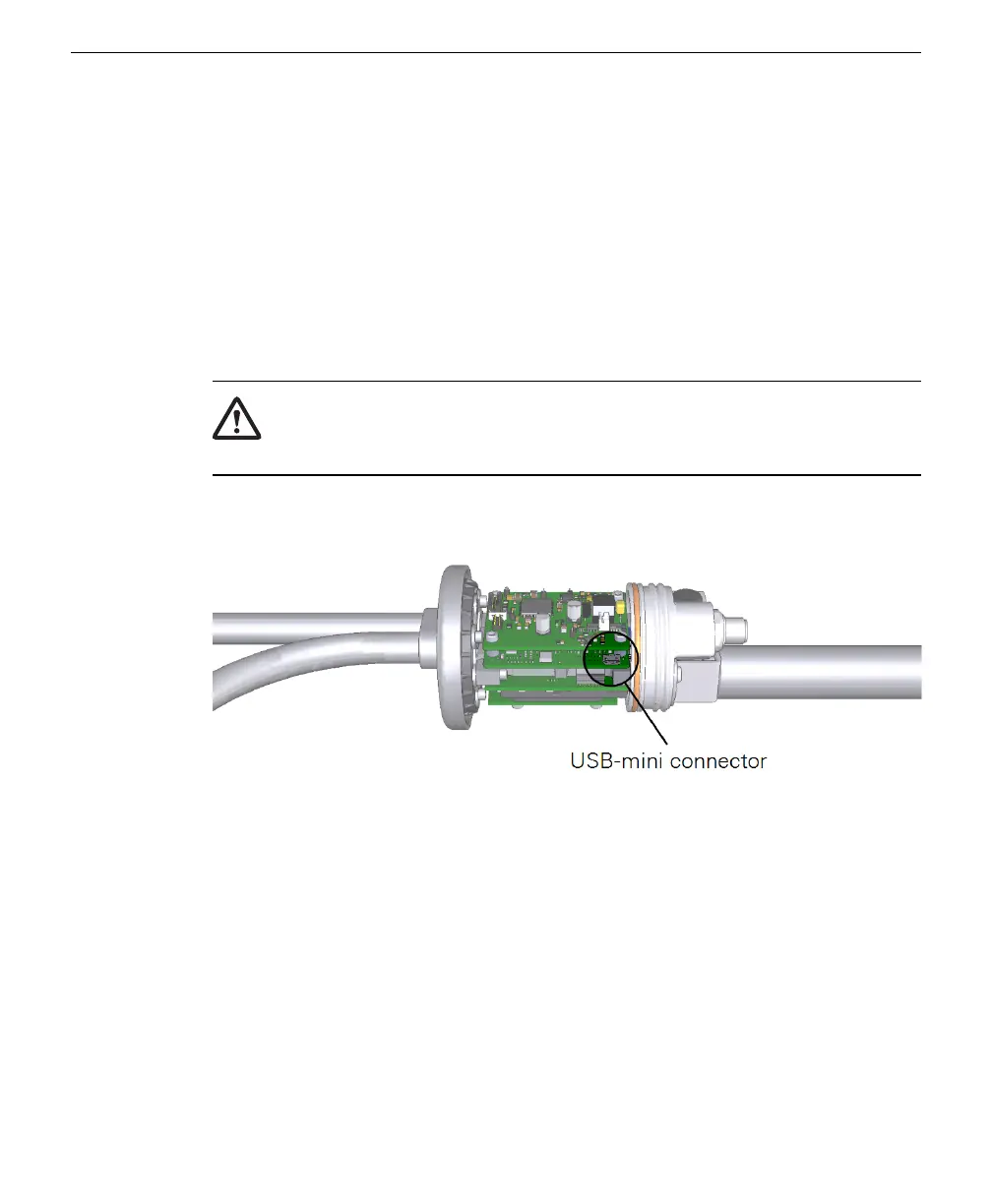
Firmware updates are carried out over the internal USB connector. To update the
firmware:
1
Download the firmware to a directory on your computer.
Firmware updates will be provided at licor.com/710-support
2
Power off the instrument by removing the power cable at the connector.
3
Remove the electronics cover as described in step 1 of Replacing the air pump on page9-4.
Warning: Potentially hazardous voltages may be present when the cover is removed
and the instrument is powered on. Do not touch any internal components or surfaces
while the external cover is removed and the instrument is powered on.
4
Connect a user-supplied USB-mini cable between your computer and the connector on the circuit
board.
5
Connect the power cable to power the instrument ON.
If the instrument is powered on while a USB cable is connected, it will mount a dir-
ectory to your computer called FW_UPDATE. Open the directory if it doesn't open
automatically.
6
Copy the file you downloaded into the FW_UPDATE directory.
When the LI-710 "notices" the new file, it will automatically close the window and
initiate the update. You may see a message indicating that the update was successful.
7
Disconnect the power and USB cables and install the electronics cover.
8
Restart the LI-710 after updating the firmware.
Be sure the USBcable is not connected when restarting for normal operation.
9-8 LI-710 Evapotranspiration Sensor Instruction Manual



 To Next Page