34
EVOS
®
FL and EVOS
®
FL Color User Guide
Login Settings
EVOS
®
FL Imaging System keeps settings in memory for each user ID, so multiple
users can work with the same instrument without having to reset their preferences.
To use this feature, set up a user profile for each regular user. You may also assign
user IDs for experiments in progress.
Note: User profiles are not password protected. All users should verify
they are logged in correctly to avoid changing others’ settings.
Add or Remove a
User Profile
1.
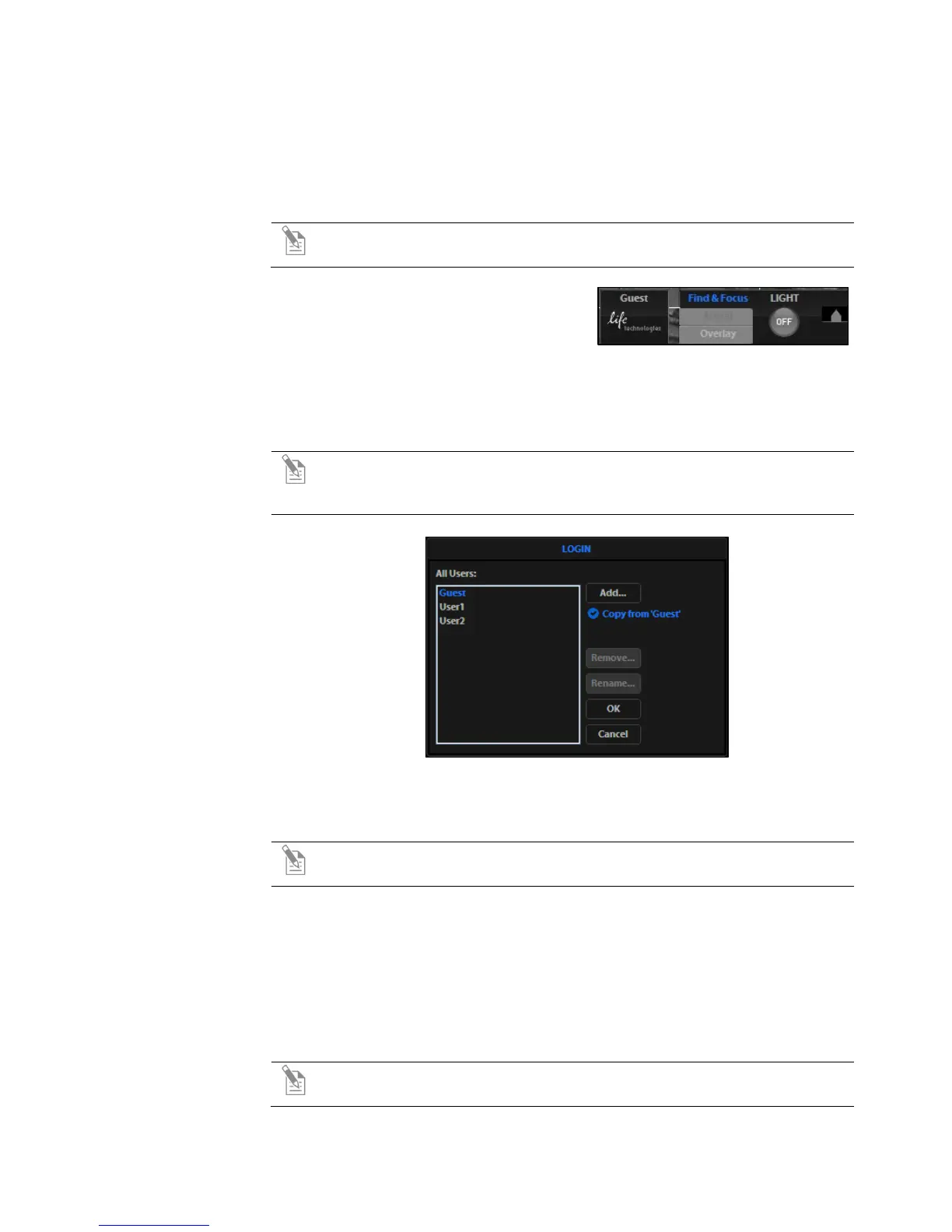
Click the login button at the bottom left
of the screen. This is the Life
Technologies logo with the current user
profile indicated above. (Figure 30)
Figure 30 Login Button
2.
Deselect the “Copy from” option, click the Add button, enter a user name,
then click OK to log in under that name and adjust settings as desired. When
you switch off, EVOS
®
will save your settings to memory. (Figure 31)
Note: To copy an existing profile, highlight the profile in the user list,
select the “Copy from ‘name’ ” option, and click the Add button. The
virtual keyboard will pop up so you can name the new profile.
Figure 31 Login Dialog Box
3. To remove a user profile, highlight it and click the Remove button. A
confirmation dialog box will pop up.
Note: Deleting the user profile will remove all its associated settings from
memory.
4.
To rename a user profile, click the Rename button and enter the new name.
Existing Profile
Click the login button, select the desired user profile, and click OK.
Change the Default
Login
The default user login is Guest; to set the default login as the last active user, go to
the Basic tab of the Settings dialog box and uncheck the “Default to Guest on
startup” option.
Note: For multiple users, we recommend leaving the “Default to Guest on
startup” option checked.


 To Next Page