EVOS
®
FL and EVOS
®
FL Color User Guide
39
Channel Display
Colors
You may assign custom display colors for each light cube in the Channels tab of
the Settings dialog box.
Note: The color camera version does not include this feature.
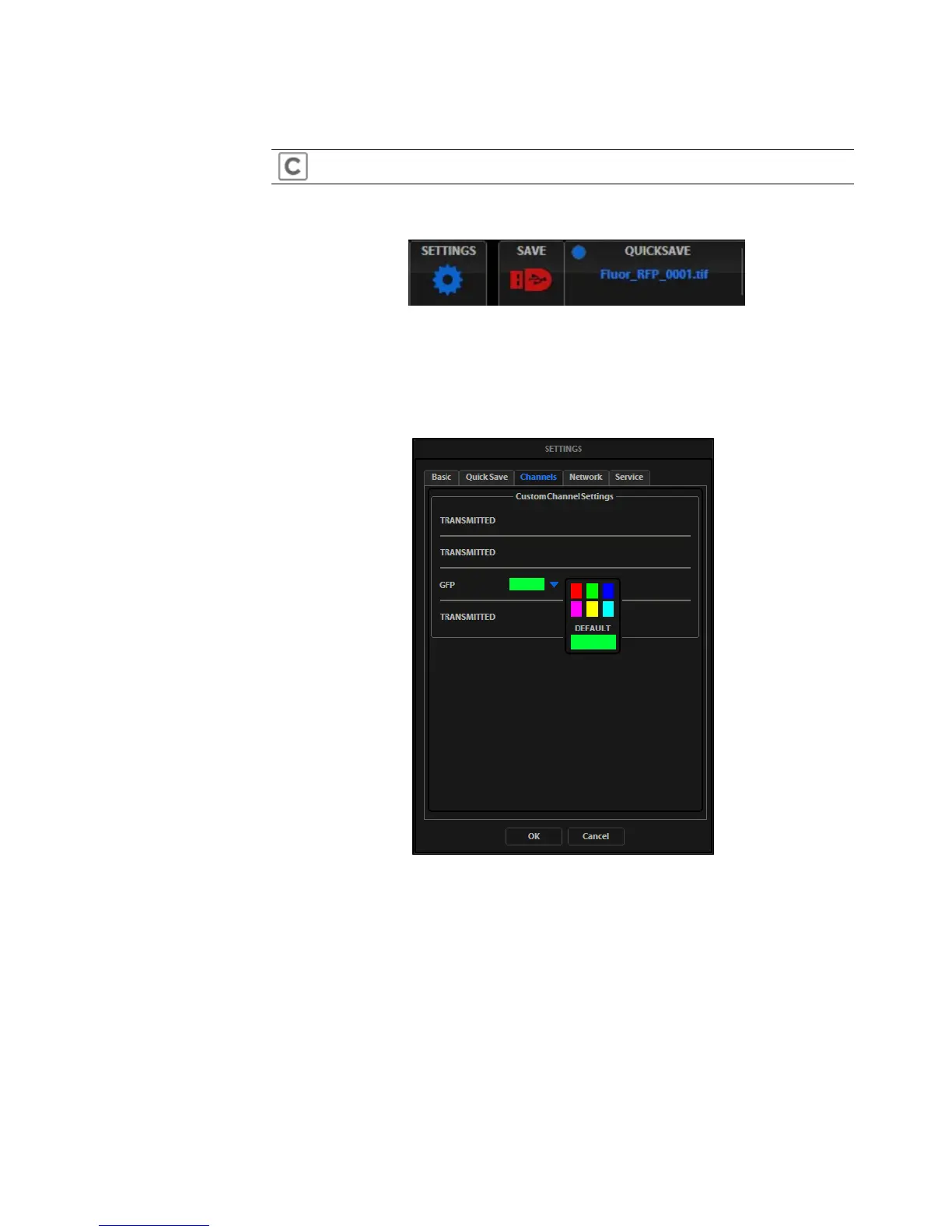
1. Click the Settings button to open the Settings dialog box, and then select the
Channels tab. (Figure 38)
Figure 38 Settings Button
2.
Select the appropriate color from the drop-down menu for each light cube you
wish to customize. (Figure 39)
3. Click OK to accept the custom color assignments. The display change will
take effect with the next image acquired in the customized channel.
Figure 39 Assigning custom channel display colors (not
applicable for the color camera version)


 To Next Page