Livescribe
™
Desktop for Windows User Guide 9
Configuring Livescribe Desktop Settings
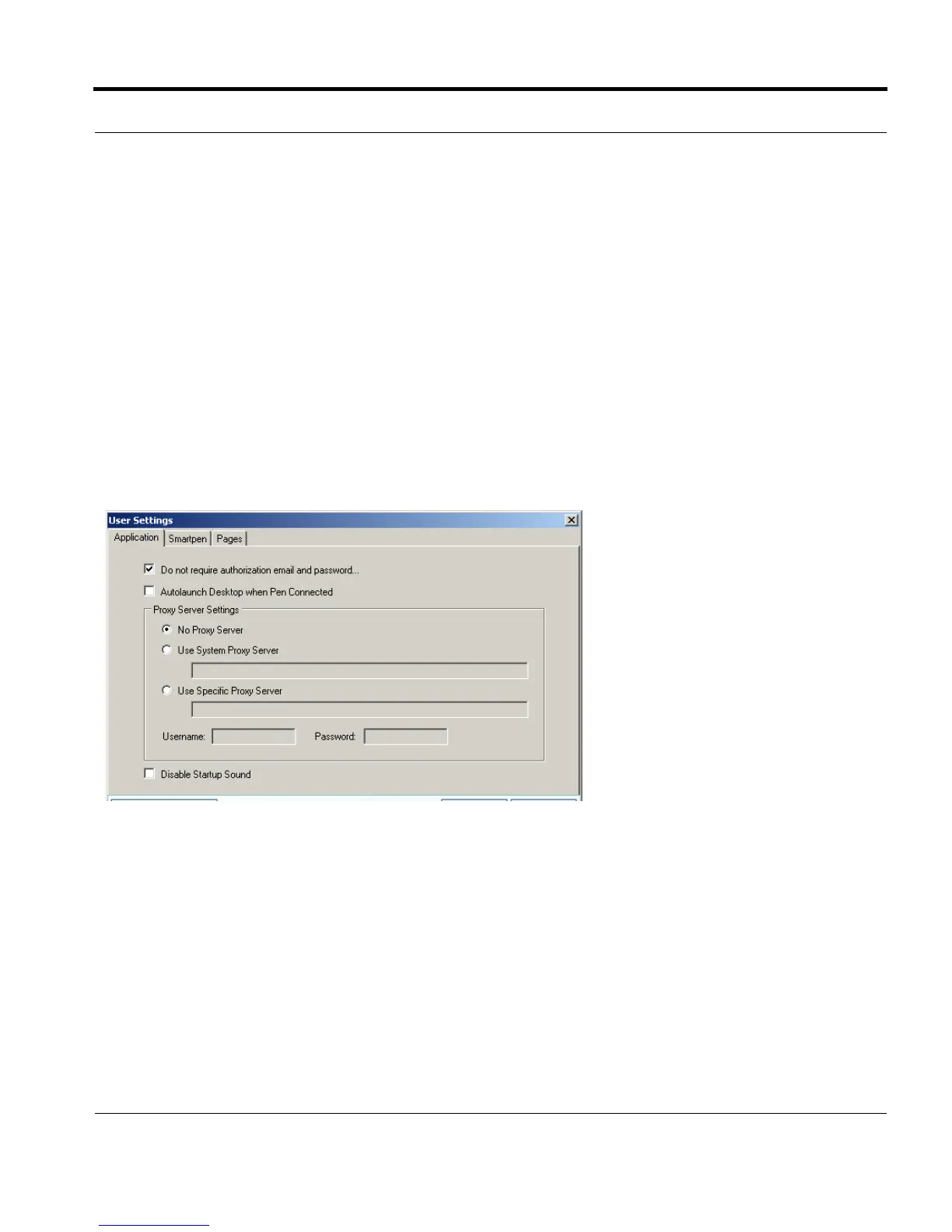
1. Go to Tools > User Settings
2. Navigate through the tabs to set your preferences as described below.
Application Settings
Use the Application tab to set preferences for the Livescribe™ Desktop application. Options include:
• Keeping you logged in to Livescribe Online when you launch Livescribe™ Desktop
• Specifying settings if your network uses a proxy server. Contact your system administrator for
information about what settings to use.
• Disabling the Livescribe™ Desktop startup sound.
Smartpen Settings
Use the Smartpen tab to set preferences for your smartpen. Options include:
• Automatically installing applications and updates to your smartpens instead of manually selecting
which to install and where.
• Enabling Livescribe™ Desktop to show the library for a particular smartpen by default on startup.



 To Next Page