Livescribe
™
Desktop for Windows User Guide 28
Viewing and Working with Pages
Playing Audio while Viewing Pages
With Livescribe™ Desktop, you can play a session's audio while viewing its associated pages in
Pages View. You can also play a Paper Replay™ session's audio by itself in Audio View (See Playing
Audio from Audio View on page 37).
If you play back the audio of a session that spans multiple pages, Livescribe™ Desktop will
automatically move to successive pages in real time synchronization with the playing audio. This
automatic paging will continue until you manually switch pages using Paging Controls. From then on,
the paging is under manual control only until you initiate another session playback.
To play audio while viewing pages:
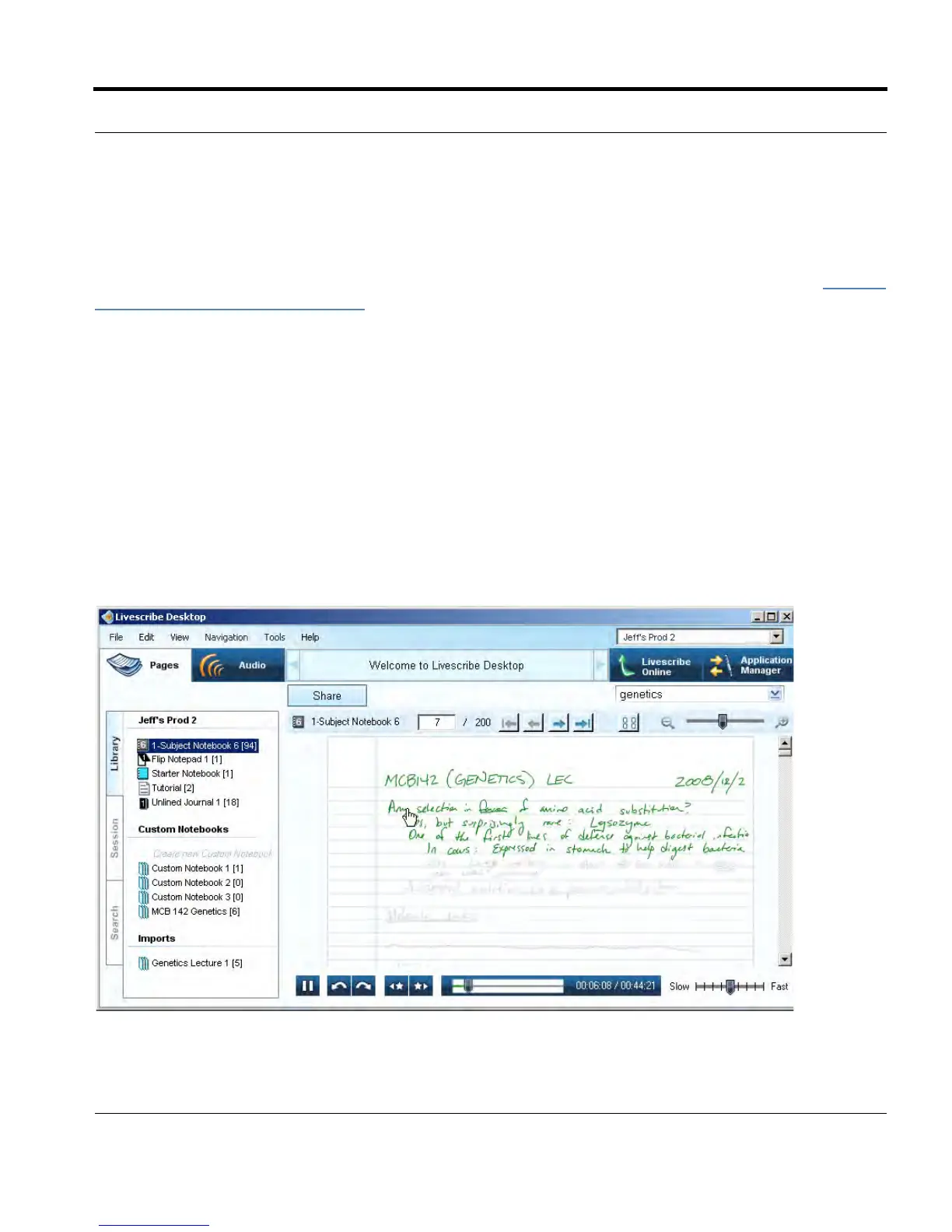
• When viewing a page in Pages View, click on the active ink (shown as green) on the page. This will
start the audio playback. This is analogous to tapping your notes in a notebook to play back the
session's audio. Livescribe™ Desktop display the current session's notes in gray ink as the audio
plays, and trace the notes in green as the audio plays. Playing the audio of a session also opens
the Session tab in the Navigation Pane.



 To Next Page