Livescribe
™
Desktop for Windows User Guide 78
Removing your Smartpen from Livescribe™ Desktop
Removing your Smartpen from Livescribe™ Desktop
You can remove your Livescribe™ smartpen from the Livescribe™ Desktop Library. This will make
your smartpen unknown to Livescribe Desktop. Docking your smartpen again will let you add it back to
Livescribe Desktop.
1. Choose Tools > Smartpen > Remove.
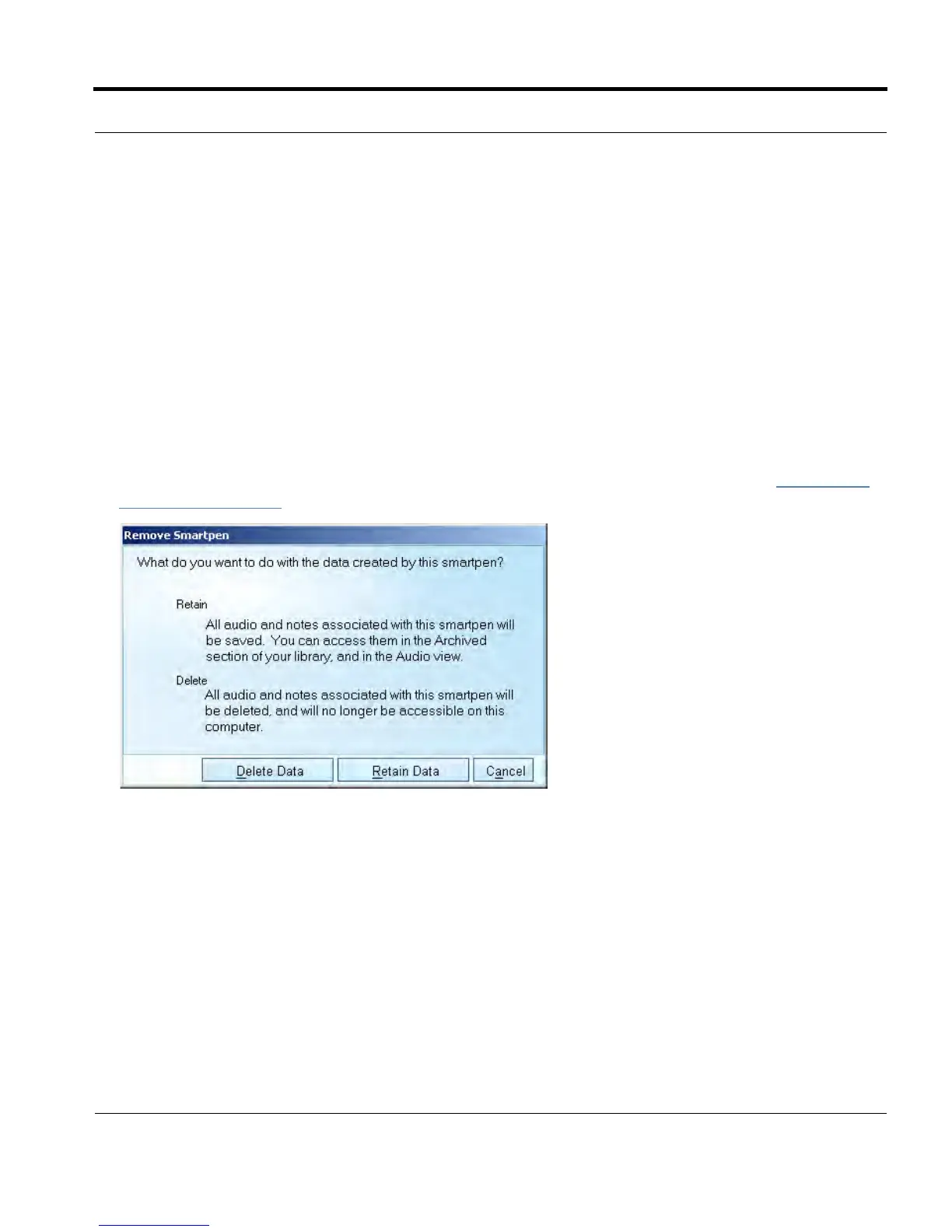
2. At the prompt, choose to delete or save the content of this smartpen in Livescribe Desktop.
If you choose delete, all audio and notes associated with this smartpen will no longer be available in
Livescribe Desktop.
If you save the content, you can continue to access the removed smartpen’s notes in the Archived
Notebooks section of your library. You can also access the removed smartpen’s audio in the Audio
view. The saved audio will be listed under the Source column as Desktop Only. See Anatomy of
View List on page 36
NOTE: Removing a smartpen from Livescribe Desktop will not affect the content of the smartpen. It only
affects the content from the smartpen that was transferred to Livescribe Desktop.
3. Confirm or cancel the removal of the smartpen.
N
OTE: If you have archived notebooks that were on this smartpen, those archived notebooks will not be
deleted.



 To Next Page