Livescribe
™
Desktop for Windows User Guide 49
Sharing from Audio View
Sharing from Audio View
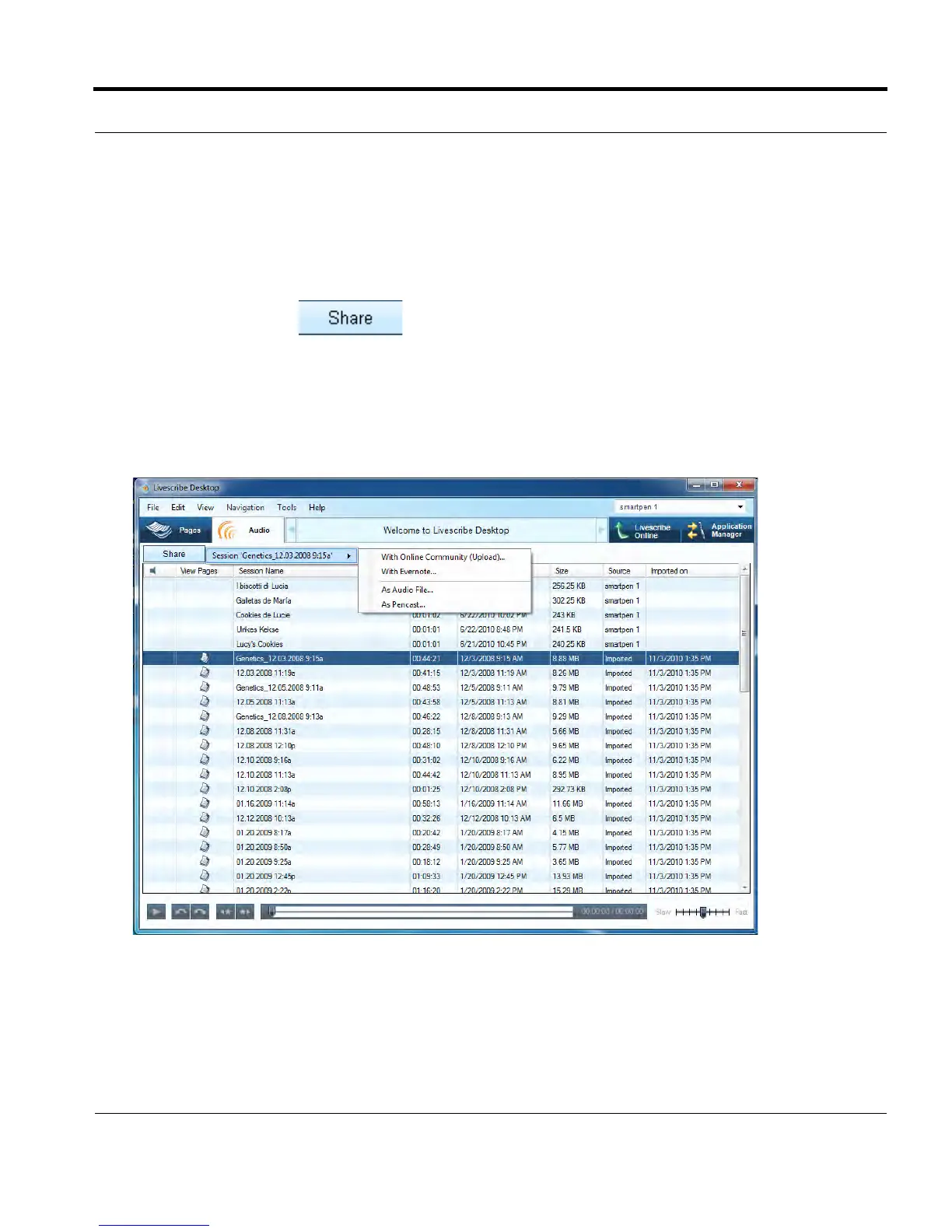
1. In Audio view, choose or play the session you want to share. You can share one or more audio
sessions at a time. Use Ctrl-click to choose multiple audio sessions.
2. Click the Share button on Main Toolbar.
3. Using the cascading menus, select how to share your content. Options are:
• With Online Community: Upload to Livescribe Online as an Adobe
®
Flash
®
movie
• As Audio file: AAC, M4A, MOV, MP4, or WAV saved to your computer
• As Pencast: as a .pencast file saved to your computer
.
4. The sharing method you choose affects what kind of content you can share as well. Livescribe
Desktop presents the sharing dialog that corresponds to your selected method. For example, if you
choose As Pencast, Livescribe Desktop displays a Pencast dialog similar to this:



 To Next Page