Livescribe
™
Desktop for Windows User Guide 19
Navigation Pane
Navigation Pane
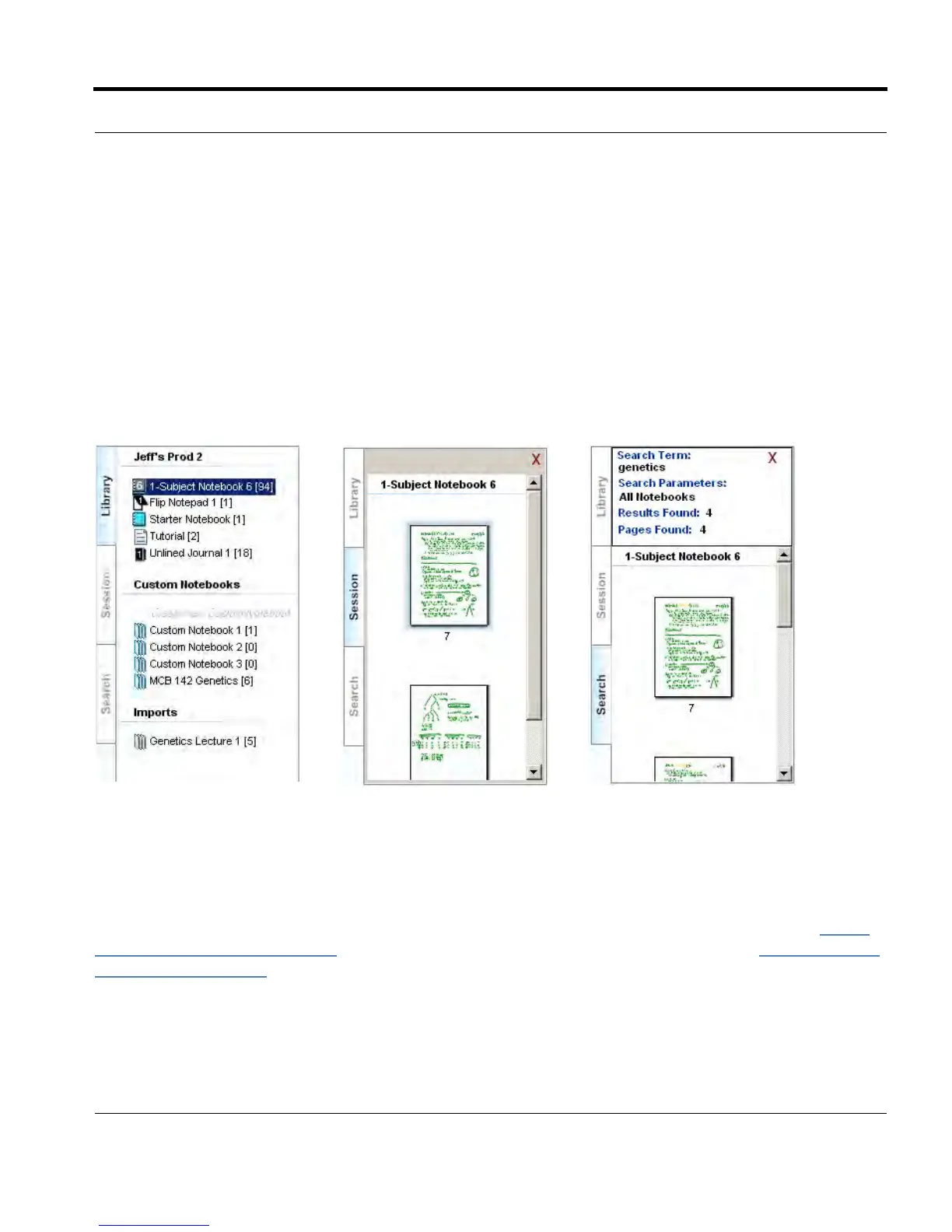
Livescribe™ Desktop provides a Navigation Pane on the left side of the Central Viewing Pane. The
Navigation Pane lists items that you can navigate to or view in more detail in the Central Viewing Pane.
For example, clicking one of the notebooks in the Navigation Pane opens the notebook and displays
all of its pages as thumbnails.
Using the Navigation Pane, you can view your library of notebooks, view pages that contain search
results, and view active Paper Replay™ sessions and optionally upload them to your personal space
on livescribe.com. The Navigation Pane uses tabs to organize its content.
Library Tab
This tab shows your entire library of notebooks, journals, and other paper products you have used with
your Livescribe™ smartpen. Use the Library tab to select which notebook you want to view in the
Central Viewing Pane. The Library Tab lists your physical notebooks, custom notebooks (see Using
Custom Notebooks on page 41), and notebooks you have imported as pencasts (see Sharing Pages
and Audio on page 46).



 To Next Page