Livescribe
™
Desktop for Windows User Guide 41
5 Using Custom Notebooks
You can create Custom Notebooks in Livescribe Desktop to organize and better manage your pages.
A Custom Notebook is similar to a music playlist, or a digital photo album, but instead of pointing to
user-selected songs or pictures, it points (links) to user-selected pages in their source notebooks.
Currently, Custom Notebooks does not make copies of pages from source notebooks.
In a Custom Notebook, you can add pages from any notebook, and drag them to arrange them in any
order. Pages in a Custom Notebook work like other notebook pages. For example, you can view,
zoom, search, and print pages.
Creating Custom Notebook
To create a Custom Notebook:
1. Choose File > Custom Notebooks... > Create. Or, click the Create new Custom Notebook link
under Custom Notebooks in the Library tab.
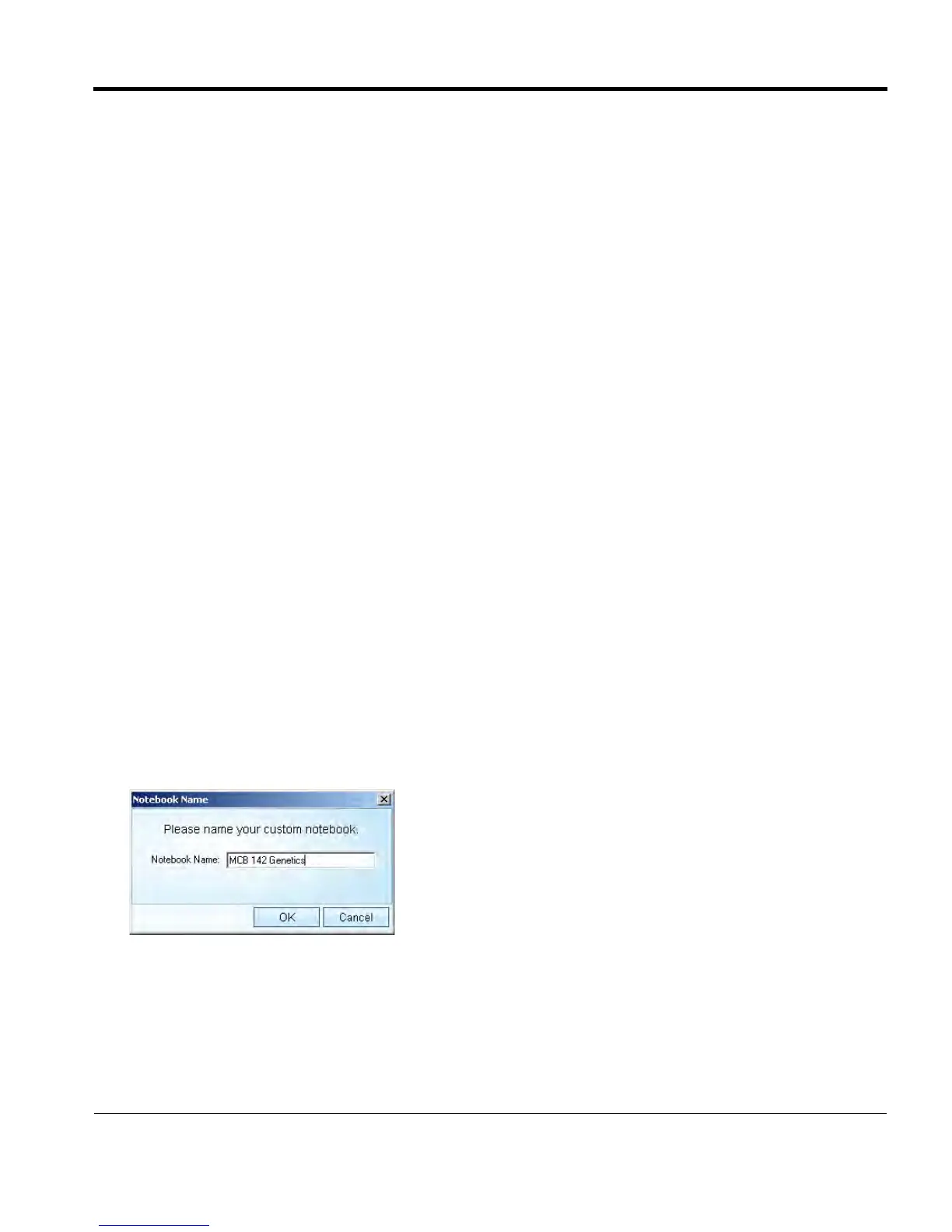
2. In the Notebook Name dialog, type in a name for the new notebook.
3. Click OK. Livescribe Desktop creates and opens the new notebook and places it in the Library tab
under the heading Custom Notebooks.



 To Next Page