Livescribe
™
Desktop for Windows User Guide 59
Sharing Content Using Livescribe Online
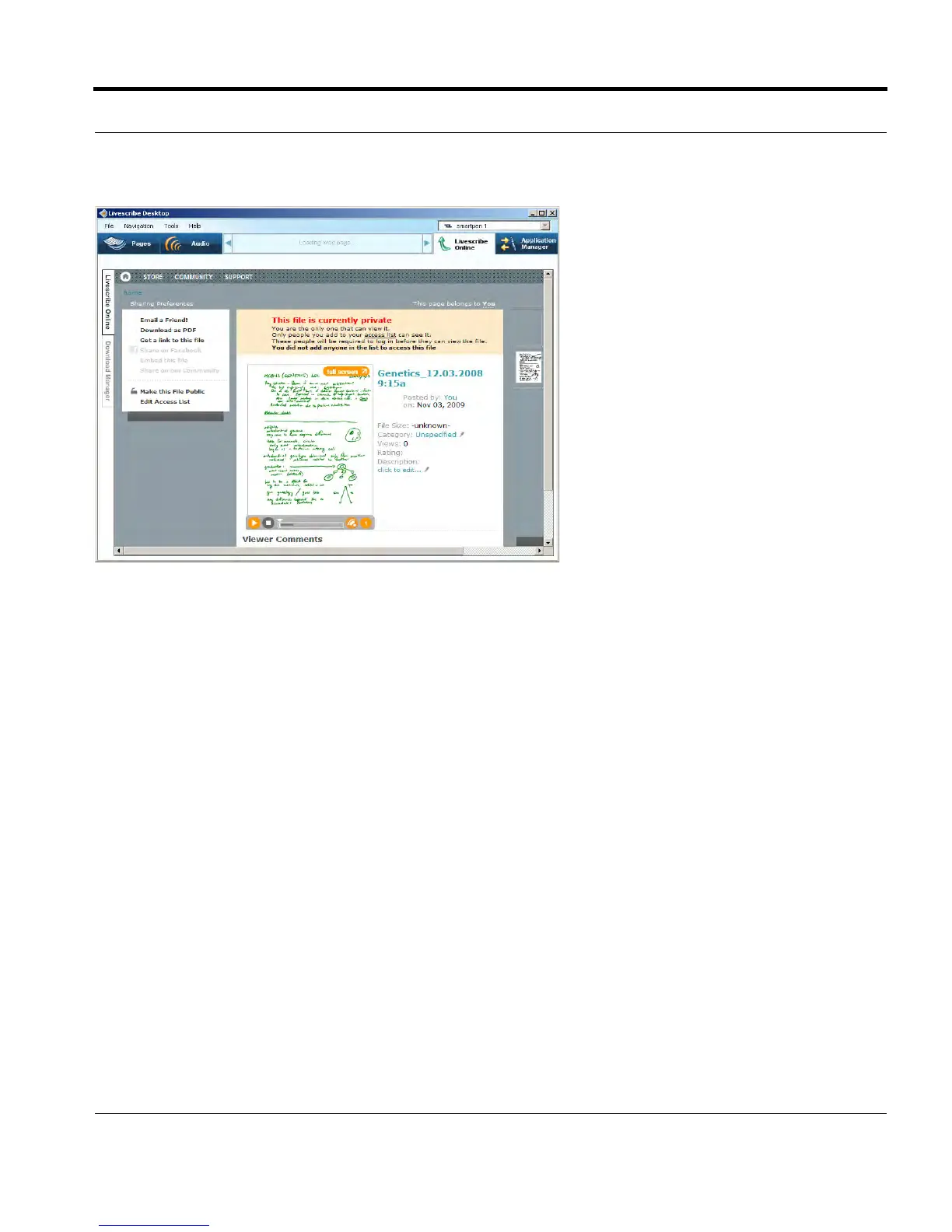
To make content Public or Private:
1. Select a file from your personal myLivescribe space. Click the file’s thumbnail in the My Files area
to view it.
2. Click the Make this file Public (or Private). Making the file public adds the file to the Livescribe
Online Community area so anyone can see it without logging in. If you make the file private,
Livescribe Online removes the file from the Livescribe Community. The file will also be unavailable
if you had published it to Facebook.
Editing Your Access List
The Access List preference controls who can and cannot see a file when it is private. To give your
friends permission to see a private file, add your friend to this list. They will be able to see the file when
they log into their Livescribe account.
To edit your Access list:
1. Select a file from your personal myLivescribe space. Click the file’s thumbnail in the My Files area
to view it.
2. Click the Edit Access List preference to set create an access list for this file.



 To Next Page