Livescribe
™
Desktop for Windows User Guide 37
Playing and Working with Sessions
Playing Audio from Audio View
With Livescribe™ Desktop, you can play audio while viewing the session's pages in Pages View (see
Playing Audio while Viewing Pages
on page 28), or you can play the audio by itself in the Audio View.
To play audio when viewing a list of sessions in Audio View:
• Double-click the session in the list. The left-most column will show the audio playing icon
when the session begins to play.
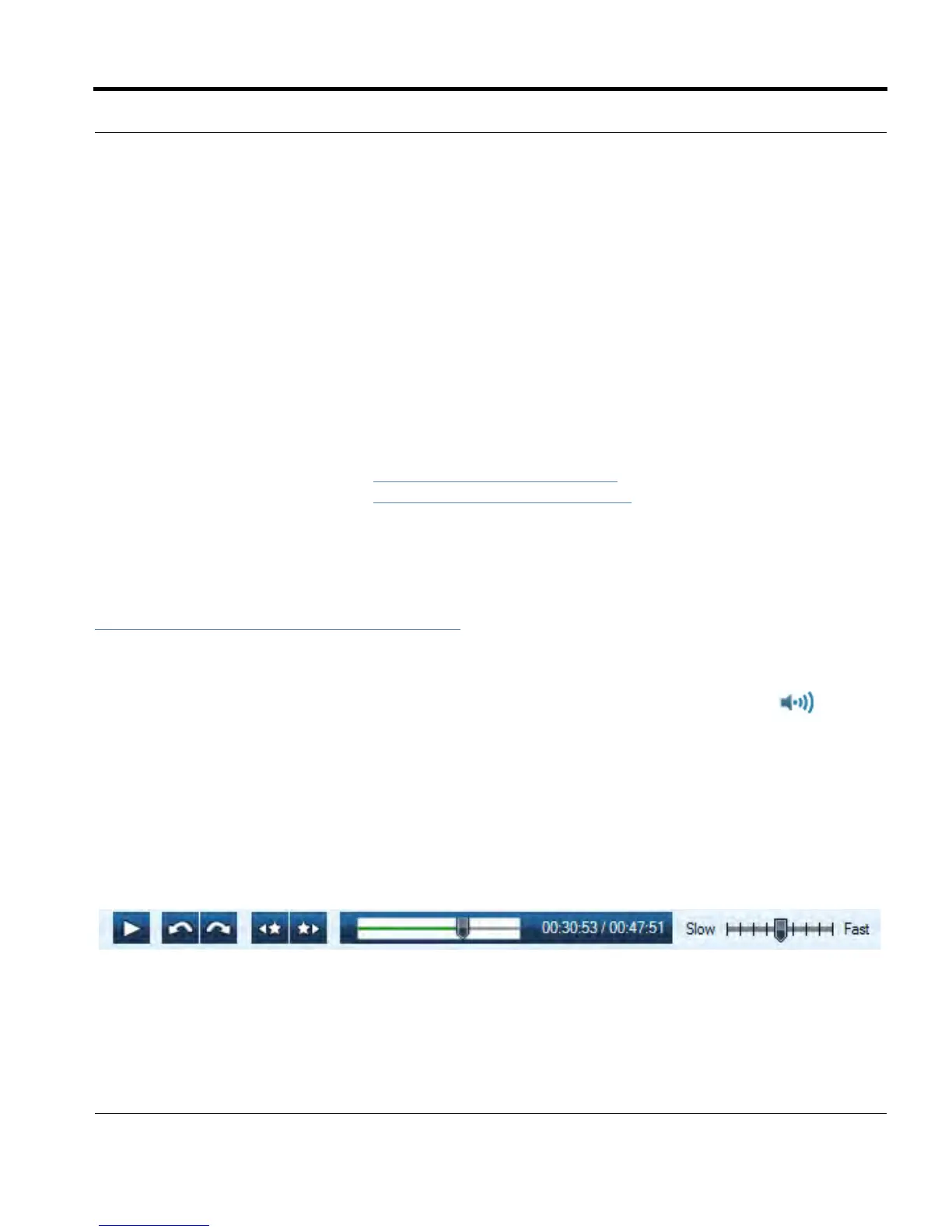
Using Audio Controls
Livescribe™ Desktop displays Audio Controls at the bottom of its screen. You can use these controls
to start, pause, stop, and control audio playback. Livescribe™ Desktop disables these controls unless
you select the session.
Duration The length of the session
Last Modified The timestamp when audio was
recorded
Size The size of the audio file in MB or KB
Source Shows the name of the source
smartpen for the session or Desktop
Only.
Desktop Only indicates that the source
smartpen was removed from
Livescribe Desktop, but its content was
preserved in Livescribe Desktop. See
Removing your Smartpen from
Livescribe™ Desktop on page 78.



 To Next Page