Livescribe
™
Desktop for Windows User Guide 56
Sharing Content Using Livescribe Online
Download Content as a PDF Document
You can use the Download as PDF preference to download to your computer your uploaded content
in PDF format. You can then share this PDF file with others via email or other means.
N
OTE: You can also export pages in PDF format directly using Livescribe™ Desktop (see Sharing Pages
and Audio on page 46).
To download your content as PDF:
1. Select a file. To select a file from the Livescribe Online Community, click the file’s thumbnail to view
it. To select a file from your personal myLivescribe space, click the file’s thumbnail in the My Files
area to view it.
2. Click on Download as PDF. The file will be downloaded in PDF format to your computer.
Get a Web Link to your Content
Use the Get a Link to this file preference to obtain web link to your content that you can paste in a
blog or elsewhere.
To get a web link to your content:
1. Select a file. To select a file from the Livescribe Online Community, click the file’s thumbnail to view
it. To select a file from your personal myLivescribe space, click the file’s thumbnail in the My Files
area to view it.
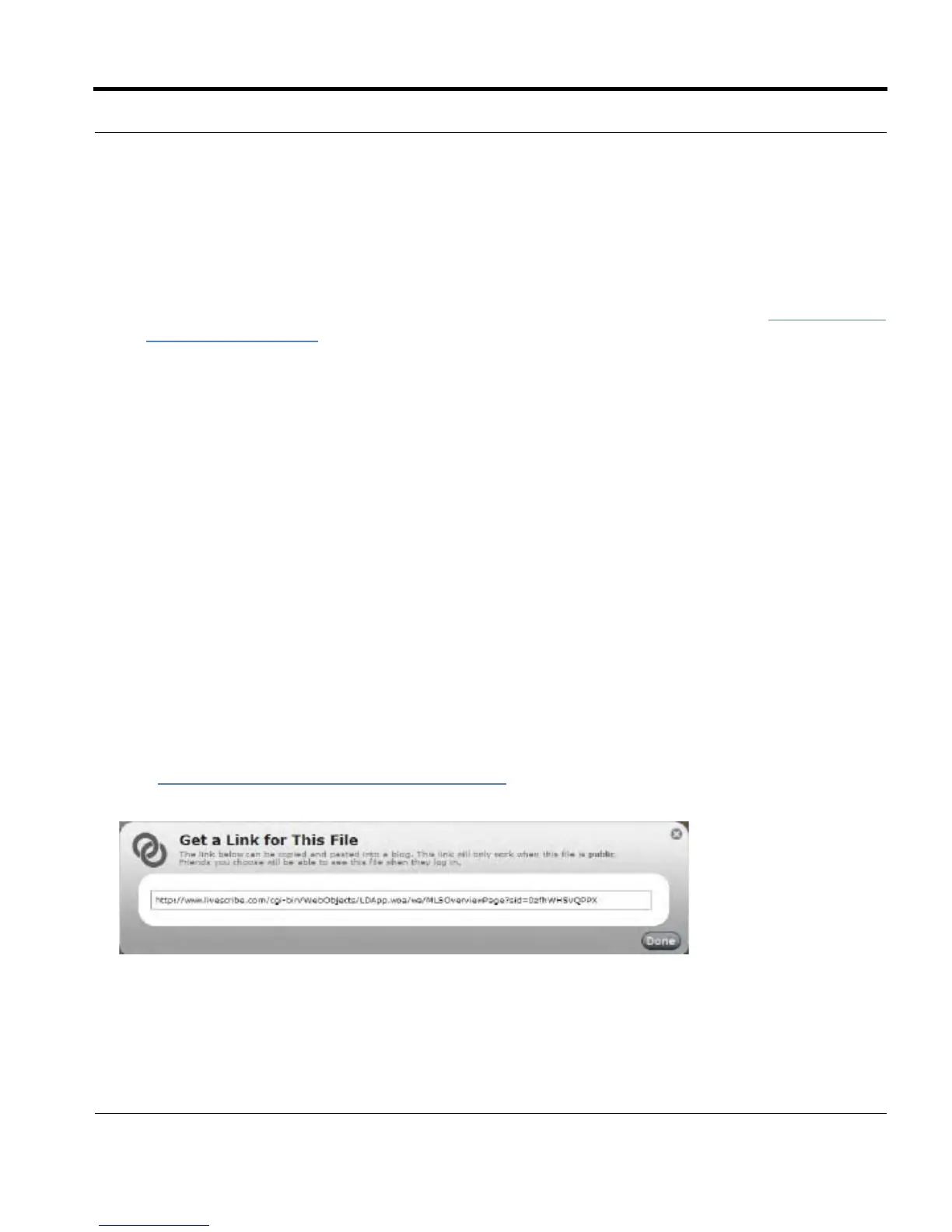
2. Click on Get a link to this file. If the file is on your myLivescribe page and private, make it public
(see Making Content Public or Private
on page 58).
3. In the Get a link for this file dialog, highlight the link and copy it to the clipboard.
4. Open your HTML editor for your blog or other web page.
5. Access the HTML edit area and click in the edit field. Make sure you are in HTML edit mode, not
Text composition mode.
6. Paste the text.



 To Next Page