Livescribe
™
Desktop for Windows User Guide 25
Viewing and Working with Pages
Paging through a Notebook
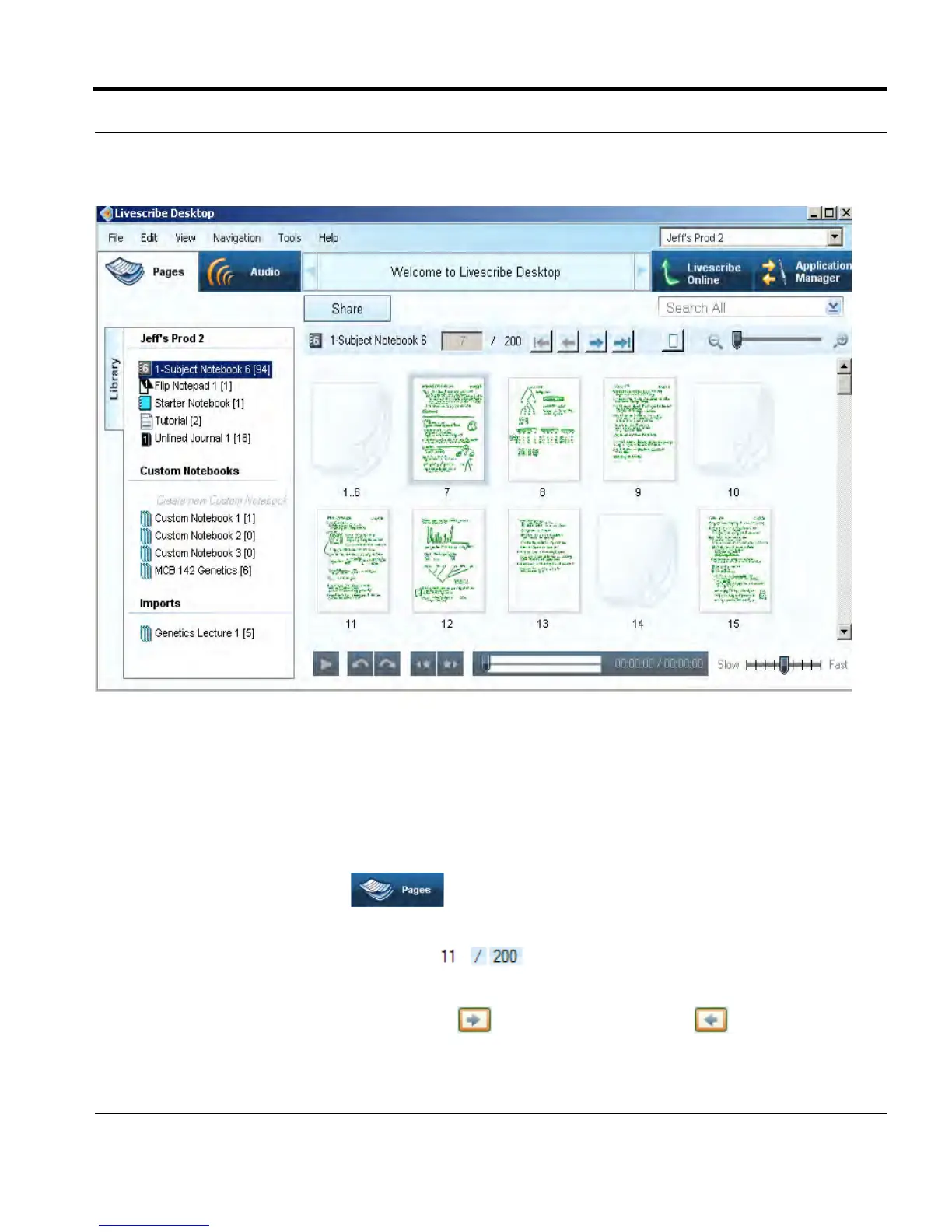
In Livescribe™ Desktop, you can page through your notebooks and view either single pages or
thumbnails. Paging only displays pages that contain content and skips empty pages.
To page through a notebook, use one of the following methods:
• Click the Pages View button in the Main Toolbar to go to Pages View. Then, use one
of the following methods:
• Type a page number into the page field and press the Enter key to go to a specific
page. Blank pages are not valid.
• Using Paging Controls, click the next page button or previous page button. Or, choose
View > Next Page or View > Previous Page from the Main Toolbar.



 To Next Page