Livescribe
™
Desktop for Windows User Guide 31
Viewing and Working with Pages
Searching Pages
In Pages View, you can search your written pages. Search can work on notes written in cursive, print,
or a combination. Obviously, search accuracy depends on the neatness and consistency of your notes.
You can search a currently-selected notebook or journal.
To search, use one of these methods:
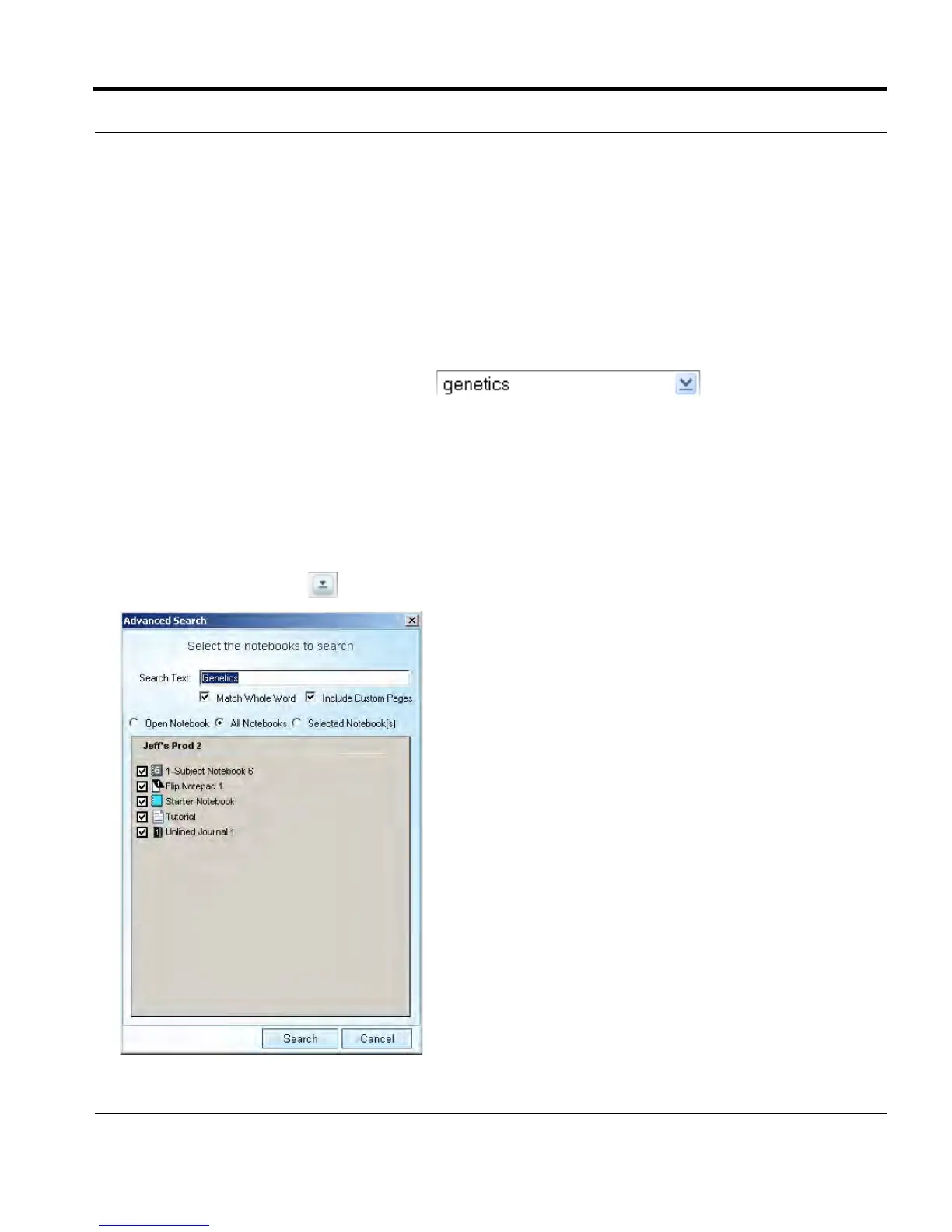
1. Type search text into the search text box in the Main Toolbar. By
default, this search method finds whole words in the currently-selected notebook or journal. For
example, entering “top” would find instances of “top” only. Search would not find other words that
contain the letters “top”, like “topographic”, and “mountaintop”. Search is not case sensitive, so if
you search for “Top”, it will return the same results as “top” and “TOP”.
2. Press the Enter key to initiate the search.
Or,
1. Click the Search button in the search text box. This displays the advanced search dialog:



 To Next Page